All documentation · Plugin overview
Add, hide and reorder checkout fields
Collect the details your order needs, with protected standard fields and a separate draft.
Version 0.4.0-alpha.1 · Development alpha · Updated 20 September 2026
Before you start
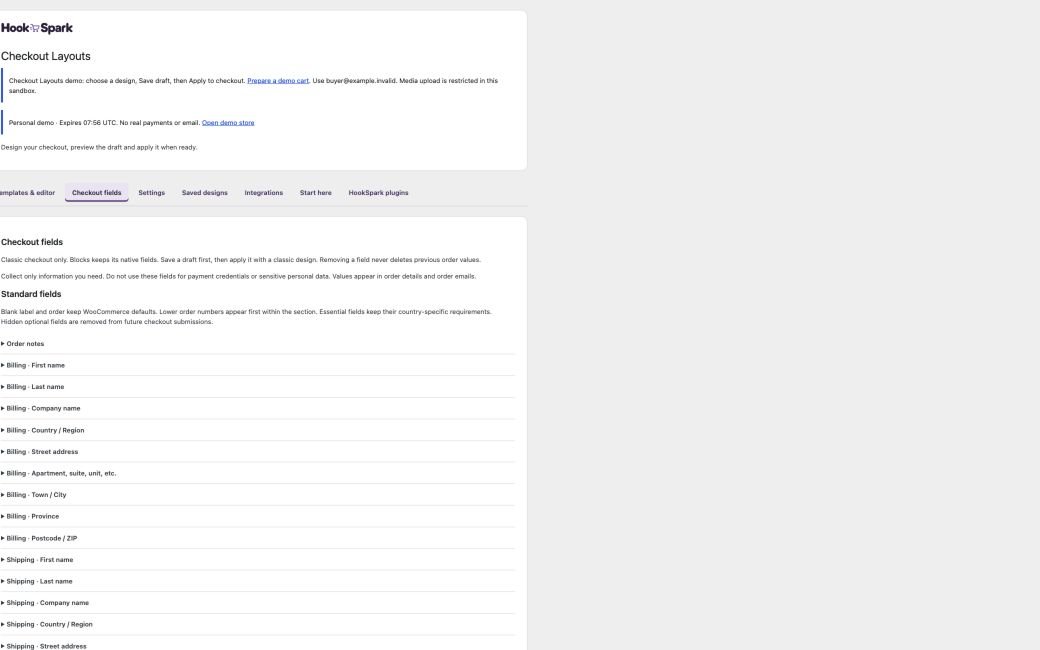
Use one of the ten classic designs and enable the checkout layout. Focus and Compact use Blocks, where this field editor has no effect. Open HookSpark → Checkout Customizer → Checkout fields. Only users with manage_woocommerce permission can save changes.
Change a standard field
- Expand a field under Standard fields.
- Enter a label override, or leave it blank to keep WooCommerce wording.
- Set Display order: lower numbers appear first within that section; blank keeps the native priority.
- Company, address line 2, billing phone and order notes offer WooCommerce default, Optional, Required or Hidden.
- Essential names, email, country and address fields are protected from hiding and weakening. WooCommerce retains country-specific validation and may update country-specific labels.
Only allowlisted WooCommerce fields are editable. Fields owned by payment or other plugins remain with their provider. Hiding an optional field removes it from future submissions, not existing orders.
Add a custom field
- Click Add field and enter Field label, for example Order reference.
- Choose Text, Email, Phone, Long text, Dropdown or Checkbox.
- Select Billing, Shipping or Order notes. Shipping fields are collected only for a separate shipping address.
- Choose Optional, Required or Hidden. Required checkboxes must be checked; none is preselected.
- Set display order (0–999) and full row or paired half-row widths.
- For Dropdown enter one unique choice per line, up to 20. Example: Morning and Afternoon.
- Save draft. Open Templates & editor to inspect the saved draft with a prepared cart. Apply to checkout activates the entire draft.
Up to 20 custom fields, 120-byte labels, 500-byte shopper values and 80-byte choices are accepted. Avoid duplicate labels that would confuse shoppers. Text length limits use bytes for server checks, so accented characters can reach the limit sooner. Use only necessary order information, never payment credentials or sensitive personal data.
Verify the result
Try an empty required field, invalid email and valid input. Errors must block submission and identify the field. Complete an offline order; find values under Checkout details in the confirmation, customer order view and admin order. WooCommerce order emails include the same labels and values. Check your email template because custom builders may omit native hooks.
Hide, remove or restore
Hidden keeps a definition for later reuse. Remove field from draft deletes that definition from the draft; Save draft retains the change, Apply activates it. Restore previous restores the previous active configuration, including fields, while retaining the draft. Saved designs/imports include definitions but never shopper answers. Existing orders retain their original labels and answers even if you rename or remove a field.
Errors and recovery
If saving is refused, check labels, dropdown choices, allowed values and display order. Nothing is partially saved. Your editable rows are retained. For a missing field, check active engine, enabled layout, group, visibility and whether a separate shipping address is selected. If an older design removes fields, restore the previous configuration. After changing gateway or shipping plugins, repeat checkout testing.
Data and current limits
Order values use WooCommerce CRUD and are included in its privacy export and personal-data erasure. Settings and orders remain after deactivation. No account-profile storage, uploads, conditional field rules, drag-and-drop positioning or Blocks field editing is included in this version.