

To show WooCommerce cart notices for a specific shopping situation, create a message in HookSpark Cart Notices & Checkout Messages and choose the cart conditions that make it relevant. For example, show “Need a gift box? Add one before checkout.” when a ceramic mug is in the cart and its optional gift box is absent. Hide the suggestion once the box has been added.
This guide uses two separately purchasable simple products: Ceramic mug and Mug gift box. The notice suggests an optional accessory. It does not add the box, make it free, reserve it or require the customer to buy it. The plugin is a Premium product; the example does not require a separate Pricing or Min/Max plugin.
Start with a message that has a clear purpose
A useful cart notice answers a question that matters to the current order. A mug buyer may want a gift box; a shopper who already selected one does not need the same suggestion again. Write the message around that situation rather than displaying a generic promotional banner to everyone.
| What you need | What provides it |
|---|---|
| Suggest an optional gift box | A conditional message and a link to the box product |
| Make a gift box selectable on the mug page | A product option, configured separately |
| Enforce a product quantity limit | A quantity rule, rather than notice text |
If you want the selection on the product page, our WooCommerce gift wrap option guide covers that different approach. For an actual purchase cap, see how to limit quantity per product. A sentence in a cart message does not enforce either behavior.
1. Prepare the two products and the destination
Install and activate Cart Notices & Checkout Messages on a test store with WooCommerce. Use two published products that a customer can actually purchase. In this example, the mug costs $20 and the compatible gift box costs $4. The box is optional and must be added as its own cart item.
- Check that the box fits the mug and that its product page explains what the customer receives.
- Use the box’s real product URL as the notice destination. A label without a working destination is not a complete action.
- Keep an ordinary cart containing only the mug for the first test. Start without schedules, amount thresholds or other targeting conditions.
The rule does not check whether an accessory is a good fit, available for every destination or sufficient for the number of mugs. If one box holds one mug, this simple example does not calculate how many boxes the buyer needs. It checks whether at least one selected box product is present.
2. Create the WooCommerce cart notice
Open HookSpark → Cart Notices & Checkout Messages and choose Create message. The Cart Messages documentation is the reference for the editor and supported storefront placements.
- Set Internal title (120 characters) to “Mug: optional gift box”. This title identifies the record for the merchant; it is not the shopper’s message.
- In Customer message (1200 characters), enter “Need a gift box? Add one before checkout.”
- Set Button label (optional, 80 characters) to “View gift box”.
- Set Button destination (full URL) to the published box product’s complete URL, including https:// and your store domain.
- Choose Information as the Message style. Avoid an error-like appearance for an optional purchase.
- Under When to show it, leave Start and End empty for an unscheduled message.
The appearance preview follows the text as you type. It does not simulate the cart, apply a promotion or prove that a condition matches. Default storefront fonts and buttons follow the active theme; the admin preview uses its own styles.
3. Show it only when the box is missing
- Under Cart conditions, use At least one of these products is present to select Ceramic mug from the product search results.
- Use None of these products is present to select Mug gift box.
- Leave minimum and maximum cart amounts, quantities and category selections empty. Empty conditions add no restriction.
- Set Audience to Everyone if both guests and logged-in customers should see this suggestion.
- Leave No Pricing condition selected and the Min/Max connection unchecked. Those integrations are not needed for this example.
- Choose Save message. A newly created message is saved disabled. Reopen it, turn on Enable message and save again.
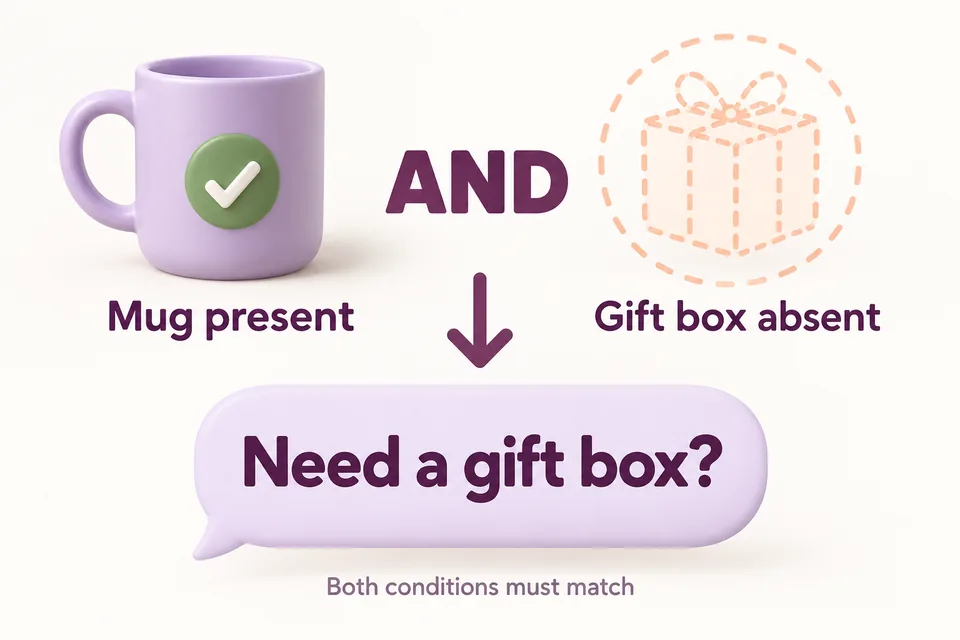
Both product conditions must match: the mug is present and the box is absent. Selecting products does not create them, link inventory or build a bundle. The button opens the product page in the same tab; it does not automatically add the accessory.
For variable products, selecting a parent includes its variations; selecting one variation targets that variation only. This walkthrough uses simple products so that “mug present” and “box absent” have a single, clear identity.
4. Test when the notice appears and disappears
Use a fresh shopper session and the cart and checkout pages assigned in WooCommerce. After each change, complete the cart update or reload before judging the result. Test the actual Classic or Blocks flow used by your theme; an editor preview is not a storefront test.
| Cart contents | Expected notice |
|---|---|
| Empty cart | Hidden |
| One mug, no box | Shown |
| Two mugs, no box | Shown; it does not calculate two missing boxes |
| Mug and gift box | Hidden |
| Gift box only | Hidden |
| Unrelated product only | Hidden |
| Mug remains after removing the box | Shown again after the cart refresh |
| Message disabled | Hidden |
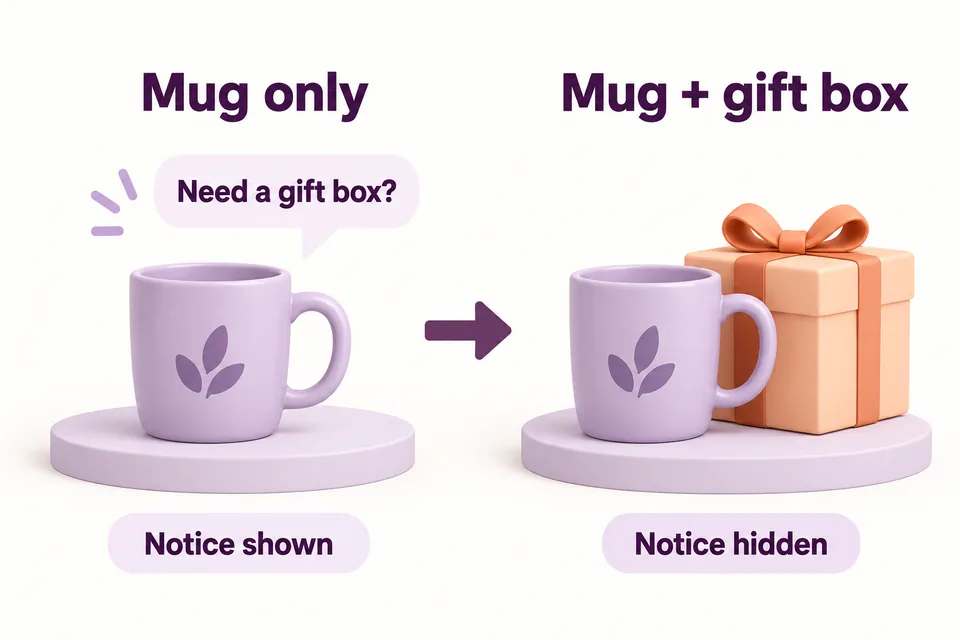
Also follow “View gift box”, check that it reaches the correct product and add the box yourself. Returning to the cart should show two separate products with their ordinary prices. With the example’s prices, one mug plus one box has a $24 product subtotal before any applicable coupon, tax, shipping or fees. The message does not change that calculation or guarantee checkout eligibility.
On the standard Classic cart, the component renders before cart totals; on Classic checkout, it renders before payment. The Blocks implementation uses its supported order-summary integration. Do not assume the plugin offers arbitrary placement or that every replacement checkout renders these integration points. Check the theme and checkout actually used by your store.
Why keep cart notices specific?
Alita Kendrick, “Help and Documentation (Usability Heuristic #10),” Nielsen Norman Group, December 13, 2020, recommends brief, timely help related to the user’s task. Our application is to offer the gift-box information while a relevant mug is in the cart, then remove the suggestion when the box is present. This is a design rationale, not evidence of a measured conversion increase for this notice or HookSpark.
Keep the accessory’s purpose and cost clear on its product page. Use one useful action rather than stacking several competing notices. The plugin can display multiple eligible messages; review the full cart so that separate records do not repeat or contradict each other.
What to check if your cart notice is missing
- The new record is still disabled: reopen it, enable it and save.
- The wrong product was selected: check the actual selected product or variation, not just a similar product name.
- The box is already present: hiding the suggestion is the expected result, even if there are several mugs and only one box.
- An extra condition was left filled: all configured conditions must match. An amount or audience restriction can hide an otherwise relevant message.
- A schedule excludes the current time: review the stored timezone. Start is included; End is excluded. Leave both empty for this example.
- The storefront replaces standard cart or checkout rendering: inspect the supported integration instead of assuming that a saved message appears everywhere.
- The page is stale: update the cart and test a fresh session. Do not serve one shopper’s cart-specific HTML as a shared static page.
If you add an amount condition later, its base is the displayed product subtotal after coupons, with the cart’s tax display, excluding shipping and fees. A maximum amount is exclusive. That is a separate targeting condition; it is not a native free-shipping qualification or a minimum-order enforcement rule.
If checkout must reject an insufficient product spend, follow how to set a minimum order amount in WooCommerce. Enforcing that minimum is a separate job from deciding when to display this notice.
Frequently asked questions
Can I show a WooCommerce cart notice for a specific product?
Yes. Select the product under “At least one of these products is present”. Add an absence condition when the notice should disappear after another product is added. All configured conditions must match.
Can the notice add a free gift automatically?
No. This example displays information and a product-page link. The buyer adds the box as an ordinary product. It does not create a free gift, discount or automatic cart item.
Can I show different notices to guests and logged-in customers?
The Audience selector supports Everyone, Guests and Logged-in customers. This is not a custom wholesale-role selector. Test both sessions if you change the audience.
Does the notice prevent checkout when a condition is unmet?
No. The message is informational. Use a separately supported validation rule when your store must enforce a purchase restriction; text and an attention style are not validation.
Give the right customer one useful next step
Start with one message, one relevant product and one optional action. Verify the matching cart, the nonmatching cart and the change that makes the message unnecessary.
Explore Cart Notices & Checkout Messages →
For a numeric amount remaining toward native free shipping, follow our guide to adding a free-shipping progress bar in WooCommerce. It reads the destination’s shipping method rather than reusing a fixed promotional message.