

When a WooCommerce product goes out of stock, review the traffic you are paying to send to it. A shopper expecting to buy now should see accurate availability and a useful next step. Decide separately whether to pause the sales campaign, promote an available alternative or invite a clearly explained restock request.
This is a campaign decision guide. It does not configure an advertising account or claim that a restock plugin automatically pauses ads, updates product feeds or reserves inventory.
1. Identify the unavailable item precisely
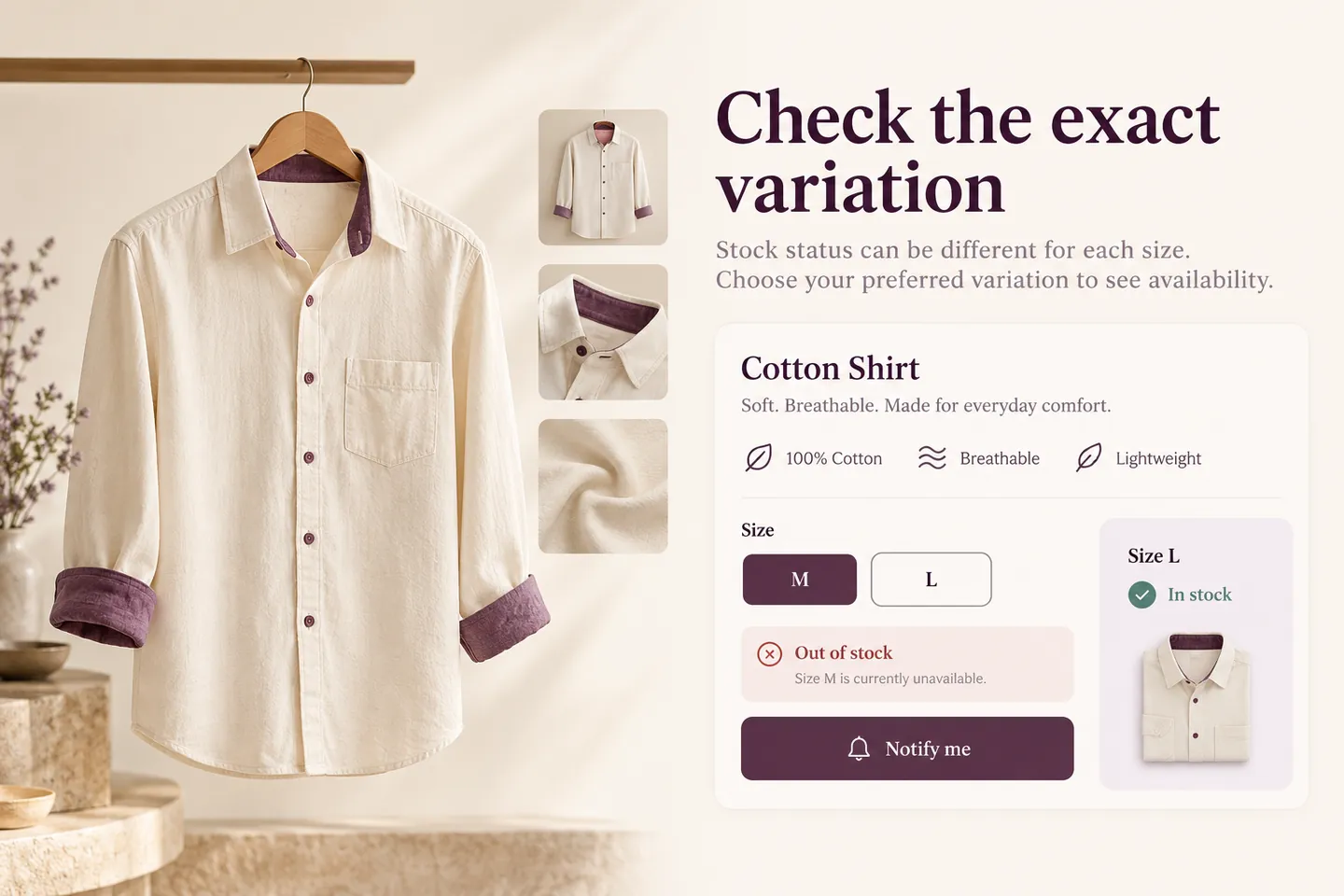
Check the exact product or variation, whether backorders are accepted, and what the customer actually sees. A shirt in size M can be unavailable while size L is still for sale. An advertisement promising M is not fixed just because the parent product page contains another available size.
Review the destination on a phone and check product selection, price, availability and purchase controls. Compare that result with the feed and campaign that generated the visit. WooCommerce’s official Adding and Managing Products documentation, consulted October 27, 2026, explains that variations can have their own stock and price.
2. Choose the next step around purchase intent
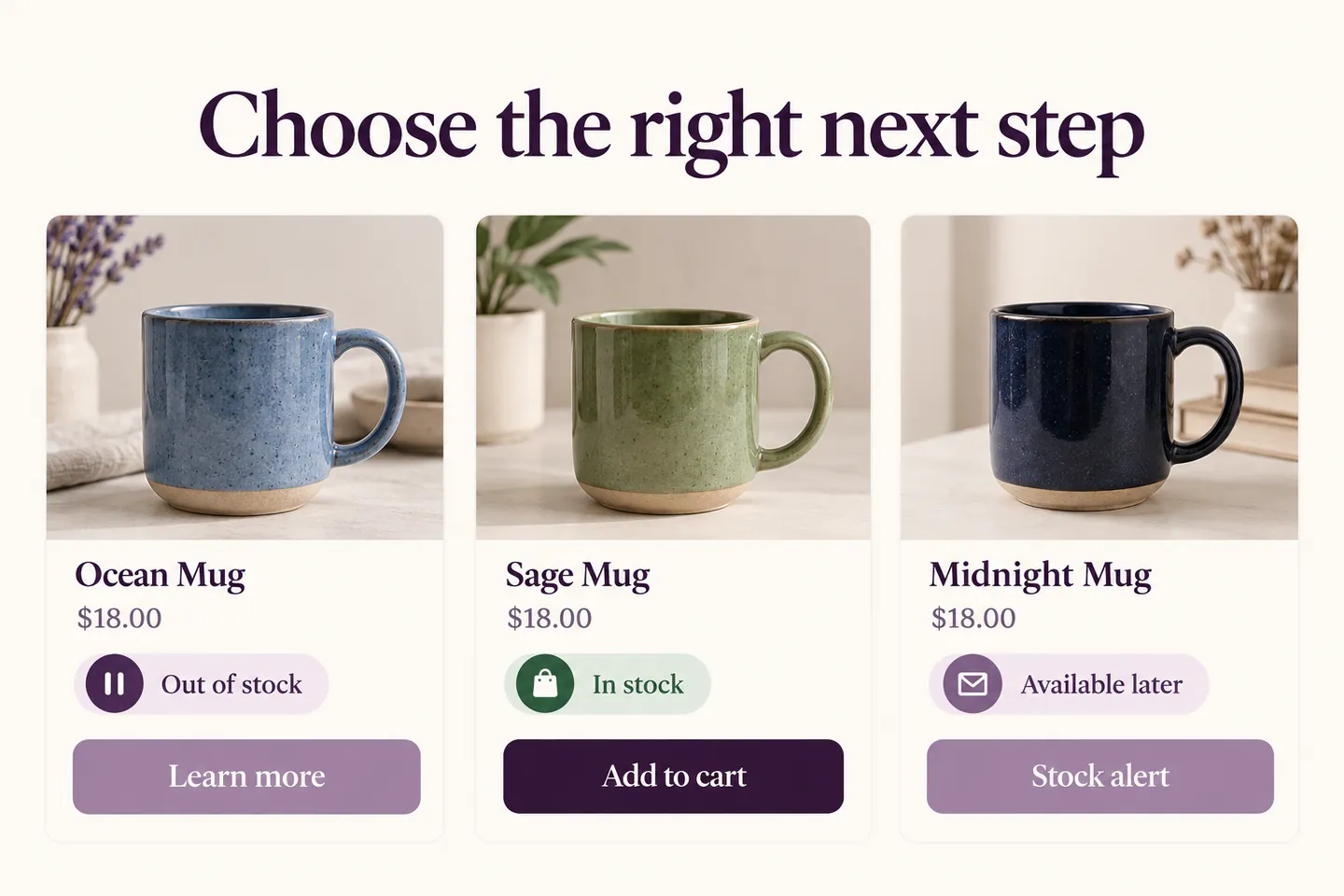
| Situation | Possible action | Check first |
|---|---|---|
| Item unavailable with no reliable return date | Pause its purchase-focused promotion | Campaign scope and remaining available variants |
| Relevant alternative is available | Create an accurate offer for that alternative | Compatibility, price and its own destination |
| Restock expected but not guaranteed | Offer a clearly described availability alert | Confirmation, cancellation and no reservation promise |
| Orders accepted for later fulfillment | Evaluate a genuine backorder workflow | Accurate dates, checkout policy and channel requirements |
These actions are not interchangeable. A person seeking a replacement part may have no use for a different model. Do not route them to an unrelated category and count the click as a successful rescue.
3. Keep shopping-feed availability truthful
For Google Merchant Center, product availability must agree with the website. Its availability specification distinguishes in-stock, out-of-stock, preorder and backorder states. Accepting a request for an alert is not accepting an order. The Google Merchant Center availability specification, consulted October 27, 2026, is the source for these distinctions.
Check the product data source, synchronization status and current channel diagnostics. Do not relabel a sold-out product as available to keep a campaign running. If you advertise a different product, use that product’s accurate information and destination rather than disguising a substitution on the original item’s landing page.
A separate awareness or lead campaign needs its own truthful promise and measurement. It is not a workaround for product-ad eligibility. Review the current requirements of each advertising channel before making changes.
4. Give existing visitors a useful choice
Keep the product description and stock message clear. Where appropriate, offer a compatible available item and explain the differences. If restocking is plausible, let the visitor request an alert without implying that a purchase or stock reservation has been made.
HookSpark Back in Stock & Waitlist provides a product availability-request workflow with confirmation and cancellation. It does not replace your advertising or feed-management process. Test the actual product or variation, the confirmation step and the return-to-stock workflow before promoting the invitation.
Use wording such as “Request an email when this size is available.” Avoid an arrival date you cannot support. A stock alert does not guarantee inventory will remain when the recipient opens the email. Treat this operational message separately from a general marketing-newsletter signup.
5. Review paid visits and the eventual outcome
Use campaign parameters and your analytics setup to identify visits to unavailable items. Depending on the tools and consent configuration, you may be able to measure stock-alert requests and later purchases. Confirmation and an eventual purchase are different events; do not label every submitted email as a sale.
Keep campaign spend, eligible visits, confirmed requests and completed purchases separate. Compare the cost of the path with an available-product alternative. Do not promise that the waitlist will recover a fixed percentage of lost revenue or use a small sample to declare a winner.
When stock returns, verify the quantity, actual purchasability, feed status and page message before restarting a purchase campaign. An automated alert can run on a different schedule from feed synchronization and advertising review. Assign someone to check each stage.
Questions about promoting unavailable products
Should I delete the product page immediately?
Not automatically. Decide based on whether it is temporarily unavailable, permanently discontinued or replaced. This guide does not prescribe a blanket redirect or guarantee a search-ranking outcome.
Does a waitlist stop advertising spend?
No. Review and control campaigns in the relevant advertising tools. Do not assume that installing a stock-alert plugin manages ad budgets.
Can I promise a restock date?
Only communicate a date you can support with your fulfillment plan. An uncertain date should not become a guaranteed shipping promise.
Review one unavailable product and its active traffic sources first. Use the WooCommerce product page checklist to verify that the page explains the real next step.