

To set a WooCommerce maximum order quantity across the whole cart, create a combined cart rule and set its maximum number of pieces. A limit of five means two mugs plus three notebooks reach the cap. It does not mean five of every product, five different product rows or a maximum order value.
This tutorial uses the publicly distributed HookSpark Min/Max Quantities 0.13.2 package and two simple products with sufficient stock. The example was checked on an isolated WordPress and WooCommerce store. It concerns a single cart and order, not lifetime purchase limits or a customer quota across separate orders.
Choose the right type of quantity limit
Before changing settings, write down what you want to count. Units are the quantities in the cart: a row containing three notebooks contributes three. Distinct rows are different: the same cart can contain only two rows while holding five units. Money is another metric again.
| Limit | Counts | Example |
|---|---|---|
| Per product | That product’s units | Up to five mugs; notebooks evaluated separately |
| Combined cart | Units across counted products | Two mugs plus three notebooks = five |
| Order amount | Money under the chosen basis | A currency threshold, not five units |
WooCommerce’s native Sold individually setting limits the quantity of that item within an order. Its product-editor documentation also explains that it does not stop the customer placing another order. Stock quantities control availability. Neither setting is the combined five-unit cart rule used here. Do not reduce stock to five merely to imitate a per-order purchase cap.
Create a maximum-five-pieces cart rule
Install the public Free package and open HookSpark → Min/Max. Create a rule with an internal name such as “Maximum five pieces per order”. In the English interface, select All cart items, combined as the scope and Number of pieces as the metric. Set Maximum pieces to 5. The combined scope is the decisive choice: an individual-product rule answers a different question.
Leave Minimum pieces, Pack size and Starting quantity empty for this example. An empty optional field means no extra restriction from that field; zero is not a substitute. Starting quantities concern individual product inputs and should not be used to prefill a combined cart total. Keep the audience unrestricted and do not add exemptions or counting exclusions to this first test.
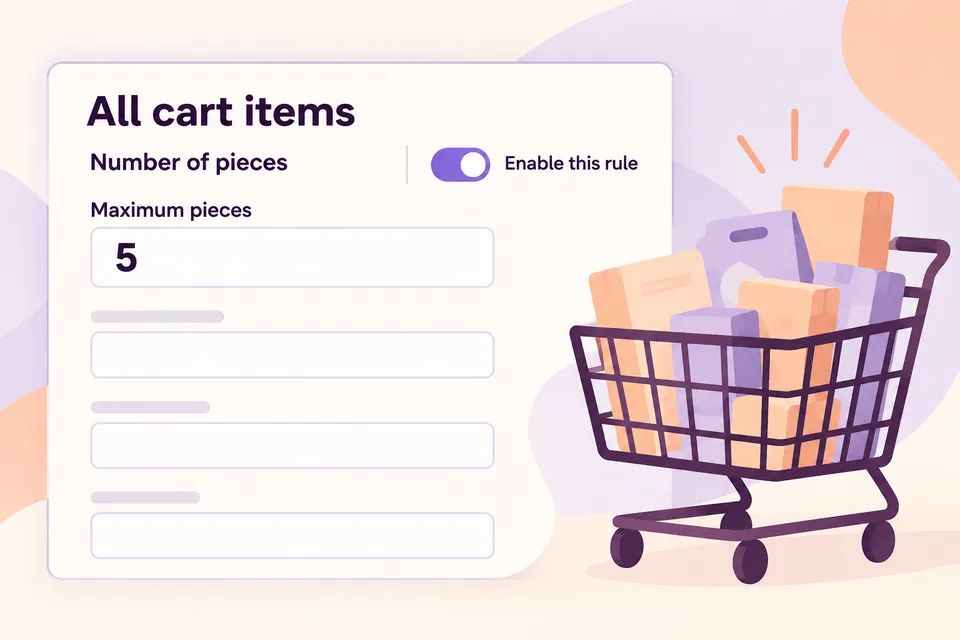
Review the rule explanation, turn on Enable this rule and save. Reopen the saved rule and verify its scope, metric, maximum and enabled state. The preview describes the draft; it is not proof that a customer’s cart passes stock checks, other active rules or checkout requirements. Test in staging before enabling the rule on your live store.
Test a mixed cart at five units and over the limit
Add two mugs and three notebooks. The sum is five, even though there are only two product rows. The tested cart accepted that combination. Trying to add another notebook through the normal WooCommerce add-to-cart validation was rejected. The previous valid five-unit cart stayed intact.
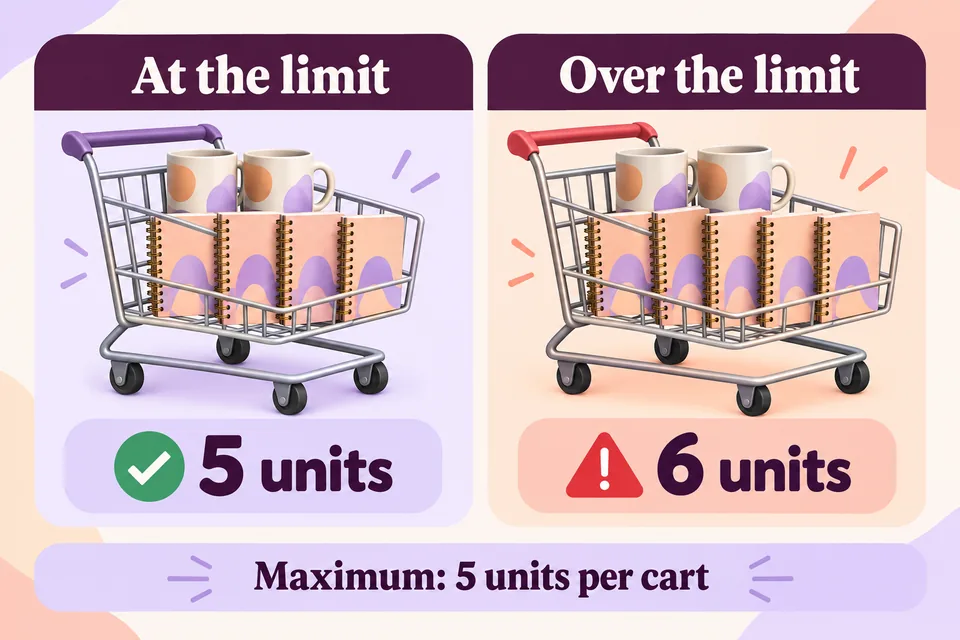
Also test editing an existing quantity. Changing the notebook row from three to four would make six units, so that change must not silently leave an invalid cart. The tested classic quantity-validation hook and WooCommerce 11.2 Store API validation rejected that edit. Reducing the row to two made four units; returning it to three restored five.
This is quantity-rule acceptance, not a completed payment or a guarantee that every checkout integration behaves identically. Custom add-to-cart code, bundles and third-party cart widgets need their own tests. A direct programmatic cart mutation is not the same entry point as a native storefront request.
Review exclusions, other rules and customer scope
The example counts all cart items and has no counting exclusions. If you later exclude products from counting, the number validated by that rule can differ from the raw cart quantity. Do not tell shoppers “five items maximum” while deliberately leaving some items outside the count unless you explain that exception.
Check for individual product limits, minimums, pack increments and audience conditions already active in the store. A cart maximum does not replace them. For example, a product sold only in packs of six cannot fit a universal five-piece cap without changing the configuration. Resolve the rule conflict instead of rewriting the error message to imply the purchase is possible.
Repeat the relevant paths as a guest and as the intended customer account. Try the actual products and variations you sell, including items with a lower stock maximum. A message about this rule should explain the permitted total and the correction needed, without claiming that stock has been reserved or an order has been accepted.
Questions about maximum order quantity
Does five mean five different products?
No. The example counts pieces. Two mugs and three notebooks are five pieces across two rows.
Does this stop repeat purchases?
No. It is not a cross-order customer quota. A customer may place another order unless a separate verified system restricts that behavior.
Is a maximum amount the same setting?
No. Purchase amount checks money; Number of pieces checks quantities. Choose the metric that matches the problem.
Keep the quantity guides separate
Limit quantity per individual WooCommerce product
Set a minimum quantity per product
Set a minimum WooCommerce order amount
Read the Min/Max setup documentation
Start with the five-piece example in staging. Save one combined rule, test the boundary and recovery, and then adapt the maximum to your store’s actual operating requirement.