

Trace one request from signup to delivery. Note the product, variation, test email address and restock time so you can match the customer’s request to the stock change and mail logs.
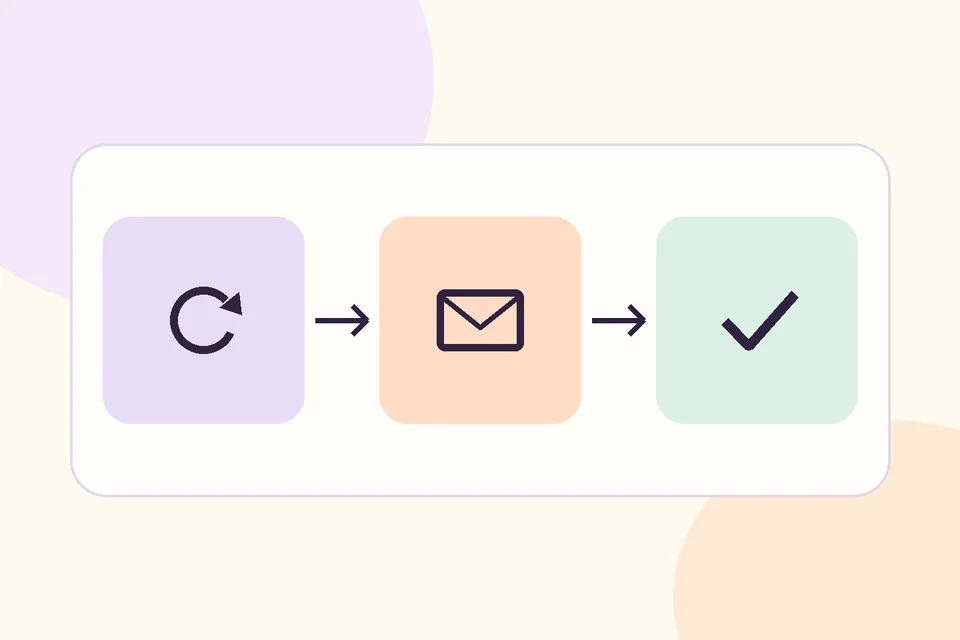
Check whether the request is confirmed
With HookSpark Back in Stock, complete any required signup confirmation before the test restock. The confirmation message activates the request. The restock message follows when the eligible product becomes available and the job is processed. If the request was cancelled, use a fresh signup from your test mailbox.
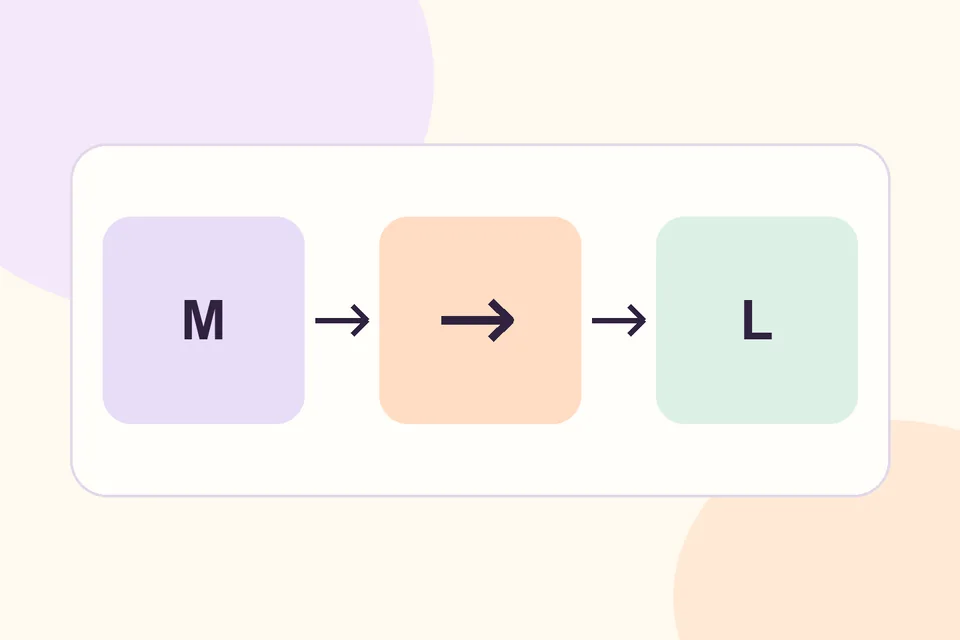
Restock the exact variation
Take two sold-out sizes, M and L. Sign up for L and confirm the request if prompted. Restock M first, then L. Check that the request remains tied to L after M returns, and verify that L is purchasable in the storefront before inspecting the send status. The variation alert walkthrough covers how to set up that test catalog.
Follow the job into the mail system
When a notification is queued, look in WooCommerce → Status → Scheduled Actions for delayed or failed jobs around the restock time. Confirm that the variation is still available when the job runs. Read any recorded error before retrying.
Once the application hands off the message, check your email provider’s logs for the matching address and timestamp. The sending system can accept a message while delivery remains pending or the recipient filters it into spam. Use your test inbox and the provider’s status to distinguish those cases.
What’s the quickest controlled test? Use a staging store and one controlled inbox. Record confirmation status, the stock change, the scheduled action and the mail provider response in order.