

To make a custom WooCommerce checkout field required, set its requirement in the field editor and apply the configuration to a supported Classic checkout. Then test the missing value and the correction. An asterisk alone is not proof that the server rejects an incomplete submission.
This example uses HookSpark Checkout Customizer Premium and a text field called Purchase order reference. A business that genuinely requires a reference on every order can ask for a value such as PO-1042. Required means “a value must be supplied”; it does not verify the reference against a purchasing system or make it a valid tax identifier.
Choose the right checkout before changing a field
Work on staging and identify the checkout page assigned in WooCommerce. The field editor used here is for the Classic engine. It does not apply these custom-field requirements to the Checkout Block, and the Free edition should not be assumed to include the Premium field editor. Changing the renderer is a separate decision: check existing fields, gateways and theme integrations before doing it.
If you still need to create the field, follow our guide to adding a custom WooCommerce checkout field. This tutorial focuses on requirement and validation, rather than repeating every field-creation option. Keep only one plugin responsible for the same field. Two editors or a theme snippet can otherwise compete over the definition.
1. Configure the custom field as Required
Open HookSpark → Checkout Customizer and its Checkout fields workspace. Under Custom fields, select Add field if it does not exist. Use the settings below. Existing labels may be translated in your dashboard; the English control names shown here match the plugin source.
| Control | Example value |
|---|---|
| Field label | Purchase order reference |
| Field type | Text |
| Section | Order notes |
| Visibility and requirement | Required |
| Display order | 120 |
| Field width | Full row |
Order notes places this custom field in that section; it is not the existing optional order-comments textarea. Keep the editor’s stable field identity when editing its requirement. Deleting and recreating a field can create a different definition. Do not collect payment credentials or unnecessary sensitive information in a general text field.
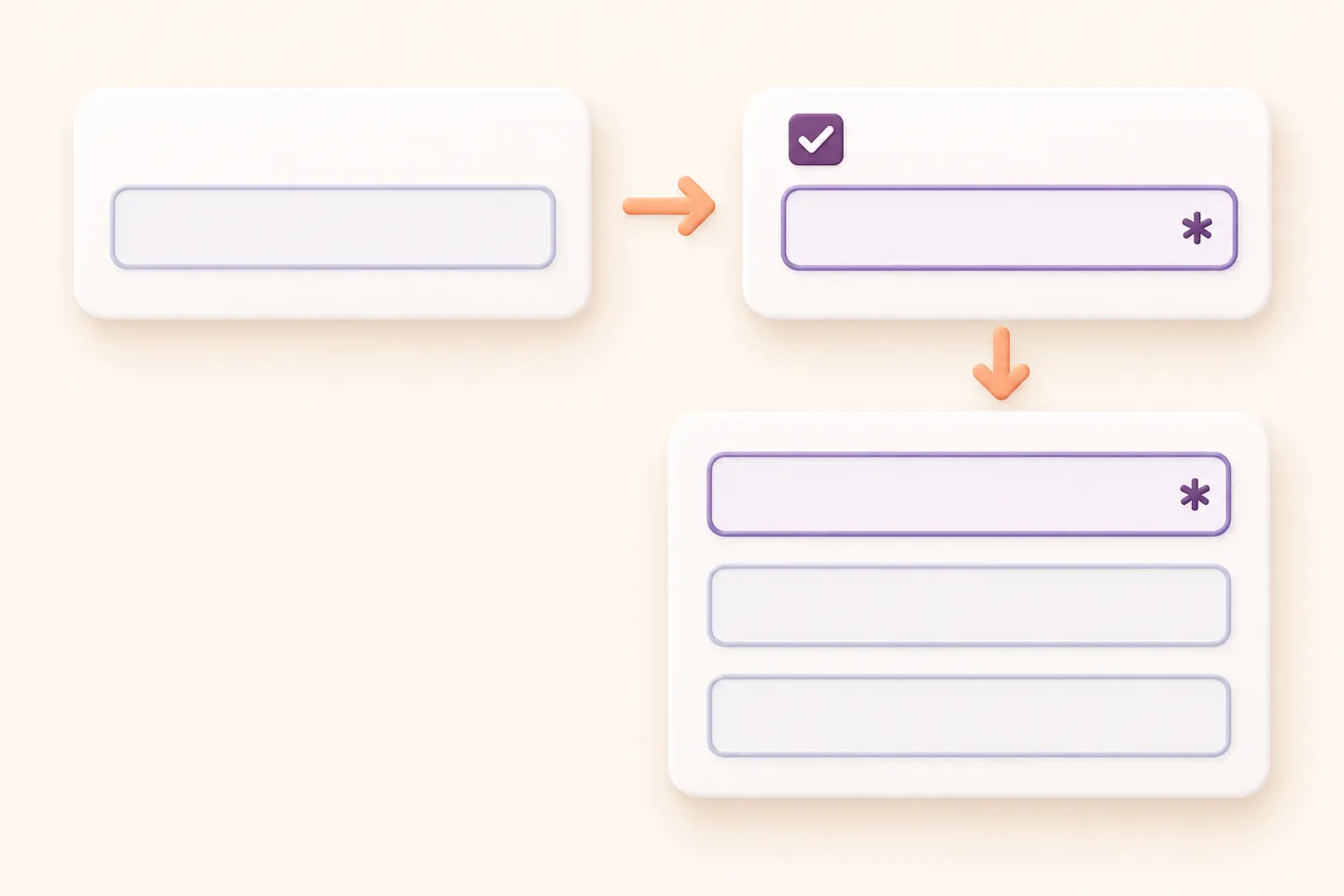
2. Save the draft, then apply deliberately
Select Save draft first. Review the selected Classic design and every other setting already in that draft. Then select Apply to checkout: applying the field workspace also activates the other saved draft settings. Open active checkout in a separate shopper session. A read-only administrator preview does not establish what a customer sees.
3. Test the empty field and the correction
Prepare a test cart, complete the other required checkout details and leave Purchase order reference empty. With a staging payment method that cannot charge a real customer, attempt submission. Check that the missing field is identified and submission cannot proceed with that omission. Also test a whitespace-only value; the store’s validation should not treat spaces as a useful reference.
Enter PO-1042 and retry. The missing-value error for this field should disappear; unrelated address, stock or gateway errors may still need correction. That is not a promise of a successful payment. If you complete a synthetic order on staging, verify the reference in order details and the relevant order email, using captured test mail rather than a customer inbox.

W 3 C WAI’s “Validating Input” tutorial explains that required inputs need clear identification and that client-side checks do not replace server-side validation. Source: W 3 C Web Accessibility Initiative, consulted October 23, 2026. This supports checking both the visible instruction and missing-value handling; it does not show that adding more mandatory fields improves sales.
If the field is still optional or missing
| Check | Next action |
|---|---|
| Only a draft saved | Apply to checkout after reviewing all draft settings |
| Checkout Block active | This Classic field workflow does not apply; identify the actual renderer |
| Wrong page or preview | Open the assigned active checkout as a shopper |
| Shipping section selected | Shipping fields are collected only for a separate shipping address |
| Another editor or snippet | Resolve ownership of the same field before changing it again |
| Requirement no longer needed | Choose Optional, apply and retest; do not just remove the asterisk |
Can I make any standard checkout field optional?
No. The editor protects essential native requirements controlled by WooCommerce and the selected country. It allows requirement changes only for supported optional native fields and its own custom fields. This article does not override country address requirements.
Does Required validate a VAT or purchase-order number?
No. Presence, format validation and checking an external registry are different tasks. Do not describe this text-field setup as VAT verification or automatic B 2 B approval. Collect the reference only where every affected shopper can supply it. For reducing unnecessary fields, see the guide to removing unnecessary WooCommerce checkout fields. Compare the supported field controls in HookSpark Checkout Customizer and the checkout fields documentation.