

Use Display order in HookSpark Checkout Customizer Premium to move fields within a section. Lower numbers appear first. For example, you might want shoppers to enter their billing email before their phone number.
Identify the checkout page
On staging, open the page assigned as Checkout in WooCommerce and inspect it in the editor. This workflow uses the Classic checkout and a HookSpark Classic design. The Checkout block keeps its native form.
Go to HookSpark → Checkout Customizer → Checkout fields and open Standard fields. Record the current billing priorities. Blank overrides inherit WooCommerce defaults, so check the surrounding fields before choosing your numbers.
Apply and verify the new order
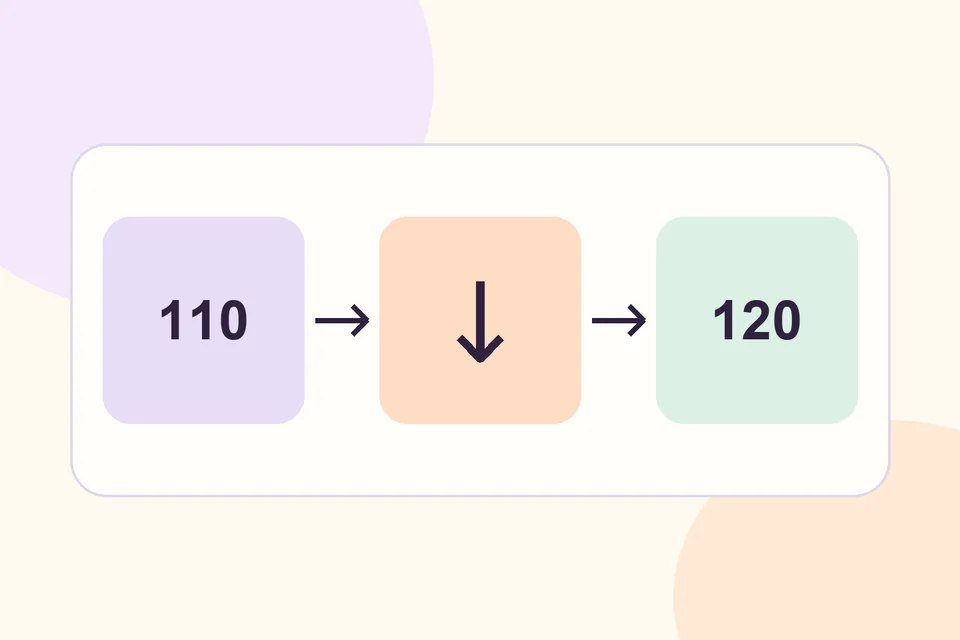
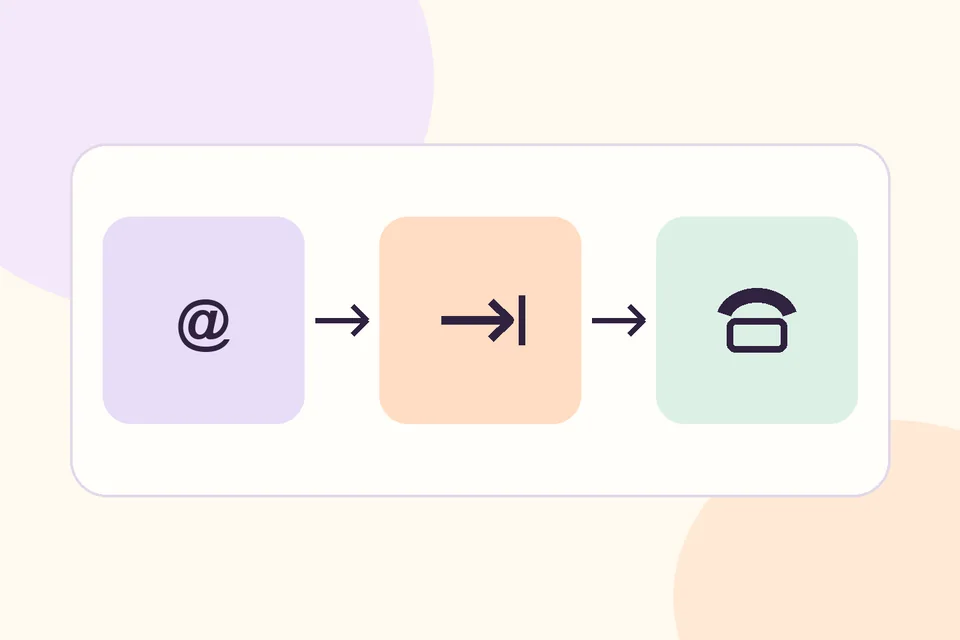
- Give Billing email a lower number than Billing phone. Values such as 110 and 120 are examples to adapt to the surrounding priorities.
- Keep the current labels and requirements during this test.
- Save the draft, review the selected Classic design and apply the configuration.
- Open the checkout as a shopper. Check the visible order and keyboard tab sequence on desktop and mobile.
Try an address in your main market and another country that uses different address fields. If you see the previous order, confirm which page, design and settings the shopper session is using. The priority applies within the section. To restore WooCommerce’s ordering for those standard fields, clear the overrides and apply the Classic configuration again.
For a new field, follow the custom checkout field guide. See Checkout Customizer for the Classic design requirements.