
OPERATOR GUIDE · SANDBOX CANDIDATE
Set up a recurring product.
1. Check the payment integration.
- Install the candidate and the verified WooCommerce payment plugin: Stripe 11.0.0 or PayPal Payments 4.1.3.
- Open WooCommerce → Settings → Payments. Configure that plugin’s test account using its own settings. For PayPal, the merchant account must support saved payment methods.
- Open HookSpark → Subscriptions → Payment integrations. Read the supported scope and use Manage WooCommerce payments to return to the gateway settings.
- Ensure the staging worker and required payment reconciliation are running. Do not remove staging authentication to make a callback work.
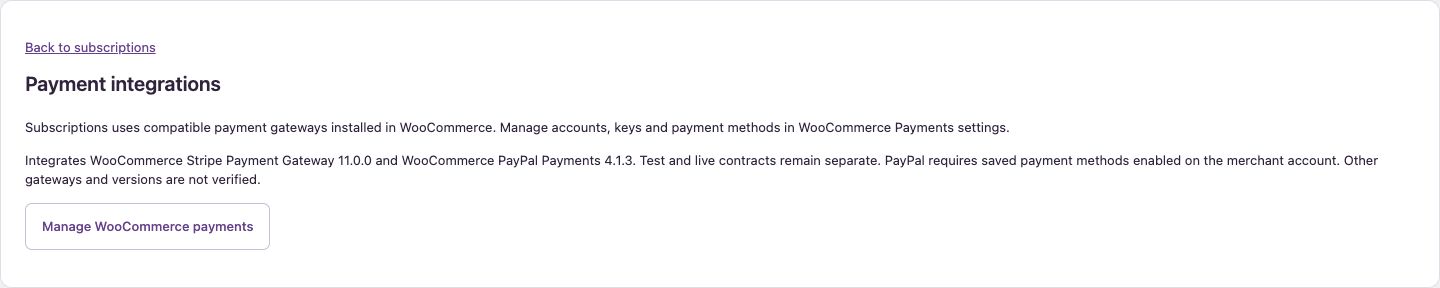
Verify: use test credentials only, and confirm the installed versions. A configured ordinary WooCommerce gateway alone does not prove recurring-payment support.
2. Configure the product.
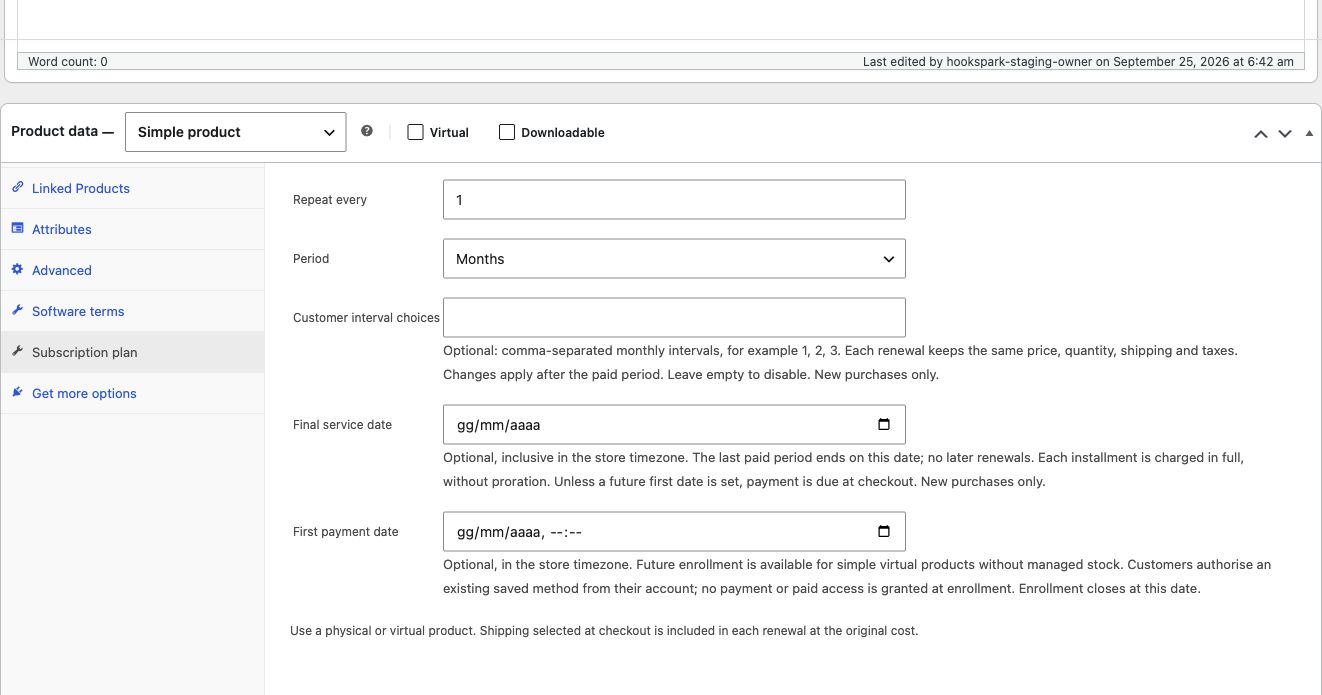
- Open Products → edit product → Product data → Subscription plan. For a variable product, configure the exact variation separately.
- Enable Recurring plan. For a monthly example, set Repeat every: 1 and Period: Months.
- Set the normal WooCommerce product price. Example: a physical product at €24. Leave Virtual unchecked, configure stock and a shipping method. The verified example used €5 shipping, totaling €29 per renewal.
- Save and reopen the product to verify the plan. A digital product can be marked Virtual; that removes shipping requirements, not payment requirements.
Verify: use a signed-in test customer and a cart with one physical recurring product or multiple virtual recurring products, no coupon and no extra fee. Confirm the full total and recurring consent before approving the sandbox payment. The tested physical checkout total is €29; this is sample data, not the price of the plugin.
3. Review the paid order and subscription.
- After approval, open the WooCommerce order. Check paid status and the shipping line for a physical product. Physical orders remain Processing for fulfillment.
- Open HookSpark → Subscriptions → Subscription registry. Filter by product or customer and open the record.
- Check the provider, paid coverage and paid periods. A pending approval is not a completed payment.
- As the customer, open My account → Subscriptions to review the agreed terms and paid coverage.
4. Recover or cancel.
A supported failed Stripe payment can require authentication. Complete the customer recovery flow for that renewal, then verify the same order is paid once. A confirmed PayPal instrument decline can offer a new approval for that unpaid renewal. An uncertain provider result must be reconciled before charging again.
To stop future renewals, the customer uses My account → Subscriptions → Cancel future renewals. Verify that renewals are Cancelled while a current paid period remains available until expiry. Cancellation does not refund an order or change a future PayPal wallet by itself.
When something needs attention.
- Product cannot be purchased
- Check the supported gateway, signed-in account, interval and cart restrictions. Future courses use enrollment rather than ordinary pay-now checkout. Do not remove the recurring plan just to force a one-time payment.
- Approval completed but order is pending
- Allow verified reconciliation and inspect provider status and scheduled work. Do not create a second charge because the browser return is slow.
- Insufficient stock
- Restore stock or resolve the order operationally. A fresh charge waits for stock; resuming must reuse the pending renewal.
- Need to change an existing contract
- Editing the product does not retroactively change the subscription. Customer interval changes require choices frozen at the time of purchase. They preserve the next due date and installment amount. Address/rate editing is not available.
5. Configure an academic course.
- Create a simple virtual product without managed stock. Set the monthly installment price.
- In Subscription plan, choose the interval, first payment date and inclusive final service date. Dates use the store timezone.
- Leave customer interval choices empty for a fixed tuition schedule unless you intentionally allow a different number of full-price installments.
- The customer opens enrollment from the product, saves a method using the installed gateway, and confirms the preview and recurring consent. No payment or paid coverage is granted yet.
- At the first date, verify the same original order is paid and one period is recorded. An unpaid enrollment is not an active paid license. The final date prevents later installments.
Example: first payment 1 November, monthly until 30 June: eight full installments, no July charge. This is not a trial or a zero-value recurring payment. An LMS or membership system must separately control course content.
Offer a full-payment alternative.
- Create a separate simple virtual non-recurring product, with the price for the entire course.
- In General → Pay-in-full course ID, enter the recurring course ID. That course must have a future first date and a fixed end.
- Open the recurring product: its full-payment link should lead to the ordinary offer. Check the price and visible service dates in cart and checkout.
- After payment, verify an ordinary Woo order with the frozen service period and no subscription contract or renewal job.
6. Let customers change intervals.
On the product, enter permitted monthly intervals, for example 1, 2, 3. New buyers receive those choices; old contracts are not silently modified. In My Account → Subscriptions, choose an interval, review the next and following payment dates and confirm. Each installment retains its full original amount, including frozen shipping and taxes. There is no immediate charge or prorated price conversion.
A pending renewal, changed contract, refund/review, stale preview or cancellation prevents the change. The dates describe payment and fulfillment orders, not a carrier delivery guarantee.
Current boundaries.
This development candidate remains under staging acceptance. Supported gateway versions only; native test/live context is preserved, but no live-payment certification is claimed. One product line per signed-in recurring checkout; no coupon or extra fee. Monthly intervals 1–12 or annual. Physical delivery terms are frozen.
Future enrollment and pay-in-full course alternatives require simple virtual products; late enrollment and automatic proration are not supported. No memberships, LMS restrictions, automatic competitor migration or sign-up fee claim. Full-payment alternatives use ordinary WooCommerce checkout and its installed payment methods.
Software paid-period licenses reuse the separate HookSpark Licensing service. The Premium update license for Subscriptions never gates installed features or customer renewals.