

A WooCommerce add-to-cart popup should confirm that the item actually entered the cart. It should show the product and quantity, then let the customer continue shopping or proceed towards checkout. A panel opening merely because a button was clicked is not reliable confirmation: the addition may have failed.
This tutorial uses HookSpark Side Cart Premium and its Open after a successful addition setting. We select Presentation → Modal to show the cart in a centered popup on desktop. Drawer is a different presentation that opens at the side of the screen; neither option is a product quick-view or an exit-intent promotion. We will test two mugs at $40 each, with an $80 items subtotal before tax and shipping, and an unsuccessful addition that must not be presented as a success.
What you need before enabling the popup
Start on staging with Side Cart Premium activated, a simple product available to purchase and no other cart popup enabled. Choose a product with sufficient stock for two units. Keep ordinary WooCommerce purchasing controls working before adding automatic cart opening.
Review WooCommerce’s add-to-cart redirect setting. If the store deliberately sends shoppers straight to the full cart page, that journey differs from staying on the product page with a centered cart popup. Decide which flow you want and test it; do not assume one popup setting overrides every redirect, theme or third-party add-to-cart implementation.
1. Select Modal and enable automatic opening
Open the HookSpark Side Cart settings and expand Cart behaviour. Enable Enable Side Cart and Open after a successful addition. You can also enable Show floating cart button so shoppers have an entry point after closing the panel.
In Layout and template, set Presentation to Modal. The default Drawer presentation creates a side cart instead. Review Visibility and entry points and any excluded pages. Cart and checkout are always excluded from the Side Cart surface. An automatic popup should be tested on an eligible product or shop page, not expected to open over checkout.
Select Publish to apply the configuration to the storefront. Save draft keeps a draft; it does not change what customers see. Reopen the product in a fresh test session after publishing. These are the English interface labels; use the equivalent labels in your installed language.
2. Check the successful addition
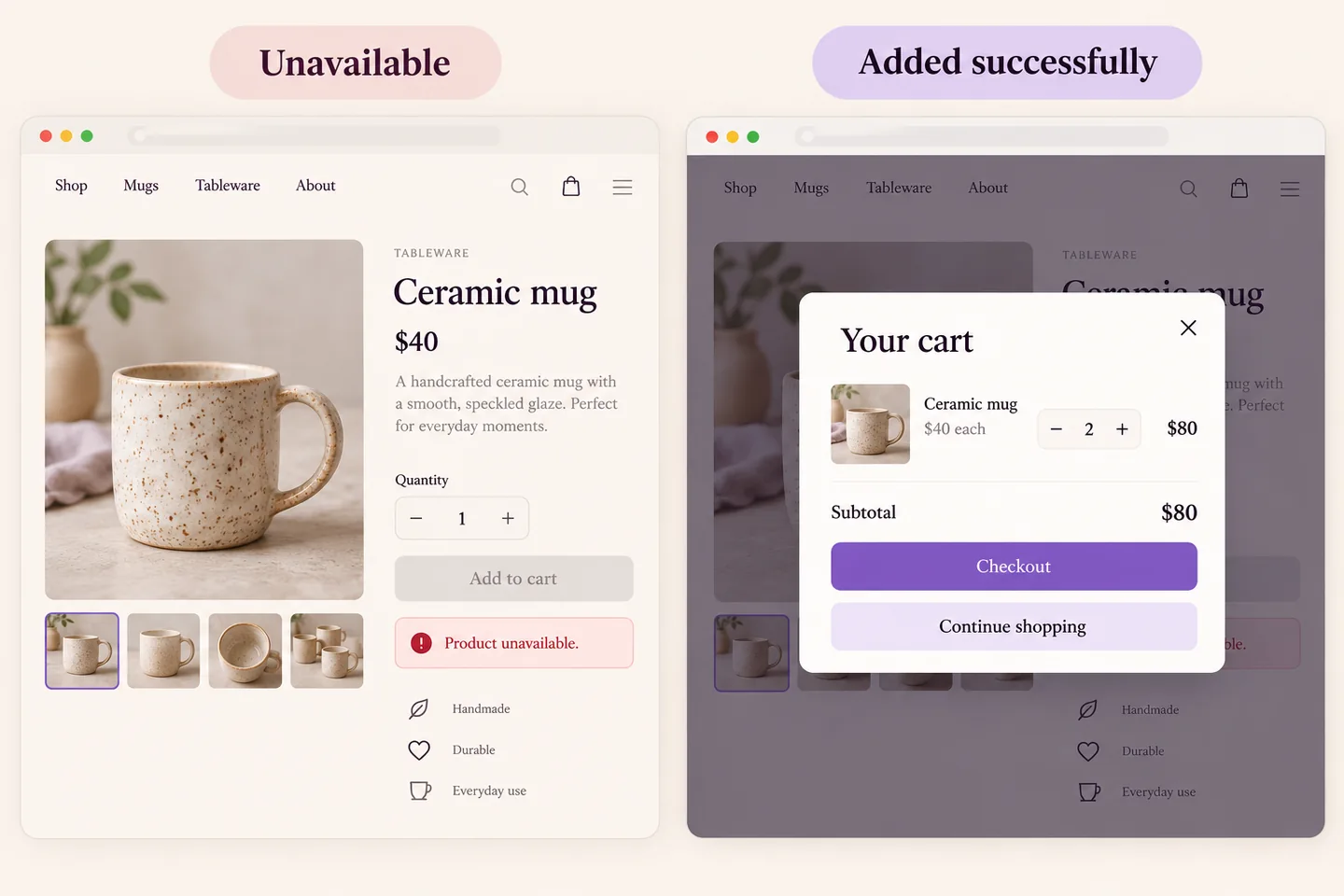
Start with an empty test cart. Set the mug quantity to 2 and select Add to cart once. After the addition succeeds, inspect the centered cart popup. Confirm the mug name, the correct variation where applicable, quantity 2 and the expected $80 items subtotal in this no-discount example. Shipping and taxes can change the payable total.
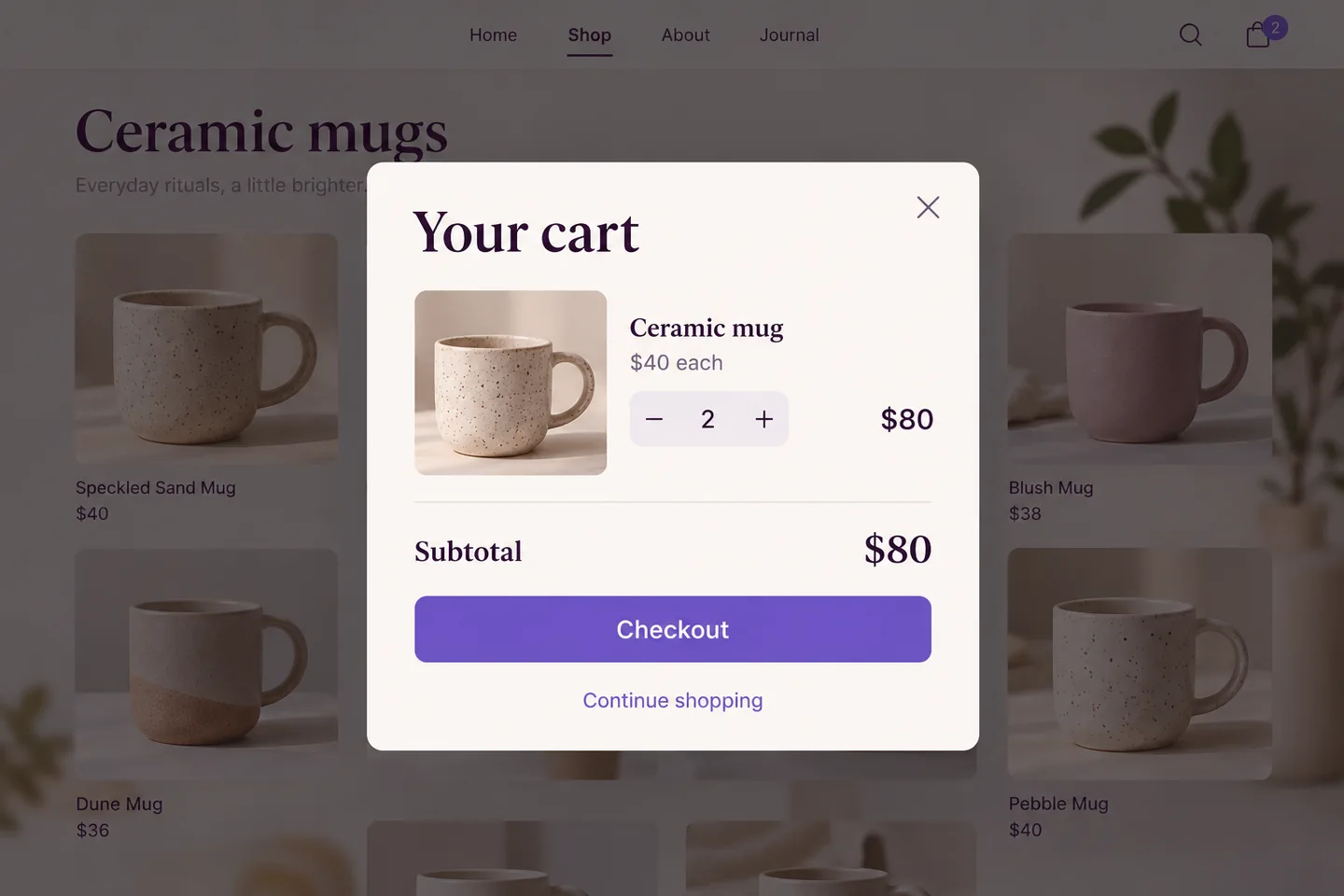
Close the panel and confirm you can interact with the product page again. Reopen it using the floating button if enabled and verify the two mugs remain. Test the route your customers actually use: an archive AJAX button and a native single-product form are different entry points. A custom theme implementation requires its own compatibility check.
In Visibility of System Status (Nielsen Norman Group, 2018), the usability principle is to give timely feedback about the result of an action. Here that means confirming the cart contents after a successful addition. It is not evidence that opening a panel will increase conversion on every store.
3. Test a rejected addition and recovery
In staging, try an unavailable product or an invalid purchase quantity and read the actual WooCommerce response. The cart must not gain the rejected item, and the interface must not imply that it did. Then restore a valid available selection, add it once and confirm the contents update correctly. Do not change production stock just to run this test.
Why does the cart popup not open?
Check that Side Cart is enabled in the published configuration, Presentation is Modal, automatic opening is on and the page is eligible. If the cart opens at the side, check whether Presentation is still set to Drawer. Next confirm that the product was actually added: stock, a required variation or another purchase rule may block it. Review the redirect flow, then inspect browser errors and conflicts with other popup or cart tools. When another modal is already open, the plugin avoids automatically opening a second overlay; close the other modal and test again. Disable competing behaviour only in your test environment and repeat one route at a time.
What happens on mobile?
At screen widths of 600 pixels or less, the cart uses the full screen, including when Presentation is Modal. The centered desktop illustrations do not represent the mobile layout. Test closing, quantity controls and the checkout button on a phone-sized screen.
Does the popup replace the cart or checkout?
No. The panel is a convenient cart surface; customers still need to complete checkout. A cart addition is not a purchase, payment or order confirmation. Keep the normal cart route available and test checkout separately with a test payment method.
Can I also show free-shipping progress?
That is a separate setting with shipping prerequisites. Follow the free-shipping progress tutorial to check destination and shipping-method conditions. Automatic opening alone does not create a free-shipping offer.
Use the Side Cart documentation to review the available settings, then test HookSpark Side Cart on your store with one successful addition, one rejected addition and a clear path back to shopping.