

A business customer reaches your checkout and wants to leave a VAT number with their order. Your store accepts that information, but the checkout has nowhere to collect it. A custom text field can give the customer a clear place to enter it.
This guide shows how to add a custom WooCommerce checkout field using HookSpark Checkout Customizer Premium. We will add an optional “VAT number” field to the billing section, save a draft and check the value stored with a test order.
This walkthrough uses the Premium classic checkout field editor in the distributed 0.4.0-alpha.4 development version. The Free edition does not include this editor. The steps do not apply to the WooCommerce Checkout Block. Test a development release in a staging store before using it for customer orders.
What this VAT number field actually does
The example collects a text value. It does not check a tax authority’s database, perform VIES verification, change tax rates, grant a VAT exemption or issue an invoice. Your existing tax and invoicing workflow remains responsible for those operations.
Our example store sells notebooks to individual and business customers. Its staff can use a business customer’s supplied VAT number in an existing order-processing workflow. Personal shoppers can leave the field blank. Before copying this setup, identify who will use the answer and where they will find it.
VAT number formats differ by country. We use a text field so the customer can include a country prefix or letters rather than assuming every identifier is an eleven-digit Italian number. A generic text field also accepts incorrect information: collecting an answer is separate from verifying it.
Decide whether the extra question belongs at checkout
Add a checkout field when the information concerns the whole order and your team has a concrete use for it. If it describes one product, collect it on that product instead. An engraving on a bottle belongs with the bottle; see our engraving-field example.
Baymard Institute’s research article E-Commerce Checkouts Need to Mark Both Required Fields and Optional Fields Explicitly, published October 2, 2018, recommends making both kinds of field identifiable. Its usability findings support reviewing the clarity of your form; they do not establish a conversion improvement for HookSpark.
In this example, “Optional” is a real requirement setting, not a word added to the label while the server still requires an answer. Check that the optional indication is visible in your theme. Do not make a VAT number mandatory for every shopper simply because some customers need to provide one.
1. Confirm your checkout type and edition
Prepare a staging store with WooCommerce and Checkout Customizer Premium. Confirm that your checkout page uses the classic shortcode [woocommerce_checkout], and that Checkout Customizer is enabled with a classic design. Focus and Compact are Blocks designs, so they are not the designs for this walkthrough.
The getting-started guide explains the initial setup. If a VAT or invoice extension already owns equivalent fields, review that integration before creating another one. Two inputs collecting the same answer can leave your team unsure which value to use.
2. Add the custom billing field
- Open HookSpark → Checkout Customizer → Checkout fields.
- Under Custom fields, click Add field.
- Set Field label to VAT number.
- Choose Text as the Field type and Billing as the Section.
- Set Visibility and requirement to Optional.
- Select Full row for Field width.
- Set a suitable Display order and check the resulting position in the preview.
- Click Save draft.
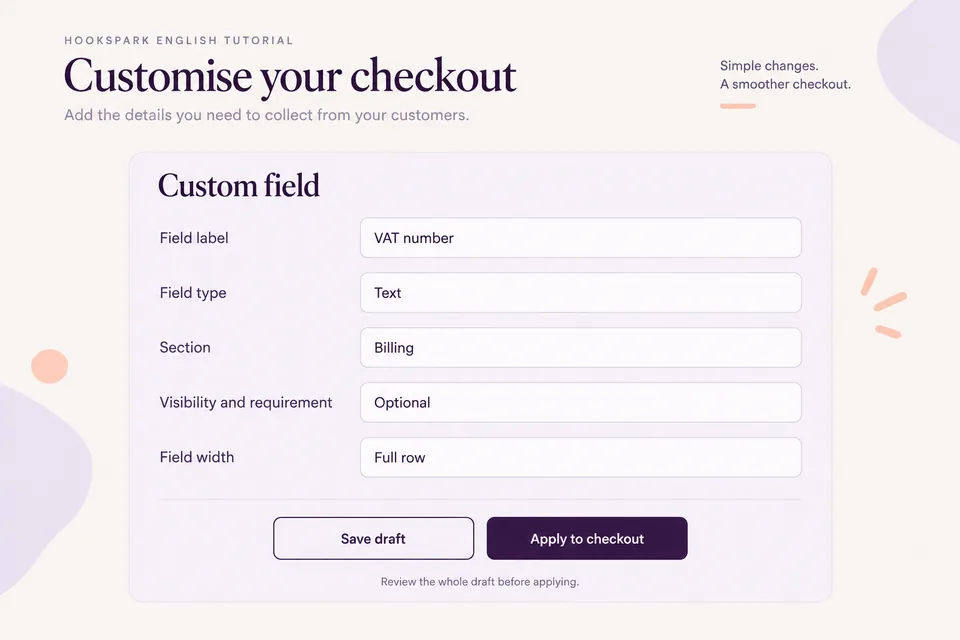
The editor creates a stable key for the custom field. That key identifies its stored order data; the customer-facing label is the text shoppers see. Keep the definition when editing the label rather than deleting and recreating it as a different field.
The distributed editor supports Text, Email, Phone, Long text, Dropdown and Checkbox. VAT number needs Text in this example. A Dropdown needs its choices configured, and an Email field checks an email-shaped value; neither is a replacement for VAT verification.
| Setting | Value | Reason |
|---|---|---|
| Field label | VAT number | Names the information being collected. |
| Field type | Text | Allows letters and a country prefix. |
| Section | Billing | Keeps the answer with billing information. |
| Visibility and requirement | Optional | Personal shoppers can leave it blank. |
| Field width | Full row | Gives the value and label room. |
Choosing Shipping would collect the custom field only when the shopper uses a separate shipping address. That is a different scope, and it is not appropriate for this billing example.
3. Review the draft before applying it
Saving the draft does not change the active checkout. With a prepared cart, open Templates & editor and inspect the saved draft. Locate the new field, review the optional indication and check its position at desktop and mobile widths.
When ready, click Apply to checkout. This activates the entire saved draft, including other saved layout and branding settings. Review those settings before applying; the action is not limited to your new field.
Open the active checkout in a separate shopper session. Confirm that the field appears in the billing section and that the usual address, shipping and payment controls still work. A preview alone is not evidence that an order can be submitted.
4. Check both the empty and completed field
Place test orders using a payment method appropriate for your staging environment. Use clearly fictional input for this exercise; the illustrated value “EXAMPLE-VAT” demonstrates storage, not a valid tax identifier.
- Leave it blank: with the other required checkout details complete, an optional VAT field should not prevent an order.
- Enter a value: complete a second test order and compare the submitted answer with the custom-field data shown in its order details.
- Check the order email: custom-field values are included in the plugin’s order output. Inspect the email through your staging mail capture, without sending a test message to a real customer.
- Review mobile: confirm that the label, optional indication and value fit, and that validation for the existing required fields remains understandable.
- Repeat your actual purchase paths: test guest and account checkout, shipping countries and gateways used by your store.
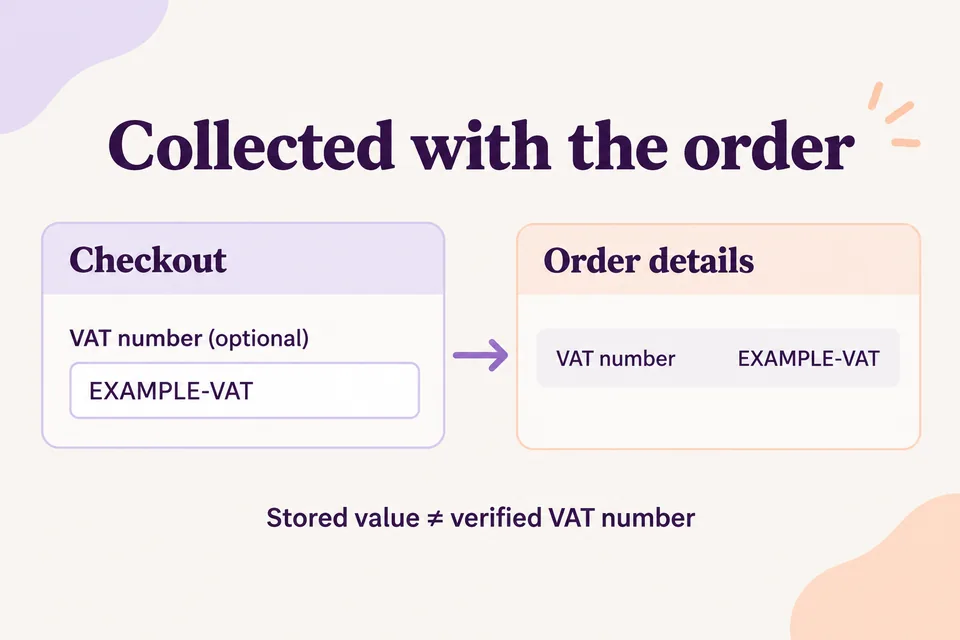
Seeing the answer in the WooCommerce order does not prove that a PDF invoice, accounting export or another plugin will consume it. Those systems need their own supported mapping. Verify that handoff separately before relying on the field in an invoicing workflow.
What happens if you rename or remove it later?
The plugin stores the custom-field label and answer with the order. Later changes to the active configuration do not rewrite the earlier order’s saved answer.
Hidden keeps the field definition for later reuse while stopping collection in future checkouts. Remove field from draft removes the definition from the draft. Neither action deletes values from earlier orders.
If an applied configuration is wrong, Restore previous restores the previous active configuration while retaining the draft. Verify the restored checkout before accepting customer orders.
Frequently asked questions
Can I add the field without writing PHP?
Yes. The Premium classic field editor provides the controls described here. This walkthrough does not require a code snippet.
Can I require a VAT number only for business customers?
Not with the distributed editor used in this guide. This version does not include conditional field rules. Making this field Required would require it for everyone in its collection scope. Keep it Optional for this mixed-customer example.
Does the field validate VAT numbers?
No. It collects text and saves the answer. There is no VIES lookup, tax-status check or automatic VAT exemption in this setup.
Can I collect an Italian codice fiscale instead?
You can label a custom text field “Codice fiscale” and collect an answer. The editor in this guide does not thereby verify its checksum, identity or fiscal validity. Use the requirement and integration appropriate to your actual workflow.
Why is the field missing?
Confirm that you applied the saved draft, enabled a classic design and used the Premium edition. Check the field’s section and visibility. A Shipping custom field is collected only with a separate shipping address.
Keep the checkout focused on useful answers
Add one field, identify who needs its answer and test the complete order path. Balance the new question by reviewing any information your store no longer uses: our guide to removing unnecessary checkout fields covers that complementary task.
Explore Checkout Customizer and use the checkout-field guide to review the supported controls.
Once the field exists, our guide to making a WooCommerce checkout field required explains the Required setting, applying the saved draft, and testing the empty value and its correction in Classic checkout.