

A shopper wants a plum T-shirt in medium. Your store has plenty of shirts, but browsing every product to inspect its sizes is slow. Attribute filters let the shopper narrow a collection before opening a product page.
In this walkthrough, we use HookSpark Product Filters to build a dedicated T-shirt catalog with Color and Size filters. The basic catalog uses the Free edition and global WooCommerce attributes.
Check the fit first: this plugin renders its own catalog through a shortcode on a WordPress page. It does not automatically add a sidebar to your existing Shop archive, filter an Elementor Products widget or replace WooCommerce’s Product Collection block. If that existing layout is what you need to keep, review WooCommerce’s native filter blocks and their requirements before choosing a separate catalog.
The collection we will filter
Use a test store and create a T-shirts category with three published products. Give their variations prices and enough stock, and make them available for purchase. Use global attributes named Color and Size, with Plum and Lavender as colors and Small and Medium as sizes.
| Product | Available combinations |
|---|---|
| Everyday tee | Plum / Small; Plum / Medium; Lavender / Medium |
| Weekend tee | Plum / Small; Lavender / Medium |
| Relaxed tee | Lavender / Small |
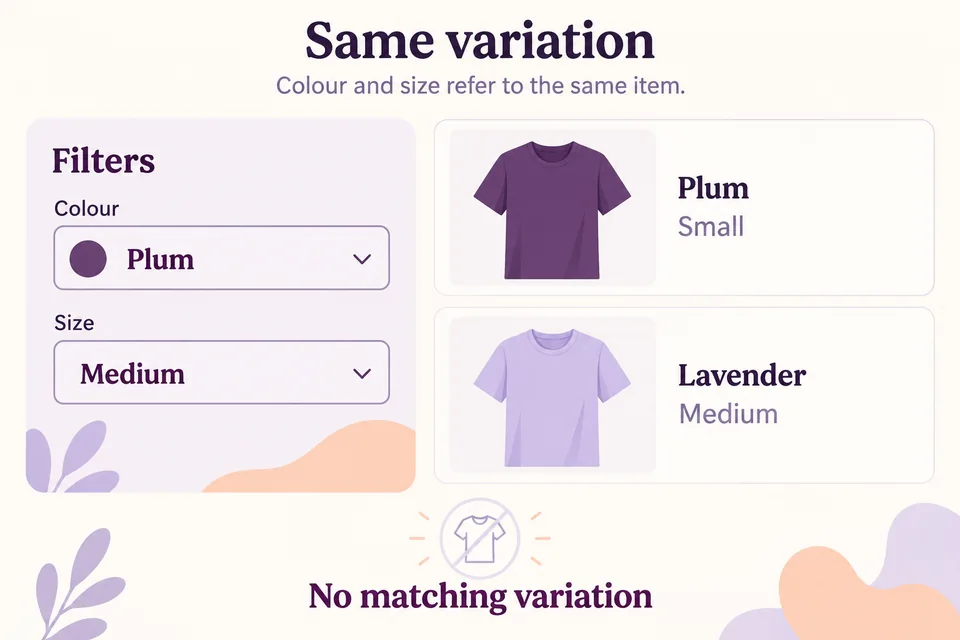
Selecting Plum and Medium should return Everyday tee. Weekend tee has both attribute values somewhere on the product, but it does not have a Plum / Medium variation. Showing it for that combination would send the shopper to a product they cannot buy in the requested configuration.
1. Prepare global attributes before configuring the filters
- Open Products → Attributes in WooCommerce. Create Color and Size if they do not already exist.
- Use Configure terms to add the values you actually sell. Avoid separate spellings such as “Medium” and “M” for the same size unless they mean different things.
- Open each test product and select those existing global attributes in its Attributes section. Assign the appropriate terms and save.
- For a variable product, use those attributes for variations, create the actual combinations and set their price and stock. Save the product.
A custom attribute typed only inside one product is different from a global attribute. HookSpark’s filter-source list uses global attributes registered by WooCommerce; it does not offer those product-specific custom attributes. A visible “Color: Plum” label on a product page alone is not proof that your filter data is ready.
Do not create a missing Plum / Medium variation merely to make a result appear. The catalog should reflect your inventory. For a simple product, assigned attribute values describe that item rather than creating selectable variations.
2. Create the T-shirt filter set
- Open HookSpark → Product Filters and create a set.
- Enter T-shirts in Set name. This name is also used as the catalog heading, so choose shopper-facing wording.
- Under Available filters, select Color and Size.
- Set Catalog category to T-shirts. Leave Subcategories at Include subcategories if child collections should belong to this catalog.
- Use Refresh preview to inspect the configuration. When ready, select Enable this filter catalog and click Save filter set.
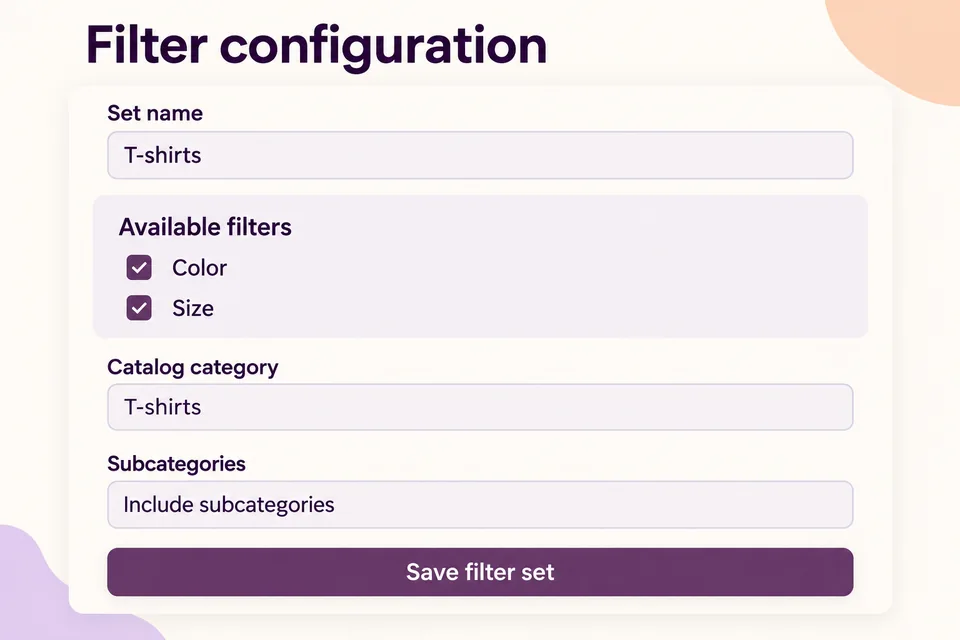
The category defines the catalog boundary. Resetting filters returns to the T-shirt collection, not every item in the store. If you choose direct category assignments only, products assigned solely to a child category will not be included through the parent.
For parent categories, child categories and the catalog reset boundary, see how to filter WooCommerce products by category. Category membership and variation attributes answer different questions.
The editor preview shows at most six matching cards; its total includes all matches. Do not treat a six-card preview as a six-product catalog limit.
3. Put the catalog on a WordPress page
Copy the generated shortcode from the saved set. Create a WordPress page, add a Shortcode block and paste it there. Use the actual saved set ID: the readable set name is not the ID.
A typical structure is [hs_product_filters set="YOUR_SET_ID"]. Replace that placeholder with the value copied from your editor. Use one HookSpark catalog on the page and publish the page through the normal WordPress workflow.
Open the page as a logged-out visitor. A disabled or missing set will not display the working catalog. Adding a shortcode to this page also does not update your shop menu: link the catalog from a relevant collection or navigation entry when it is ready.
4. Check combinations, not just individual filters
Values within the same filter are alternatives: Plum or Lavender. Different filters must both match: Plum and Medium. For variable products, one eligible variation must satisfy the whole selection.
| Selection | Expected products |
|---|---|
| No filters | Everyday tee, Weekend tee, Relaxed tee |
| Plum | Everyday tee, Weekend tee |
| Plum + Medium | Everyday tee only |
| Plum or Lavender + Medium | Everyday tee, Weekend tee |
| Lavender + Small | Relaxed tee only |
Each product appears once, even when several variations match. The card represents the cheapest matching variation and links to the normal product page. Filtering is a discovery step: verify the selected attributes on that page and complete the purchase there. It does not reserve stock or change the product price.
Keep applied selections visible and easy to remove
HookSpark shows applied selections above the results as removable chips. Remove Medium to keep the color choice, or reset to return to the original collection. Test browser Back and Forward as well as the reset action.
Baymard Institute’s Display “Applied Filters” in an Overview, by Kathryn Reeves, published October 6, 2020 and updated May 13, 2026, reports that shoppers can lose context when their applied filters are not clearly summarized. Its testing supports making selections visible and easy to remove. This is usability evidence, not a measured sales increase for HookSpark or this T-shirt example.
On narrow screens, open Filter products, change selections and use Apply filters. Mobile choices remain a draft until applied; closing or cancelling the panel restores the previously applied selection. The panel does not show a live result-count preview while you edit that mobile draft.
To check how results update, follow our WooCommerce AJAX product filter tutorial. Its price-and-stock example covers desktop updates, mobile Apply filters, empty results and recovery after a failed request.
What to check when a product does not appear
- The attribute is missing from the editor: confirm it is a global attribute, not only a custom product attribute.
- A combination has no matches: check actual variation combinations, not just the parent’s list of colors and sizes. Remove a chip to broaden the selection.
- The product is outside the catalog: check category assignments and the subcategory policy.
- The product is not purchasable: review publication, catalog visibility, variation prices and stock. WooCommerce’s hide-out-of-stock setting remains effective; an Out of stock filter does not override it.
- Results changed after adding another filter: price and availability must match the same variation as Color and Size. Check your real store’s tax and pricing integrations separately.
Do you need Pro or SEO landing pages?
The basic attribute-filter catalog described here uses Free. The Pro extension adds separate capabilities, including creating or editing dedicated readable-URL SEO landing bindings. Ordinary filter combinations are not automatically turned into indexable search landing pages. Check the current edition comparison and Product Filters documentation before planning that additional workflow.
Product filters also do not collect personalization instructions. If shoppers need to enter text for an item, see our engraving-field tutorial. If they need to buy complete boxes, the packs-of-six guide covers purchase quantities. Those tools solve different jobs from narrowing a catalog.
Start with one useful collection
Prepare real attribute data, publish one dedicated catalog and test a combination shoppers can actually buy. Then check removal, empty results and mobile use before expanding the setup.
Explore HookSpark Product Filters →