

A customer wants a name on a bottle. You need the exact text, a sensible length limit and a clear price before they add it to the cart. A WooCommerce engraving field lets you collect that instruction alongside the product purchase.
In this walkthrough, we use HookSpark Product Options & Add-Ons to add a required text field to one simple product. Our bottle costs $20, engraving adds $5 per item and the text can contain up to 20 characters. The basic setup uses the Free field and fixed-price controls.
What an engraving field does
The field collects the customer’s text as a product option. It does not engrave the item, choose a production font or create a live image of the finished bottle. Your fulfilment process still needs to turn the saved instruction into the physical personalization.
Keep the buying decision specific. Here, the selected bottle is always personalized, so its engraving text is required. An optional engraving service needs a different setup: a checkbox followed by a conditional text field. We cover that variation below.
1. Create a group for the product you want to personalize
Work on a test copy of your store with WooCommerce and HookSpark Product Options active. Choose a published simple product named Personalized bottle, with a catalog price of $20 and enough stock for two units.
- Open HookSpark → Product Options.
- Create a group and set Group name to “Bottle engraving”. Keep it inactive while configuring it.
- In the group’s product targeting, select Personalized bottle.
- Use the inline presentation, On the product page, for this example.
Review any other option groups already assigned to the bottle. An unrestricted group can appear on other products too; selecting the bottle keeps this example focused. Exclusions take precedence over inclusions.
2. Add a text field with a visible length instruction
Choose Add field, then select Text. A single-line text field suits a short name or inscription. Use these settings:
| Control | Value | Why it matters |
|---|---|---|
| Field label | Engraving text | Names the information the customer must enter. |
| Help text below this field | Up to 20 characters. Check spelling before adding to cart. | Explains the limit where the customer enters the text. |
| Required | Enabled | Rejects a missing value for this applicable field. |
| Maximum characters | 20 | Limits the accepted text length. |
| Extra price per item | 5 | Adds a fixed $5 to each item with valid engraving text. |
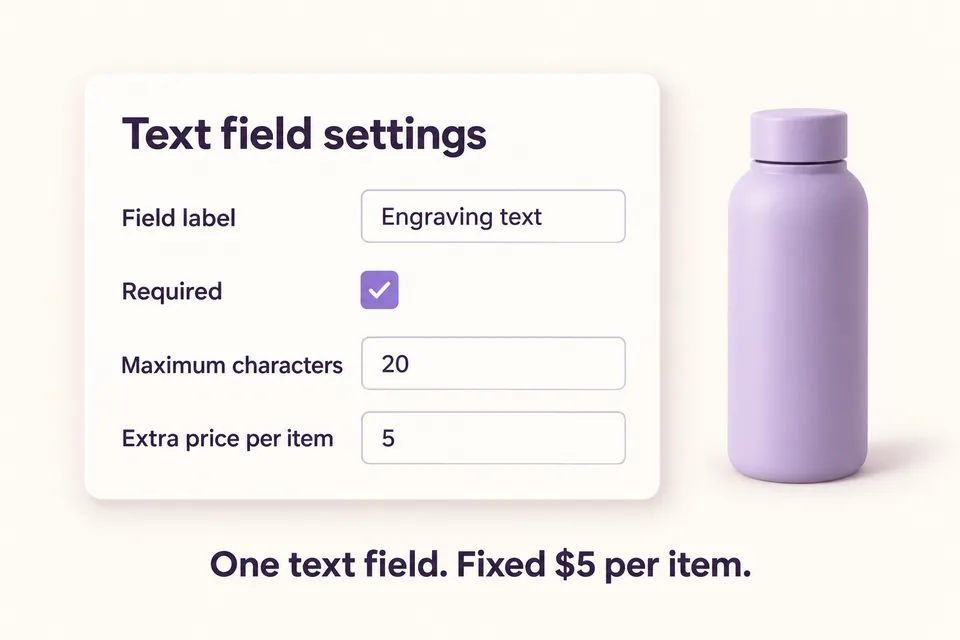
The length limit should come from what you can actually engrave. Twenty is an example, not a universal production standard. A long name, punctuation or an accented character may need a different physical layout even when it passes the software limit.
In the current plugin, the server counts Unicode code points after removing leading and trailing spaces. A combined emoji can contain several code points. Test the character types your production process accepts; do not assume the length setting is a font, alphabet or engraving-layout validator.
3. Make the engraving cost clear
A fixed Extra price per item is suitable when the service has the same cost for every permitted inscription. Typing “MARCO” or “ANNA” adds the same $5 in our example. It is not a charge per letter.
| Purchase | Calculation | Amount |
|---|---|---|
| One bottle with MARCO | $20 product + $5 engraving | $25 |
| Two bottles with the same text | 2 × ($20 + $5) | $50 |
| One bottle with ANNA | $20 product + $5 engraving | $25 |
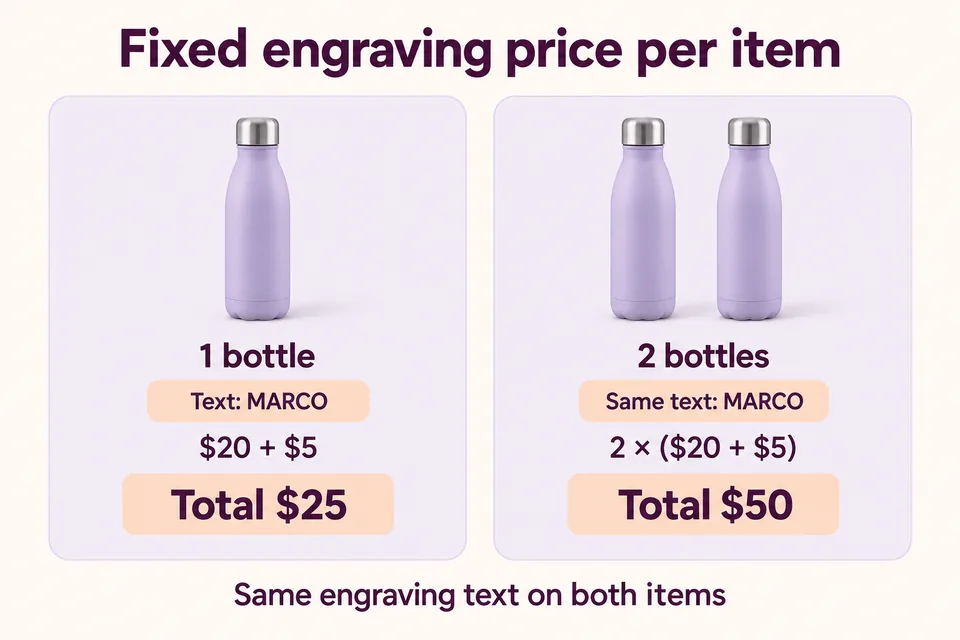
These are synthetic prices for the tutorial, not plugin subscription prices. The example assumes the catalog price and extra use the same tax basis. WooCommerce applies your store’s tax settings, customer location, coupons and shipping separately; check the final totals on your own store.
Two units on this configured cart line share its engraving text. If the customer needs two different names, have them configure and add each name separately, then confirm that the cart and order keep the personalizations distinct.
4. Save, enable and test the complete purchase path
Save the group, inspect its preview for the selected product, then enable it and save again. A draft preview helps check the field, but it does not prove the storefront, cart and order will behave correctly.
Open the bottle’s product page as a customer and work through these checks:
- Empty input: try adding the bottle without engraving text. The required field should prevent the purchase from continuing.
- A normal name: enter MARCO. Confirm that the valid text is accepted and the one-item price includes the $5 extra.
- The length boundary: check a permitted 20-character value and an attempted 21-character value. The browser may stop extra typing; server validation must also reject an overlong submitted value.
- Quantity two: confirm $50 for this example before any other store adjustments.
- A different product: open an unrelated item and confirm that the bottle-only group does not appear there.
- Cart and test order: verify the text and price survive the purchase path and appear in the order information your fulfilment team uses.
Use a test payment method and review the actual order details before enabling the setup for customers. Include spelling, keyboard navigation and mobile use in that review. The software can require a value, but it cannot know whether the customer intended “MARCO” or “MARCOO”.
Give customers the instructions before they make an error
In Website Forms Usability: Top 10 Recommendations (Nielsen Norman Group, Kathryn Whitenton, May 1, 2016), the guidance recommends explaining input requirements and clearly distinguishing required from optional fields.
Applied to engraving, that means keeping “Engraving text” visible, stating the length limit below it and explaining when the service is mandatory. Do not leave the essential instructions only in a placeholder that disappears as the customer types. This is a form-design principle, not a measured conversion gain for this bottle example.
What if engraving is optional?
Create a checkbox such as Add engraving before the text field. Set the text field to appear only when the checkbox is selected, and make it required when visible.
Choose one place for the fixed charge. For example, put the $5 extra on the checkbox and leave the conditional text field’s extra at zero. Charging both would add both amounts. When the controlling choice hides the text field, the plugin clears that hidden value and it no longer contributes its own price.
Our WooCommerce conditional product options guide walks through this optional engraving variation from the checkbox to the two purchase paths. Use it when plain bottles must remain available.
Test both paths: no engraving should allow the base product purchase, while selected engraving should require the text. For another conditional personalization example, see our WooCommerce gift wrapping tutorial.
Can you charge per character?
Yes, the Pro extension adds per-character pricing and once-per-cart-line pricing. They solve different problems from the Free fixed per-item setup described above.
At $1 per character, MARCO contributes $5 per item; ANNA contributes $4. Internal spaces count too. A once-per-line setup charge instead stays fixed when the quantity of that customized line increases. Review the Product Options guide and test those calculations separately before replacing your fixed price.
Start with one product and one clear engraving field
Collect the text, explain the limit, show the extra and verify the saved order. Once that purchase path works, decide whether optional engraving or more advanced pricing is useful for your store.