

A shopper wants to give someone a present but does not know which product, size or color to choose. A digital gift card lets the recipient make that decision later.
Here is a practical WooCommerce example: Sam buys a $50 gift card for Alex. Alex receives an email and uses the credit on a $70 order, paying the remaining $20. We will follow the purchase, email and redemption separately so you can check each part before offering gift cards to customers.
What a digital gift card needs to do
A downloadable picture is not enough. Your store needs to issue credit after payment, deliver the details to the right person, recognize the code and track what remains after an order. A gift card balance is stored value for purchases in your store; it is different from a coupon that reduces a product price.
This walkthrough uses HookSpark Gift Cards, currently a beta product. Confirm its current availability and tested versions on the product page. Test your payment gateway, email provider and theme in a staging store before offering it to customers. This example uses one store currency, USD, and one recipient.
1. Set up the gift card product
With WooCommerce and Gift Cards active, open the Gift Cards settings in the HookSpark menu. Use Create gift card product, or select an existing published simple product using Gift card product ID. The selected product is the entry point for the gift card configurator.
For a small initial offering, set the following values. Keep the promotional discount at zero so a $50 purchase issues $50 of credit without another pricing rule to explain.
| Setting | Example | Purpose |
|---|---|---|
| Minimum amount | 25 | Reject smaller gift values. |
| Maximum amount | 100 | Reject larger gift values. |
| Suggested amounts, separated by commas | 25,50,100 | Offer values within that range. |
| Promotional discount on gift card price (%) | 0 | Keep price and credit equal in this example. |
Choose your expiry policy before launch and explain it clearly on the product page. Expiry in days accepts zero for no expiry. A technical setting does not determine which terms are lawful in your market; set your terms accordingly. Save the settings and enable Enable new gift card purchases when the test configuration is ready.
Open the configurator from the settings. The Gift Cards getting-started guide covers the initial setup in more detail.
2. Buy a $50 gift card for one recipient
On the gift card product, choose $50 and Email the recipient. Enter Alex’s name, a real test inbox you control, Sam as Your name, and a short gift message. The address in the illustration is a fictional example; it cannot receive your test email.
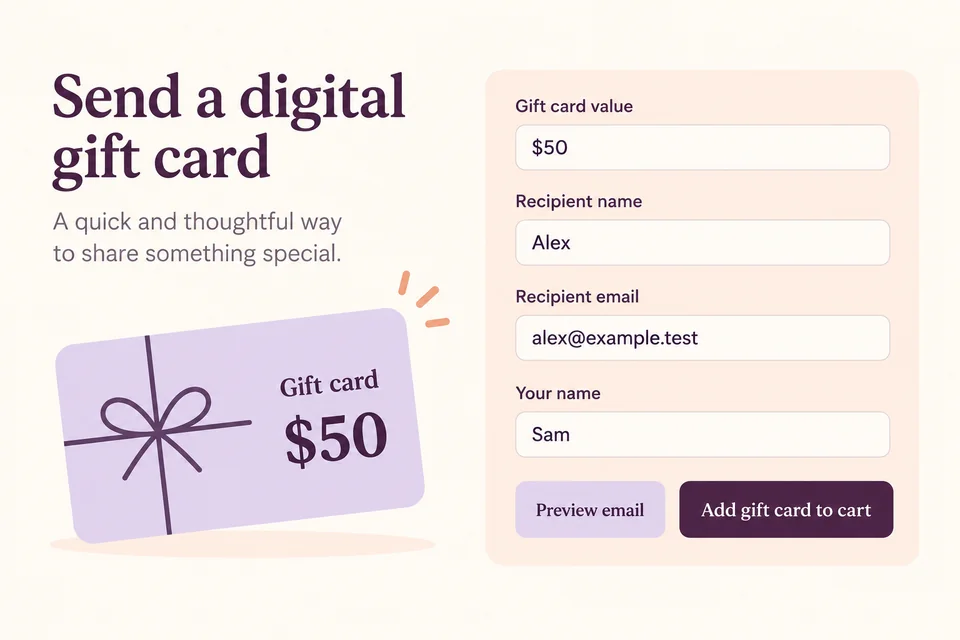
Leave additional recipients and the optional delivery date empty for this first test. Choose a design, select Preview email and check the name, message and value. Previewing the email does not create spendable credit or complete a purchase.
Select Add gift card to cart. Inspect the amount and recipient details in the cart, then complete a purchase with your gateway’s test mode. Do not use a live customer address or charge a real card just to try the setup.
3. Check payment before checking the email
The plugin issues the gift card when WooCommerce recognizes the order as paid. Adding it to the cart or leaving an order pending is not enough. If the gateway has not confirmed payment, check the order and its payment status first.
For an immediate email, the card is queued after issuance. For a scheduled gift, delivery depends on the selected date and time and the store’s scheduled tasks. Start with immediate delivery; add scheduled-delivery tests after the basic purchase works.
Open the received email and check the recipient, sender, message, value and redemption details. Test the email’s button rather than assuming it opens the right page: its destination is configurable in the email settings.
A status indicating that an email was sent means the mailing system accepted the send request. It does not prove that the message reached the inbox. Check spam filtering, your mail provider and the actual test inbox when investigating delivery.
Nielsen Norman Group’s Aurora Harley explains the value of clear feedback in Visibility of System Status (Usability Heuristic #1), published June 3, 2018. For this flow, that principle means distinguishing payment pending, gift card issued and email sent. This is an application of a usability principle, not a measured conversion claim about gift cards.
4. Redeem the card on a $70 order
As Alex, add ordinary merchandise to the cart. For this example, the final order amount, after the store has calculated any applicable taxes, shipping and discounts, is $70. Enter the issued code in Gift card code and select Apply gift card. Use the gift card controls rather than the coupon field.
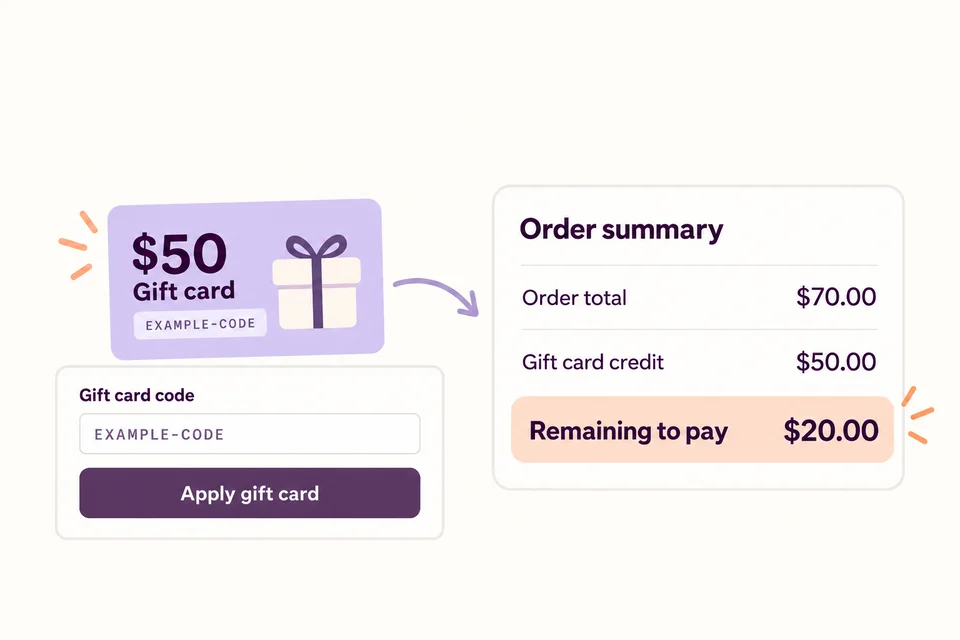
The $50 credit leaves $20 to pay through an available payment method. Complete the test order and inspect both the order and the card balance. The credit is reserved while an order is awaiting payment and settled when it is paid; adding a code to the cart is not proof that the balance has been permanently spent.
Gift card credit is a payment contribution, not a product discount. It does not rewrite tax rates or make your tax setup correct. Keep the store’s existing tax and shipping configuration and check the resulting order with the same care as another payment flow.
If Alex instead spends $35 from a $50 card, $15 remains for a later eligible purchase. Use Check balance to inspect the card, and test that second purchase. Cards must match the store currency, and gift card credit cannot fund another gift card purchase.
Run these checks before launch
| Test | What to verify |
|---|---|
| Purchase remains unpaid | No spendable card is issued merely because an order exists. |
| $50 purchase is paid | One intended card is issued, with the correct recipient and currency. |
| Email preview and actual email | The names, message, amount and button destination make sense on desktop and phone. |
| $50 credit on a $70 order | $20 remains to pay; after payment the used credit is settled. |
| Partial redemption | The unspent balance remains available for a later eligible order. |
| Failed or cancelled payment | The reservation is released or the settled allocation restored as appropriate; inspect the actual order and balance. |
| Refund | Inspect the credit restored and any gateway refund separately. Refunding an order and refunding the original gift card purchase are different operations. |
Repeat the important checks with the exact cart and checkout your store uses. A successful email preview cannot establish gateway behavior, and a successful redemption cannot establish inbox delivery. Keep the order IDs and test results so support can trace a problem without exposing the full gift card code publicly.
Common questions
Can customers send a gift card directly to someone else?
Yes. Choose Email the recipient and enter that person’s address. Buyers can also choose Send to me, to print or give personally. Test the selected delivery option and explain it on your product page.
Can a gift card be used more than once?
Yes, if it still has available credit and is otherwise eligible. A partial spend leaves a remaining balance. An expired, inactive or currency-incompatible card cannot be treated as available credit.
Does a gift card cover an order that costs more than its balance?
It contributes the available credit; the customer pays the remainder. In our $70 example, a $50 card leaves $20 to pay. Verify your gateway handles that remaining amount correctly.
Is adding a gift wrap option the same as selling a gift card?
No. A gift card provides credit the recipient spends later. Gift wrapping adds packaging to an item being purchased now. If you need both, our WooCommerce gift wrapping tutorial covers that separate Product Options setup.
Try the complete gift card journey.
Check the current product, explore the demo and test purchase, delivery and redemption in your own staging store.
Explore HookSpark Gift Cards →To help buyers choose a design and add a recipient, sender and personal message, follow our guide to personalized WooCommerce gift cards.