

WooCommerce conditional product options let you show a customization field only after the customer makes a relevant choice. For a bottle with optional engraving, the engraving text field appears when the customer selects Add engraving. Customers buying a plain bottle can continue without entering text.
In this guide, you will configure that behavior with HookSpark Product Options & Add-Ons: an optional checkbox, a dependent text field and a clear $5 engraving charge. The simple condition used here is available in the Free edition. Multiple conditions combined with AND/OR belong to Pro.
What are WooCommerce conditional product options?
A conditional option is a product field whose visibility depends on an earlier selection. For example, checking Add engraving reveals Engraving text. Leaving the checkbox unchecked keeps the text field hidden.
The condition controls the customization form on the product page. Product targeting determines which products receive the option group; conditional logic determines which fields the customer sees inside that group. This walkthrough keeps those two settings separate.
Example: make engraving optional, but its text required
Our example is a simple bottle with a base price of $20. Engraving costs $5 per item. The customer can buy it plain or choose engraving and supply up to 20 characters. These are illustrative catalog prices; tax, coupons and shipping depend on your store settings.
| Customer choice | What they see | Expected result for one bottle |
|---|---|---|
| No engraving | Checkbox only; text field hidden | $20 product total; no engraving text required |
| Engraving selected, no text | Engraving text field visible and required | Customer must enter text before adding this configuration |
| Engraving selected, text entered | Text field containing MARCO | $20 + $5 = $25 |
The distinction matters: engraving is optional, while its text is required when engraving is selected. Making the checkbox required would force everyone to purchase engraving.
How to set up conditional product options with HookSpark
1. Create a group for the relevant product
Open the Product Options editor under HookSpark and create an option group named Bottle personalization. Target the bottle product, rather than applying the group to your entire catalog. Keep the fields together in this group so the dependent field can reference the earlier choice.
If you already have an engraving group, edit it instead of adding a second group that charges for the same service. The engraving field guide covers text limits and per-item pricing in more detail.
2. Add the optional checkbox first
Add a Checkbox field and use Add engraving as its Field label. Leave Required off. Set Extra price per item to 5. The amount uses your store currency; the examples here use dollars.
We put the $5 charge on this checkbox because it represents purchasing the engraving service. Do not also set a $5 extra on the text field, or you would charge twice.
3. Add the dependent text field
Add a Text field below the checkbox, label it Engraving text, enable Required and set Maximum characters to 20. Leave its extra price at zero.
Open Show this field when and select the earlier Add engraving field. Set Condition to Is equal to and Value to match to Checked.
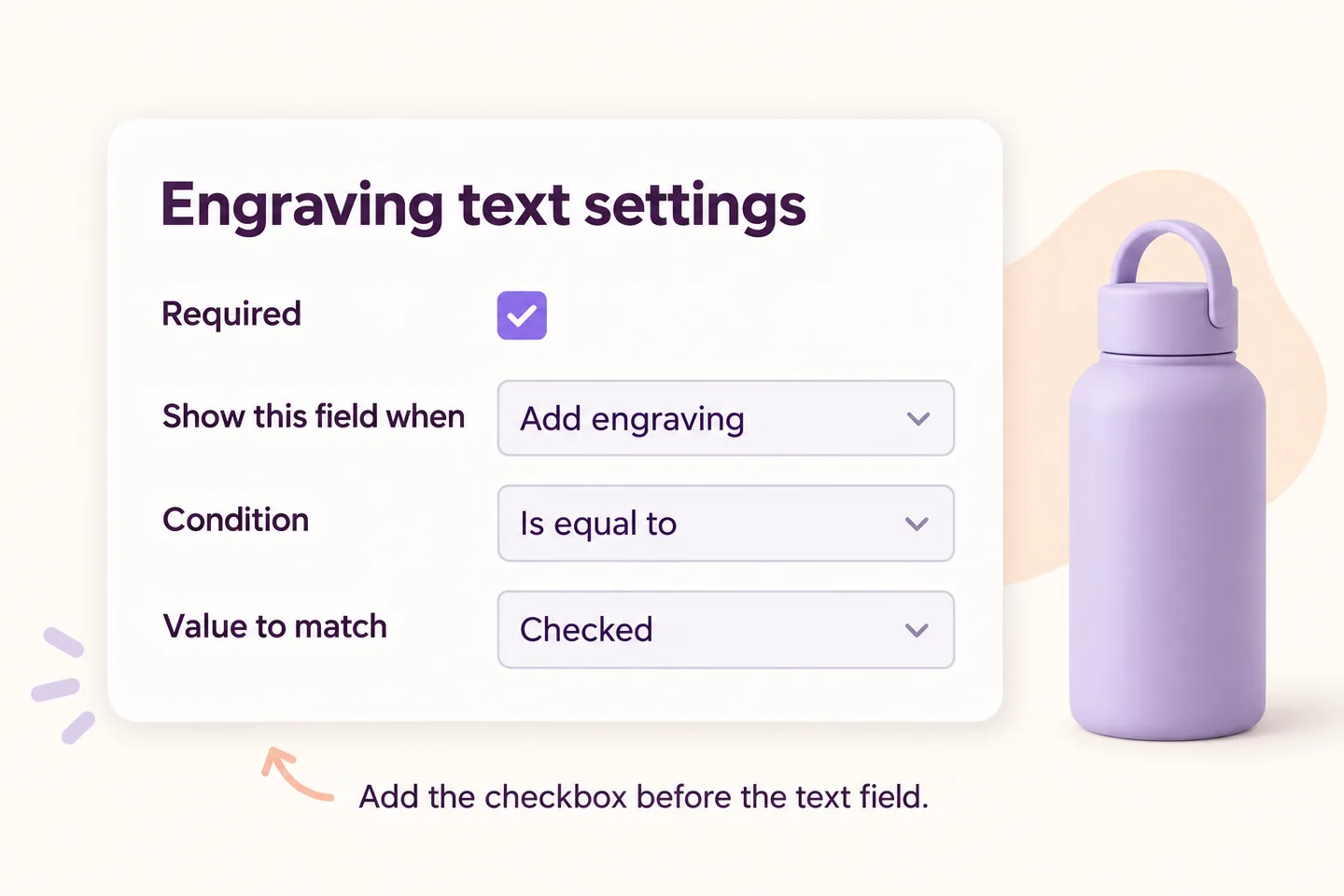
The editor offers earlier fields as condition sources. If Add engraving is missing from the dropdown, check its position and confirm that both fields are in the same group. Product targeting chooses where the group applies; this field condition chooses when its text input appears.
4. Preview, enable and test the saved product
Use Preview this draft to try the unchecked and checked states. Then enable the group, save your changes and open the actual product page. A draft preview helps check the group; it is not a substitute for testing the saved configuration in your storefront and cart.
With engraving off, the bottle should remain $20. With engraving on and valid text, it should be $25. For two bottles with the same selected engraving, the product line is 2 × ($20 + $5) = $50. This example charges per item, not once per order.
What happens when the customer changes their mind?
Suppose the customer selects engraving and enters MARCO, then unchecks Add engraving. The plugin hides the dependent field, disables its control and clears its text. The engraving checkbox is no longer selected, so its $5 charge no longer applies.
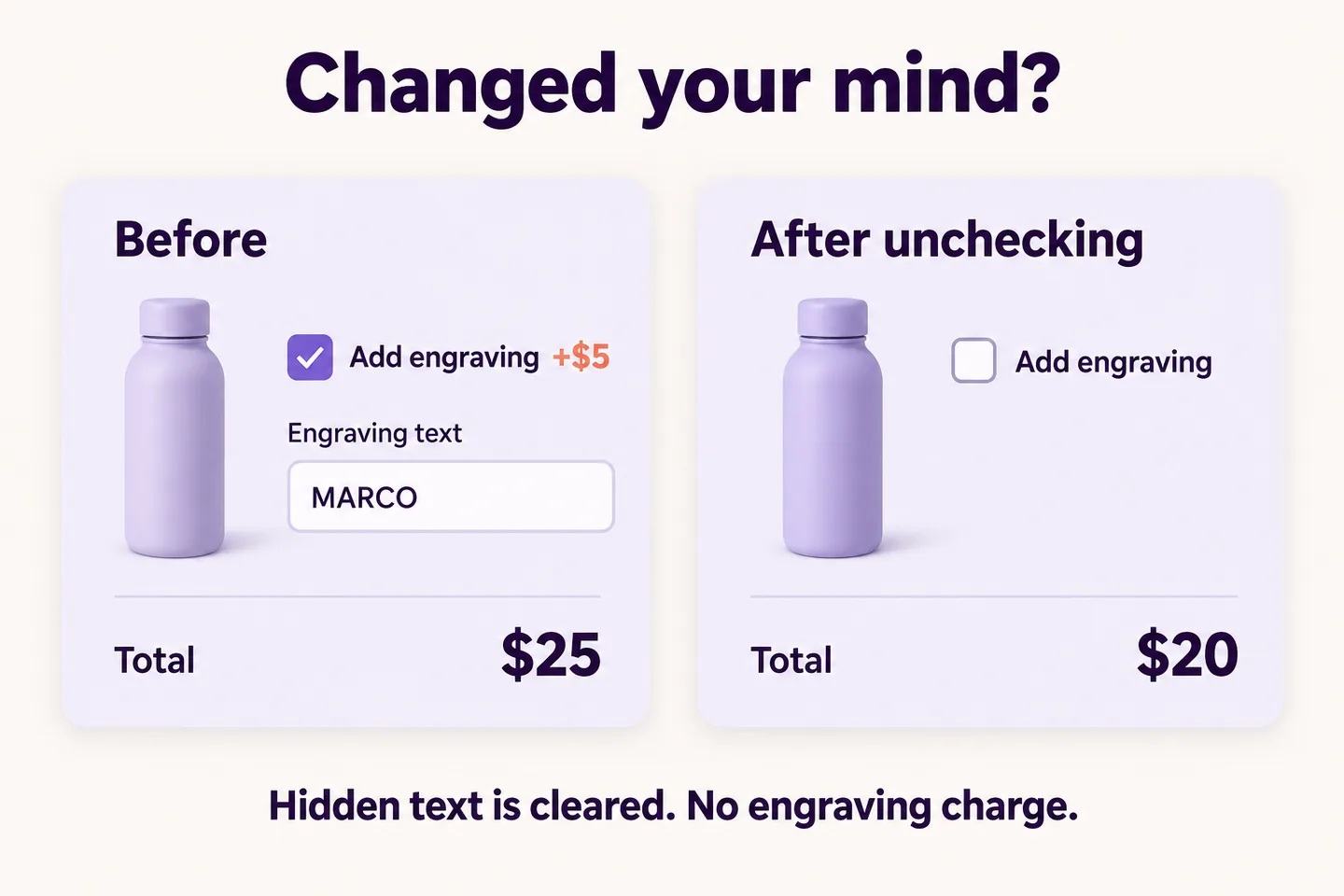
A hidden required field does not create an error for the plain bottle. The server also evaluates the condition: submitted text for a hidden field is excluded from the option values. Hiding a field only with your theme’s CSS would not provide this behavior.
Test the return journey too. Select engraving again after turning it off: the text field should be empty, and the customer must enter valid text. Explain this reset if your customization form contains long inputs that customers might expect to retain.
Another use: show a gift message only with gift wrapping
The same Free pattern works for a gift-wrapping service. Put an optional Add gift wrapping checkbox first and a Long text field labeled Gift message below it. On the textarea, choose that checkbox under Show this field when, then Is equal to → Checked.
Leave the message optional if customers can buy wrapping without a note. A condition decides visibility; the Required setting decides whether an answer is needed while visible. See the gift-wrap option guide for the wrapping setup and pricing.
Only offer engraving, wrapping or any other service your business can fulfill. The plugin collects choices and applies configured extras; it does not perform the physical service or generate a live engraving preview on the product image.
When do you need Pro conditional logic?
The bottle example uses one rule and works with Free. Pro adds compound conditions: a field can depend on all of several rules (AND) or any of them (OR). For instance, a gift message could depend on both wrapping being selected and a particular earlier choice.
Start with the single rule when it solves the task. Check the conditional logic documentation before building compound rules, especially if an earlier field can itself become hidden. Do not assume arbitrary conditions based on cart totals, checkout addresses or unrelated fields are supported by this product-field rule.
Why reveal details only after the relevant choice?
Jakob Nielsen’s Nielsen Norman Group article Progressive Disclosure (December 3, 2006) describes showing the main choices first and revealing secondary options when needed. Applied to this form, that suggests keeping the engraving decision visible and revealing its text input after selection.
This is our application of the usability principle, not evidence that this particular configuration increases sales. Keep the paid service and its price clear before selection, and test the form with your customers.
Checks to make before using the form in your store
- Unchecked: the text field is hidden and the plain product can be added without text.
- Checked, empty: missing engraving text prevents adding that configuration.
- Checked, valid: the selected text and one $5 per-item extra appear correctly in the cart.
- Too long: text beyond the configured character limit is rejected.
- Changed choice: unchecking clears the text and removes the extra; checking again requires fresh text.
- Quantity two: verify the $50 product line, then your store’s tax and discount behavior.
Run these checks on desktop and mobile with your theme. Our walkthrough uses a simple product; test variations, other option groups and integrations separately if your store uses them.
Common questions about WooCommerce conditional product options
Can I make a field required only when another option is selected?
Yes. In this setup, mark the dependent text field Required and give it a visibility condition. It is required when visible; a customer buying without engraving does not need to fill it in.
Can I do this with the Free plugin?
Yes. The single checkbox-to-text condition described here is supported by Product Options Free. Combining several rules with AND/OR requires Pro.
Does a hidden field still add an extra price?
A field that fails its visibility condition is excluded from the quote. In our example, the charge is attached to the engraving checkbox, so deselecting that checkbox also removes the charge.
Will the customer’s text return when they select engraving again?
No. The frontend clears the dependent input when it becomes hidden. Customers need to enter their text again after reselecting engraving.
Give each customization field a clear purpose
Start with one customer choice and reveal only the detail needed to fulfill it. Try the checkbox-and-text pattern with HookSpark Product Options & Add-Ons, then test the plain, personalized and changed-choice paths in your store.