

To add a WooCommerce request a quote button, use a quote plugin that connects the product selection to a separate request list and form. With HookSpark Request a Quote Free, customers can choose quantities, review their list and send their contact details without placing an order or making a payment.
This guide uses a simple example: a customer needs 50 office chairs and wants your team to confirm a proposal before buying. We keep ordinary purchases available alongside quote requests. The Free setup applies globally to supported simple and variable products; product-specific admission rules belong to Premium.
What should a request a quote button do?
A useful button preserves the product and quantity the customer selected. It should lead to a reviewable request, rather than making someone retype product names into a generic contact form.
There are two separate actions in this walkthrough:
- Add to cart follows the store’s ordinary purchase path.
- Request a quote adds the selection to a separate quote list. The customer still needs to review and send that list.
Adding a product to the quote list is not the same as sending a request. Sending a request is not the same as accepting a proposal, reserving stock or paying for an order.
Example: ask for a proposal for 50 office chairs
Use a published simple product named Office chair, sold in individual units and not marked Sold individually. For your test, make at least 50 units available for ordinary purchase if backorders are disabled. Keep the product’s existing catalog price; this tutorial does not create a discount or promise a special price.
The buyer selects quantity 50 and chooses Request a quote. Their list should contain one Office chair line with a quantity of 50. They can add a message such as “Please quote for 50 office chairs. We would like to discuss delivery to our office.” Your team reviews pricing, delivery and availability before sending a proposal.
| Buyer action | Expected result | Order or payment? |
|---|---|---|
| Request a quote for 50 chairs | 50 chairs added to the quote list | No |
| Change quantity to 40 and select Update | The list now requests 40 chairs | No |
| Send quote request with valid details | A request is saved for the store to review | No |
| Add to cart instead | Ordinary WooCommerce purchase flow | Checkout is a separate next step |
If your prices are already fixed by quantity bands and customers can buy immediately, the WooCommerce bulk discount guide covers that different setup. A quote request gives your team a review step before agreeing a proposal.
How to add a request a quote button in WooCommerce
1. Install the Free edition and open its preferences
Get the Free package from the HookSpark Request a Quote page, install it in WordPress and activate it alongside WooCommerce. Free does not require a Premium license.
Open WooCommerce → Quote requests — Free and find Store preferences. Check the Store notification email so the store’s notifications are addressed to the right mailbox.
This walkthrough uses the Free interface. If Premium is active at the same time, Premium handles new requests and Free suppresses its storefront controls. That setup does not merge the two editions’ historical requests. Follow the documentation for the edition serving your storefront.
2. Keep normal purchases available
For the optional quote path, leave these four preferences unchecked:
- Hide product prices
- Hide Add to cart in the catalogue
- Hide Add to cart on product pages
- Prevent direct purchases of supported products
Save the preferences. Eligible product pages can then offer the quote action alongside the ordinary purchase form. Free uses the button label Request a quote; the illustration below explains the settings rather than reproducing an admin screenshot.
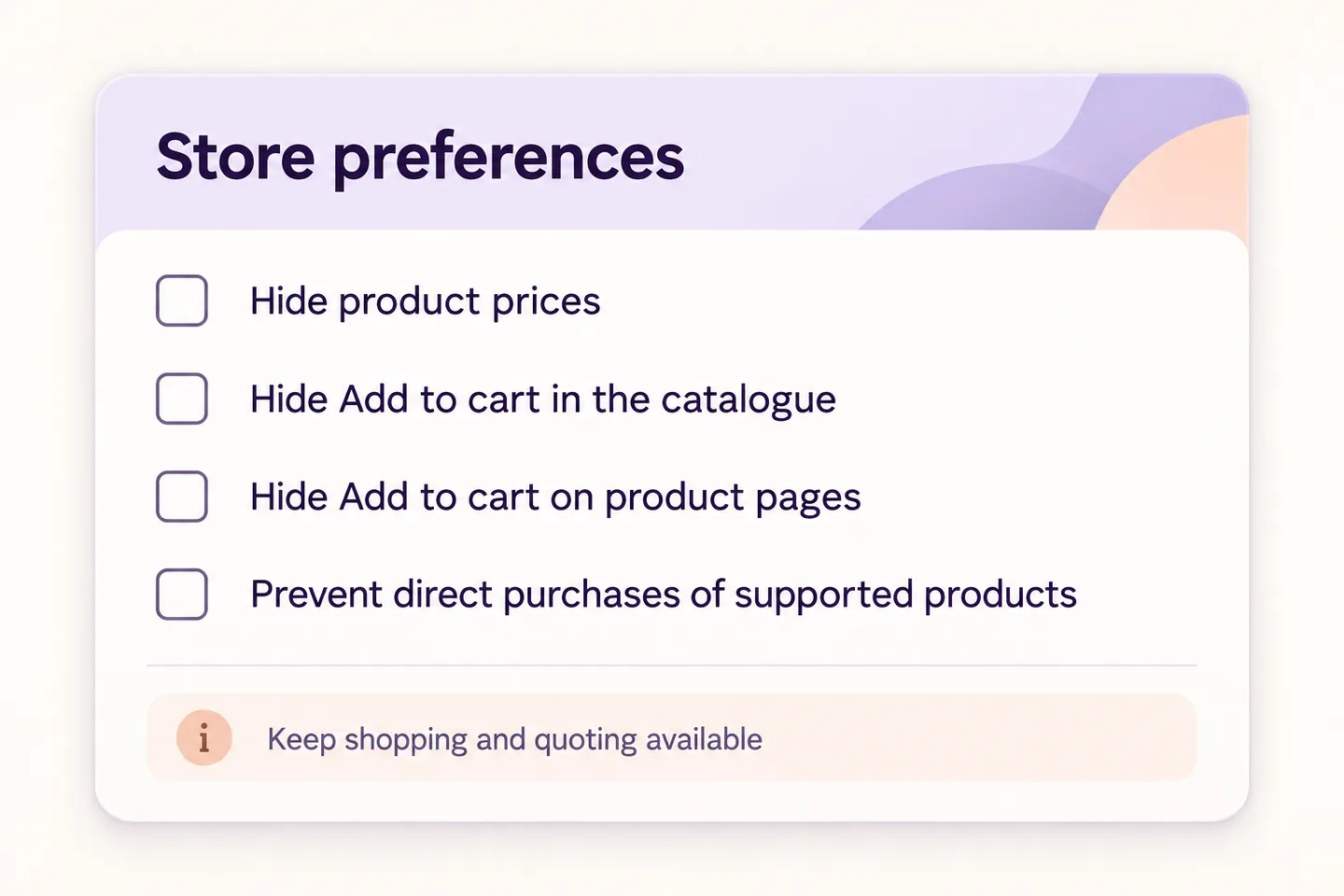
Do not turn on the purchase restriction just to add an optional quote button. The restriction changes whether customers may buy supported products directly; it is not a cosmetic setting.
3. Choose the quote-list destination
You can use the built-in quote-list page immediately. Leave Quote list page ID (optional) at 0 to use it.
If you prefer a dedicated WordPress page, publish a page containing exactly one [hs_raq_free_list] shortcode. Enter that published page’s ID in the preference and save. Keep product grids and other catalog shortcodes off this page so the request list and contact form have a clear purpose.
The Free setup guide covers the list page and the later proposal workflow. A custom page is optional; it is not required to put the quote button on product pages.
4. Test the product selection
Open the actual Office chair product page as a customer. Set quantity to 50 and select Request a quote. Follow the confirmation to the quote list and check both the product name and quantity.
If you add the same simple product again, its quantity is combined with the existing selection. Adding another 50 would request 100, not merely confirm the first 50. Correct the quantity in the list and select Update, or use Remove to delete the line.
For a variable product, choose every required variation option before requesting it. Free supports simple and variable products, but this chair walkthrough uses a simple product. Bundles, bookings and third-party product customizations need their own checks; do not assume a button appearing proves their data is supported.
5. Review the list and send the request
On the quote list, review the product and quantity, then complete Name and Email. Use Message to add useful context about the purchase. Confirm the privacy acknowledgement and select Send quote request.
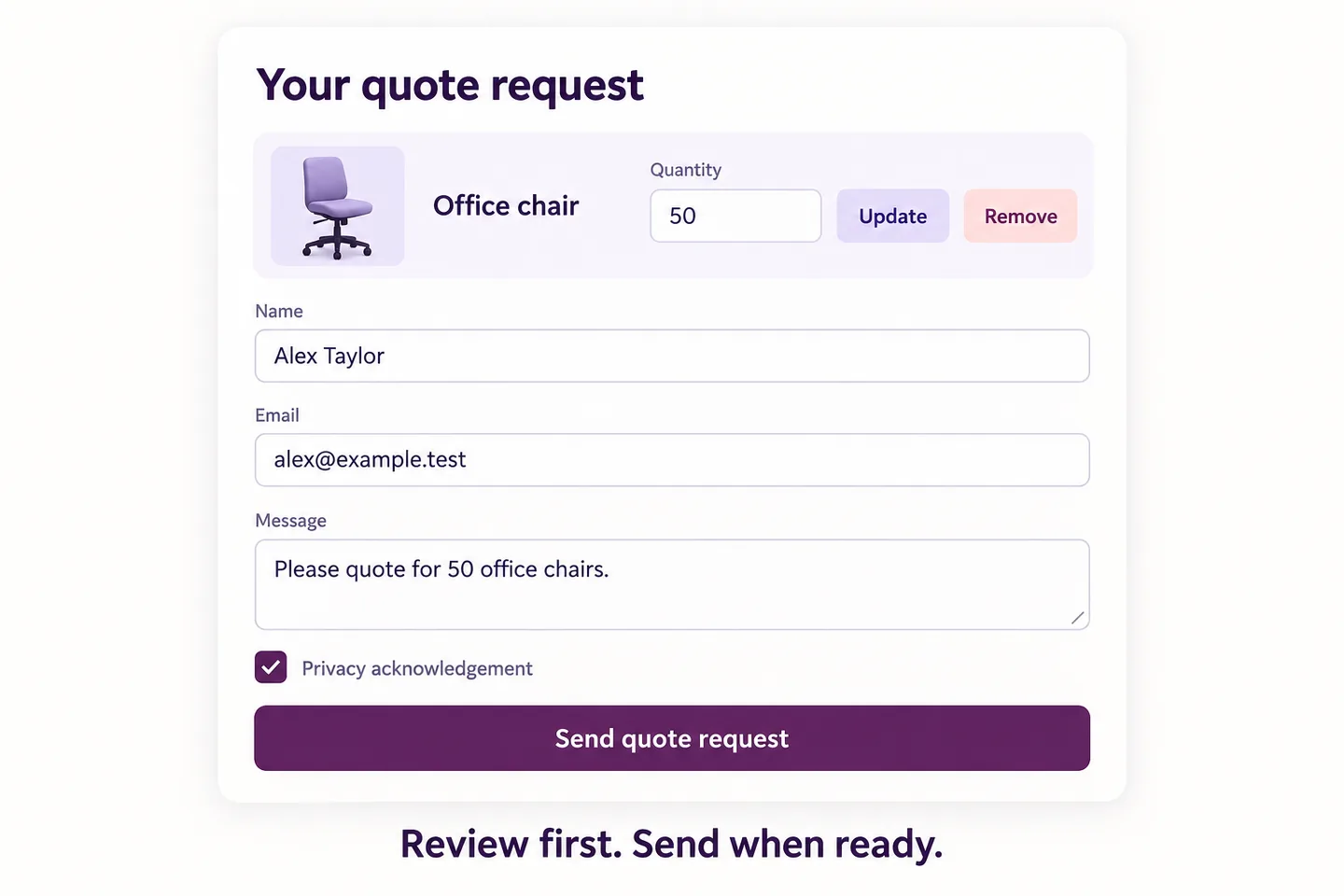
The request receipt confirms submission, and the submitted list clears. No WooCommerce order is created and no payment is taken at this step. If validation fails, correct the reported field and review the retained list before trying again.
For example, a malformed email or an unchecked privacy acknowledgement should prevent submission. Do not tell customers their request has been sent just because they clicked the product-page button.
Can the quote button replace Add to cart?
Yes, Free provides separate controls for hiding Add to cart in the catalog and on product pages. It also has an independent Prevent direct purchases of supported products preference.
Hiding a button changes its display. If your store must require a quote before direct purchase, the server-side purchase restriction matters too. Apply and test those choices together on staging. In Free they apply globally to supported products, so this is a store policy rather than a per-product switch.
Keep the optional path from this tutorial if customers should still be able to buy at the listed price. Use Premium’s detailed admission rules when your requirement is to offer quotes only for selected products or audiences. Check those rules separately instead of extending the Free example by assumption.
What happens after the store receives the request?
Open the saved request in the Free queue, review the quantities and decide what your business can supply. Free includes a manual proposal and an Essential PDF layout; it is not limited to collecting leads. Premium adds tools such as detailed visibility rules, custom request fields and reusable proposal templates.
A request does not automatically calculate a negotiated discount. If the customer accepts a later proposal, the order action and payment remain separate steps, with availability checks. This article stops at collecting the request; use the Free documentation to configure and test the full proposal-to-order journey.
Also check your site’s email transport. A Sent delivery status means the transport accepted the message, not that it reached the recipient’s inbox. Review the saved request and your mail provider’s delivery information rather than relying only on the customer receiving an email.
Why keep the product and quantity visible?
In Memory Recognition and Recall in User Interfaces (January 15, 2024), Nielsen Norman Group’s Raluca Budiu explains how visible context helps people recognize information instead of retrieving it from memory. Our application here is straightforward: let buyers review product names and quantities before they submit, rather than ask them to remember and retype their selection.
That usability principle does not demonstrate a sales increase for this setup. Test whether customers understand the difference between adding to the quote list and actually sending it.
Check these paths before opening the feature to customers
- Valid selection: 50 chairs appear once with quantity 50.
- Changed quantity: Update changes the quantity; Remove deletes the line.
- Incomplete form: invalid contact details or missing acknowledgement block sending, with a correction path.
- Valid submission: the request is saved, its receipt appears and no order is created.
- Ordinary purchase: Add to cart still works when all four preferences are off. The quote list remains separate.
- Unsupported case: do not extend this simple-product setup to a bundle or another custom product type without testing it.
Check desktop and mobile, clear storefront caches after changing preferences and test with your actual theme. Custom builders that replace WooCommerce’s native product controls need their own verification.
Questions about WooCommerce request a quote buttons
Can I add the button without hiding prices?
Yes. Leave Hide product prices unchecked. The quote request can be available alongside the existing price and purchase path.
Does the button immediately email the store?
The product button adds a selection to the quote list. The customer sends the request from the list’s contact form; those are different steps.
Can Free show the button only on one chosen product?
This Free setup is global for supported simple and variable products. Detailed product admission rules are Premium capabilities.
Does requesting 50 chairs reserve them?
No. Treat the request as a request for a proposal, not a stock reservation. Confirm availability before agreeing to supply the goods.
Make the first quote request easy to complete
Start with one simple product, a clear quantity and the optional purchase path. Try HookSpark Request a Quote and follow the Free setup guide to review the request in your store.
Need a catalog without displayed prices or direct buying? Follow how to hide WooCommerce prices and require a quote. Its Free settings apply globally to supported products, unlike the optional purchase path in this article.