

To create a WooCommerce buy one get one free offer, set a quantity rule that discounts one eligible unit by 100% for each complete pair in the cart. With HookSpark Dynamic Pricing & Discounts Free, use Buy X, discount Y, set both quantities to 1 and select a 100% percentage discount.
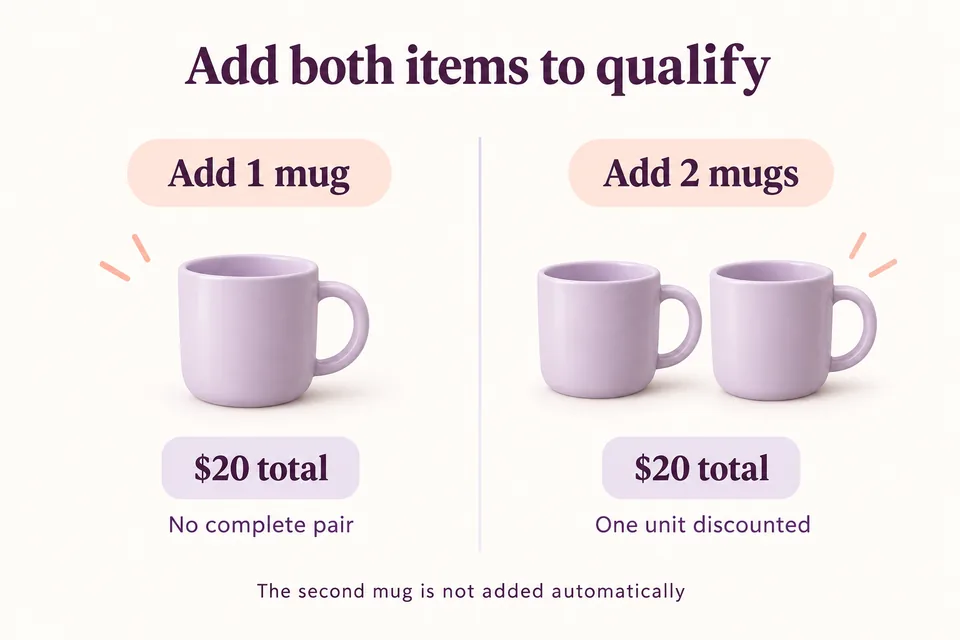
This walkthrough uses a ceramic mug priced at $20. The customer adds two mugs and pays $20 for those products together. Both units must already be in the cart. This BOGO rule discounts the selection; it does not automatically add a second mug.
What does buy one get one free mean in WooCommerce?
BOGO means the customer receives a discount equivalent to one eligible unit when a complete qualifying group is present. For the same $20 mug, one mug costs $20 and two cost $20 together. The cart still contains two physical units for stock and fulfilment.
That does not necessarily produce separate “$20” and “$0” lines. When identical mugs share a cart line, HookSpark distributes the saving across that line: two units can appear at $10 each. Check the quantity and the $20 line total, rather than expecting a separate free-product row.
All dollar examples below use a tax-free $20 test product and exclude shipping, fees and other discounts. On a real store, check your catalog tax basis and WooCommerce tax and shipping configuration.
1. Prepare a simple product and a clear offer
Install and activate HookSpark Dynamic Pricing & Discounts. The BOGO setup described here is available in the Free plugin; you do not need a paid edition for it.
Use a published simple product named Ceramic mug, priced at $20, with enough stock for your tests. Leave Sold individually off so customers can add two or more units. Start with a regular-price product and no coupon or competing pricing rule.
Explain the offer in the product description before asking customers to act. For example: “Add two ceramic mugs to your cart and pay for one. The offer repeats for every complete pair.” That sentence describes the configuration we will use; it is copy you add to your store, not a promise that the plugin automatically writes your product description.
2. Configure the BOGO pricing rule
Open the plugin’s pricing rules editor and create a rule named Mug: buy one, get one free. Follow the Dynamic Pricing setup guide if this is your first rule.
- Select Buy X, discount Y as the rule type.
- Target the Ceramic mug product. Do not leave the selection broad if the promotion should apply only to this mug.
- Set Count eligible quantities to Across all selected products. With only the mug selected, this counts its eligible units together.
- Set Buy quantity to 1 and Discounted quantity to 1.
- Choose Percentage off and set Discount value to 100.
- Turn on Repeat the offer for every complete group for a repeatable offer.
- Review coupon handling and sale-product exclusions. Keep the initial test free of coupons and sale products, then test the policy you intend to publish.
- Save and enable the rule. Reopen it to confirm the saved target, quantities and percentage.
The complete group is 1 purchased unit + 1 discounted unit = 2 units. Entering a discounted quantity of 1 does not mean one unit by itself becomes free.
3. Test one, two, three and four mugs
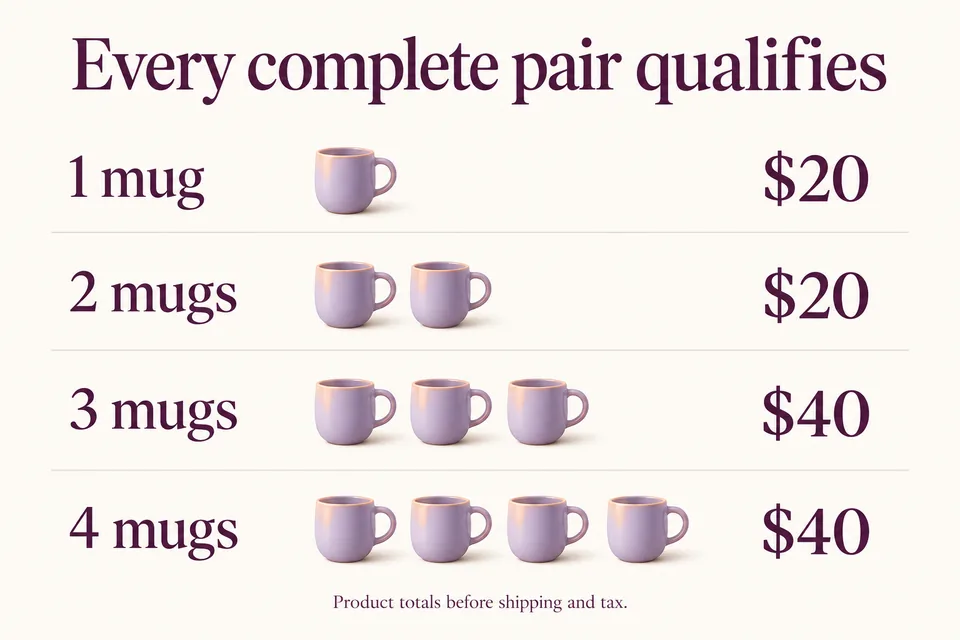
Open the product page as a shopper and change the quantity. With repeating enabled and no other price adjustments, the expected product totals are:
| Mugs in cart | Discounted units | Product total |
|---|---|---|
| 1 | 0 | $20 |
| 2 | 1 | $20 |
| 3 | 1 | $40 |
| 4 | 2 | $40 |
Then reduce the quantity from two mugs to one. The discount should disappear and the remaining mug should cost $20. The total happens to remain $20, but the physical quantity changes from two to one. Recalculate the cart again to check that the discount is not applied twice.
For a promotion limited to one discounted unit per cart, turn repeating off. In this example, four mugs would then cost $60 rather than $40. Make that limit explicit in your offer wording.
What if eligible products have different prices?
For this rule type, the cheapest eligible units receive the reward discount. With Across all selected products selected, if you deliberately widen the selection to include a $20 mug and a $15 mug, one of each forms a complete pair: the $15 unit receives the 100% discount, and their combined product total is $20.
Per cart line counts each line separately instead: one mug on each of two different lines would not form a pair. A product outside the rule’s selection does not complete the pair. Keep the first campaign restricted to one product if you want a simple, predictable offer. When expanding it, test mixed products, variations and exclusions against your exact saved selection.
BOGO, buy two get one free, or a quantity discount?
Choose the rule that matches what the customer is supposed to receive:
- Buy one, get one free: buy quantity 1, discounted quantity 1, 100% off; two eligible units must be present.
- Buy two, get one free: buy quantity 2, discounted quantity 1, 100% off; three eligible units must be present. Three $20 mugs cost $40.
- Buy one, get one 50% off: use a 50% reward discount; two $20 mugs cost $30.
- A lower price after a quantity threshold: use a quantity discount rather than promising a free unit. See our WooCommerce bulk discount walkthrough and bulk versus progressive tiered pricing guide.
The plugin has separate Buy A, get B gift settings for a different reward product. Those are not the settings used in this same-selection BOGO walkthrough. Do not enable an automatic gift and assume it is equivalent to discounting an existing pair.
Make the offer understandable before checkout
Shoppers should be able to identify the eligible product, required quantity, repeat limit and resulting total. Place that explanation near the purchase controls and verify that it remains readable on a phone. Keep the cart’s product name, quantity and price visible.
Nielsen Norman Group’s ecommerce usability research found that unclear cart feedback made shoppers double-check whether the correct product, options and quantity had been added. Source: Page Laubheimer, “Adding an Item to a Shopping Cart: Provide Clear, Persistent Feedback,” Nielsen Norman Group, June 17, 2018. Our application to BOGO is to explain the required pair and let the buyer verify both units and their combined price. That study does not establish a conversion uplift for this offer or for HookSpark.
Why is my WooCommerce BOGO offer not applying?
- Only one unit is present: add two eligible units for buy one, get one free.
- The product is outside the selection: check the saved product target, including any selected variations or exclusions.
- The product is on sale: check whether sale products are excluded.
- A coupon is active: check the rule’s coupon policy; do not assume coupon and BOGO savings stack.
- The rule is disabled or outside its schedule: confirm it is enabled and currently applicable.
- Another pricing campaign is active: check the selected rule strategy and evaluate the offer without competing campaigns before adding them back.
Before going live, also test a product outside the offer, quantity reductions, repeat on and off, and checkout totals with your real tax and shipping settings. Complete a test order using a test payment method and confirm that staff see the correct physical quantity. A correct rule preview alone does not prove your entire store’s purchase flow.
Planning BOGO for Black Friday? The guide to creating Black Friday deals in your WooCommerce store adds campaign wording, alternative quantity offers and a manual launch-and-close checklist. It does not replace the pair and repeat tests here.
Frequently asked questions
Can I create a WooCommerce buy one get one free offer without a coupon?
Yes. An enabled HookSpark pricing rule can apply when the eligible cart contents match, without requiring the shopper to enter a code. Decide separately how the campaign should behave when a customer also applies a WooCommerce coupon.
Does this BOGO rule automatically add the free product?
No. Buy X, discount Y discounts eligible units already in the cart. For buy one, get one free, the customer must add two units. Automatic gifts use the separate Buy A, get B configuration.
Is buy one get one free the same as 50% off?
For exactly two equally priced eligible units, the combined saving is 50%. The rules behave differently for an odd quantity: three $20 mugs cost $40 with this BOGO offer, rather than $30 with 50% off every mug.
Can the offer repeat when a customer buys four units?
Yes, when Repeat the offer for every complete group is enabled. Four $20 mugs form two qualifying pairs and cost $40 together. With repeating disabled, only one unit is discounted and the total is $60.
Create a clear offer, then test the complete pair.
Start with one eligible product, a 100% reward discount and an explicit repeat policy. Check the physical quantity and product total before expanding the campaign.
Explore Dynamic Pricing & Discounts →