

A customer buying one notebook and a customer buying twelve notebooks do not need the same offer. A WooCommerce bulk discount lets you lower the unit price when the quantity reaches a clear threshold.
In this example, a notebook normally costs $18. We will use HookSpark Dynamic Pricing & Discount Rules to charge $16 per notebook from six units, and $14 per notebook from twelve units. The offer applies to this product, and each cart line must reach the threshold itself.
Before installing: this walkthrough uses the current free release of HookSpark Dynamic Pricing & Discount Rules. Check its download status and tested platform versions on the product page, and try the setup on a test store before using it for live orders.
The quantity pricing rule we want
Start with a published simple notebook product priced at $18 and enough stock to test thirteen units. Keep it out of a native sale for this example. The amounts below are before tax, shipping and coupons; use the same tax basis when comparing your own results.
| Notebooks on one cart line | Price per notebook | Example line total |
|---|---|---|
| 1–5 | $18 | 5 × $18 = $90 |
| 6–11 | $16 | 6 × $16 = $96 |
| 12 or more | $14 | 12 × $14 = $168 |
This is an all-unit bulk discount: once the quantity reaches a band, its unit price applies to every notebook on that qualifying line. Six notebooks cost $96 instead of the usual $108, a saving of $12.
1. Create a promotion for the notebook
Open HookSpark → Pricing & Discounts → Create promotion. Give the rule a clear name such as Notebook quantity prices, so you can recognize it when checking the applied promotion.
Choose Quantity: same price for every unit, then Set unit price. In Include products, select the notebook. Do not leave product targeting empty: empty inclusion fields can make a rule apply beyond this one product.
Keep Per cart line as the quantity counting scope. This keeps the example straightforward: the notebook line must contain six units before the first discount applies.
2. Add the two quantity bands
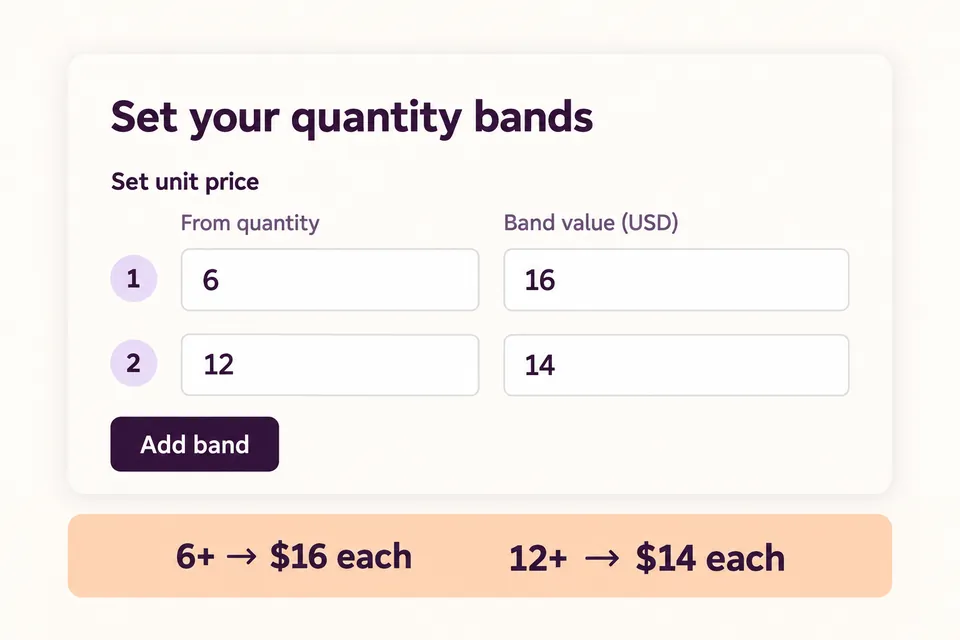
Add a band starting at 6 with a unit price of 16. Add the next band starting at 12 with a unit price of 14. Enter monetary values in your store currency; this walkthrough uses USD.
You do not need a band for quantities one through five. Below the first threshold, the notebook keeps its normal price. The twelve-unit band replaces the six-unit band’s price once twelve units are reached; it does not add another $14 charge.
Use increasing starting quantities. Duplicate or decreasing thresholds are rejected. Save the promotion inactive while you check the configuration.
3. Check what counts toward the discount
With this rule, three notebooks and three unrelated mugs do not qualify as six notebooks. The mugs are outside the selected product, and the notebook line is still below the threshold.
If your offer should combine variations of one product, or count several selected products together, the plugin has separate counting scopes for those cases. Those settings change the offer’s meaning. For this walkthrough, keep the simple product and per-line scope; use the quantity pricing guide before changing the counting method.
4. Preview the rule before activating it
Open the Cart simulator, add the notebook and use Include inactive promotions in this preview only to inspect the saved draft. Check the quantities below, then enable Promotion active after saving and save when the results match.
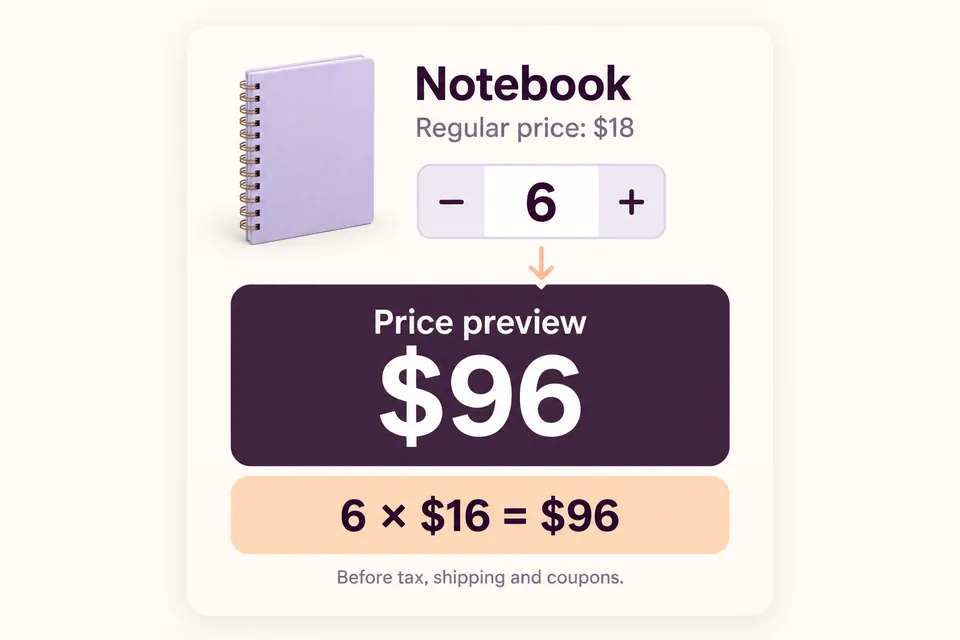
| Quantity | Unit price | Line total |
|---|---|---|
| 5 | $18 | $90 |
| 6 | $16 | $96 |
| 7 | $16 | $112 |
| 11 | $16 | $176 |
| 12 | $14 | $168 |
| 13 | $14 | $182 |
Notice that twelve notebooks cost less in total than eleven in this particular offer. That is a consequence of reducing the price of every unit at the next threshold. Check your costs and whether that jump is intentional before using these prices in a real store.
The simulator helps inspect a rule, but it does not replace a real purchase check. After activation, test the product page, cart and checkout with the same quantities. Complete a test order on staging and confirm that the line amount and promotion information remain correct.
Bulk pricing and progressive pricing are different
If you intended to discount only the sixth notebook and later units, choose Quantity: progressive price bands instead. For the first six-unit band, the difference is:
- Bulk: all six notebooks use the $16 price. Total: 6 × $16 = $96.
- Progressive: the first five remain $18, and only the sixth costs $16. Total: 5 × $18 + 1 × $16 = $106.
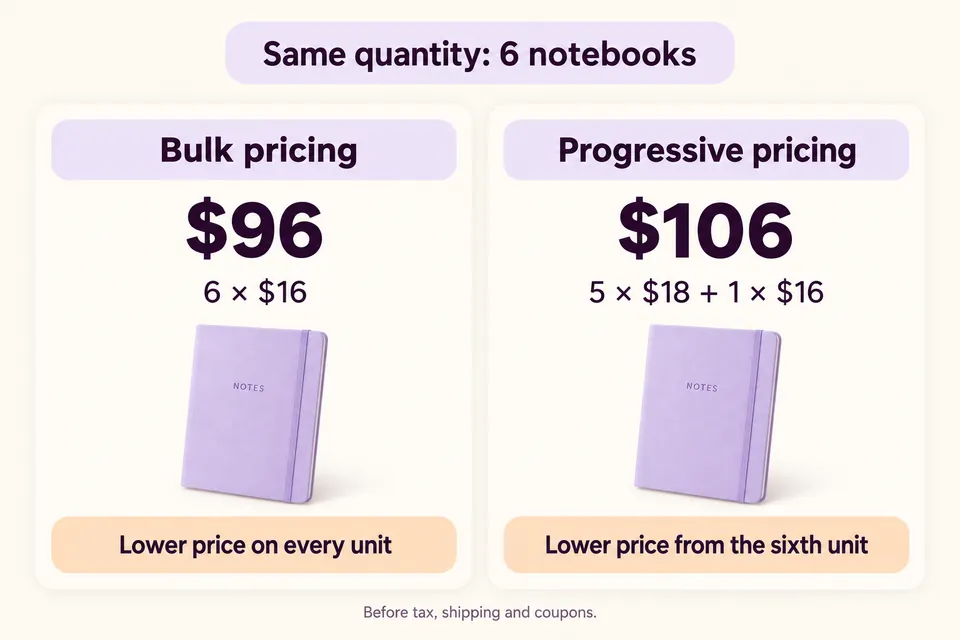
Both modes are supported, but they produce different results. This article’s setup uses bulk pricing throughout. Progressive bands require per-cart-line counting.
Make the offer easy to understand
Customers should be able to recognize the quantity requirement and its price without remembering a promotion they saw elsewhere. State the qualifying product and threshold together, and make clear whether the price applies to all units or only later units.
Need to review a customer’s quantity and agree a proposal instead of publishing fixed quantity prices? See how to add a WooCommerce request a quote button. A quote request is a different workflow; it does not automatically negotiate this discount.
In Memory Recognition and Recall in User Interfaces (Nielsen Norman Group, Raluca Budiu, January 15, 2024), Budiu explains how visible information and contextual cues support recognition rather than relying on recall. Our application here is to keep the quantity condition and its price together. This is a usability principle, not evidence that this particular discount will increase sales.
HookSpark can show a quantity price preview and examples at applicable thresholds. These are examples, rather than a complete table of every possible interval. The cart remains authoritative, especially when coupons, other products or purchase constraints affect the outcome.
Check coupons, sale products and purchase limits
The default coupon policy suspends this promotion when a coupon is present. Products already on sale are excluded by default. Keep those policies for the first test, then configure and test a different policy deliberately if your offer needs one. The coupon and overlapping offer guide explains the available choices.
A lower price also does not override stock or a purchase limit. If a quantity rule allows no more than five notebooks, shoppers cannot reach this offer’s six-unit threshold. Review any existing quantity limits before announcing the discount.
The guide to limiting quantity per product explains that separate purchase constraint. Check that the cap still allows every quantity advertised in your discount.
If you also sell products in fixed packs, see our WooCommerce packs-of-six example. Pack increments control which quantities can be purchased; bulk pricing controls the price at qualifying quantities.
A short launch checklist
- Confirm that only the intended product is selected.
- Test one unit below, exactly at and one above each threshold.
- Add an unrelated product and confirm it does not trigger or receive the notebook discount.
- Check a coupon and a sale product against the policies you chose.
- Confirm that stock and quantity limits allow the advertised quantities.
- Review the offer on mobile and complete a staging test order.
Try quantity pricing with a clear rule
Start with one product, two thresholds and predictable totals. Explore the current free plugin and its documentation before configuring an offer for your store.
Using quantity pricing in a seasonal campaign? Follow the WooCommerce Black Friday deal setup tutorial to plan the offer, compare alternative promotion types and prepare activation and switch-off checks.
Explore HookSpark Dynamic PricingShould the reached price apply to every notebook, or only to additional units? Compare bulk and progressive WooCommerce tiered pricing with side-by-side calculations before choosing your quantity rule.