

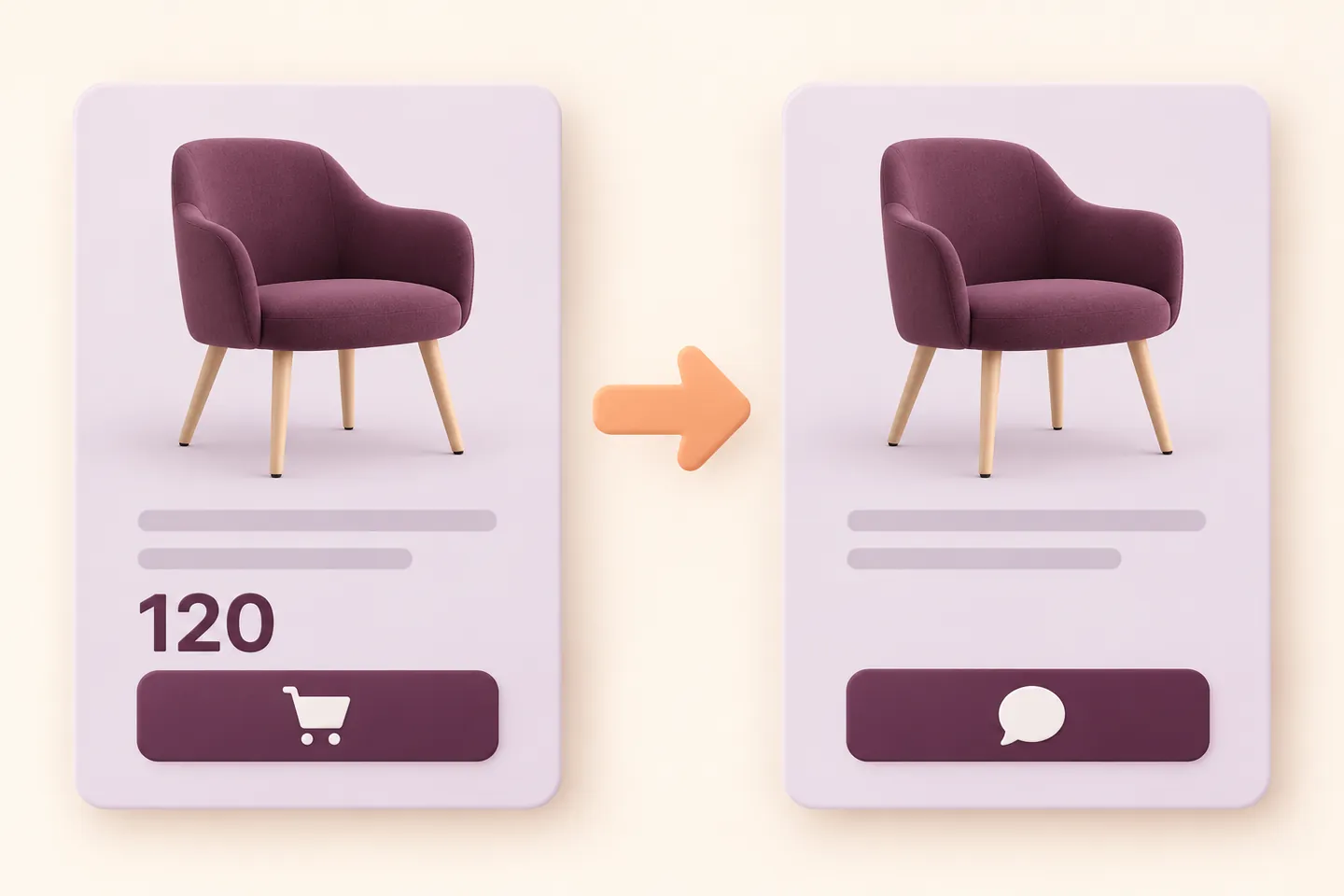
To hide prices in WooCommerce and ask shoppers to request a quote instead, configure both the visible product controls and the purchase restriction. HookSpark Request a Quote Free provides separate settings for hiding prices, hiding Add to cart and preventing direct purchases of supported products.
Our example is a furniture catalog: customers choose an Office chair, review a quantity of 12 in a quote list and send an inquiry. They do not buy the chairs or pay at this stage. This walkthrough uses Free 1.0.5, available on WordPress.org, and one published simple product. Free applies these preferences globally to supported simple and variable products; this is not a rule for one chosen chair only.
Choose between an optional quote and a quote-only catalog
If customers should still see prices and buy normally, you need a different setup. Our tutorial on adding a WooCommerce request a quote button keeps the ordinary purchase path alongside the quote action. Here, we deliberately remove that direct buying path for supported products.
| Goal | What changes | What it does not establish |
|---|---|---|
| Hide prices | Supported storefront price displays are suppressed | Prices are not deleted or changed to zero |
| Hide Add to cart | Purchase buttons are hidden on the chosen surfaces | Hiding alone is not a server purchase restriction |
| Require a quote | Direct purchase is prevented for supported products | A request is not an accepted proposal or payment |
1. Prepare a test catalog and install the Free plugin
Work on staging first. Keep the chair’s normal product price and publication status, and leave Sold individually off so a request for 12 units is possible. You do not need to erase the saved price, make the product private or set its price to zero. A zero price would describe a different buying offer.
In WordPress, open Plugins → Add New Plugin, search for “HookSpark Request a Quote for WooCommerce” and check that the author is hookspark. Install and activate it with WooCommerce active. You can also find the official WordPress.org plugin page. Free does not require a commercial license.
This is the Free-edition workflow. If HookSpark Request a Quote Premium is active, Premium handles new requests and the Free storefront controls are suppressed. Configure the edition actually serving your catalog rather than changing both sets of preferences.
2. Enable the four quote-only preferences
Open WooCommerce → Quote requests — Free and find Store preferences. Check the Store notification email, then enable all four preferences below. These are the English labels in 1.0.5; your installed translation may display localized wording.
| Preference | Set to | Purpose |
|---|---|---|
| Hide product prices | Enabled | Hide supported product price output |
| Hide Add to cart in the catalogue | Enabled | Remove supported catalog purchase buttons |
| Hide Add to cart on product pages | Enabled | Hide supported product-page purchase buttons |
| Prevent direct purchases of supported products | Enabled | Apply the separate server purchase restriction |
Save the preferences and reopen the page to confirm the saved values. Then inspect the shop and chair page as a logged-out visitor. The price and normal purchase button should be absent on the supported surfaces, while the quote action remains available. Hiding only the price is not enough to create this quote-only policy.
3. Review 12 chairs in the quote list
You can use the built-in quote list without creating another page: leave Quote list page ID (optional) at 0. For a dedicated page, publish a WordPress page with one [hookspraq_list] shortcode and save its page ID in the preference. That shortcode belongs to the WordPress.org edition used here. Use the Free setup guide for the complete reference.
Open the simple chair product and select Request a quote. Follow the confirmation to Review quote list. In that list, set Quantity to 12 and select Update. Check the saved row before continuing. Editing the list works without depending on a quantity selector in the product page’s normal purchase form.
Do not click the product’s quote button twelve times to confirm a quantity. Repeated additions of the same simple product are combined. If you add it again after updating to 12, review the new quantity and correct it with Update. Use Remove when the product should not be in the request.
4. Send a request, then verify what was saved
With 12 chairs in the list, complete Name and Email using a test identity and an inbox you control. Add a message such as “Please quote for 12 office chairs and delivery to our office.” Review the privacy acknowledgement and select Send quote request. Use staging mail capture for the test instead of contacting a real customer.
The saved-request receipt and reference confirm submission. Check the request queue in WooCommerce and confirm the chair, quantity and message. Adding a product to the list, sending the request, agreeing a proposal and paying an order are separate steps. This tutorial stops at the saved inquiry; it does not configure the later proposal or payment workflow.
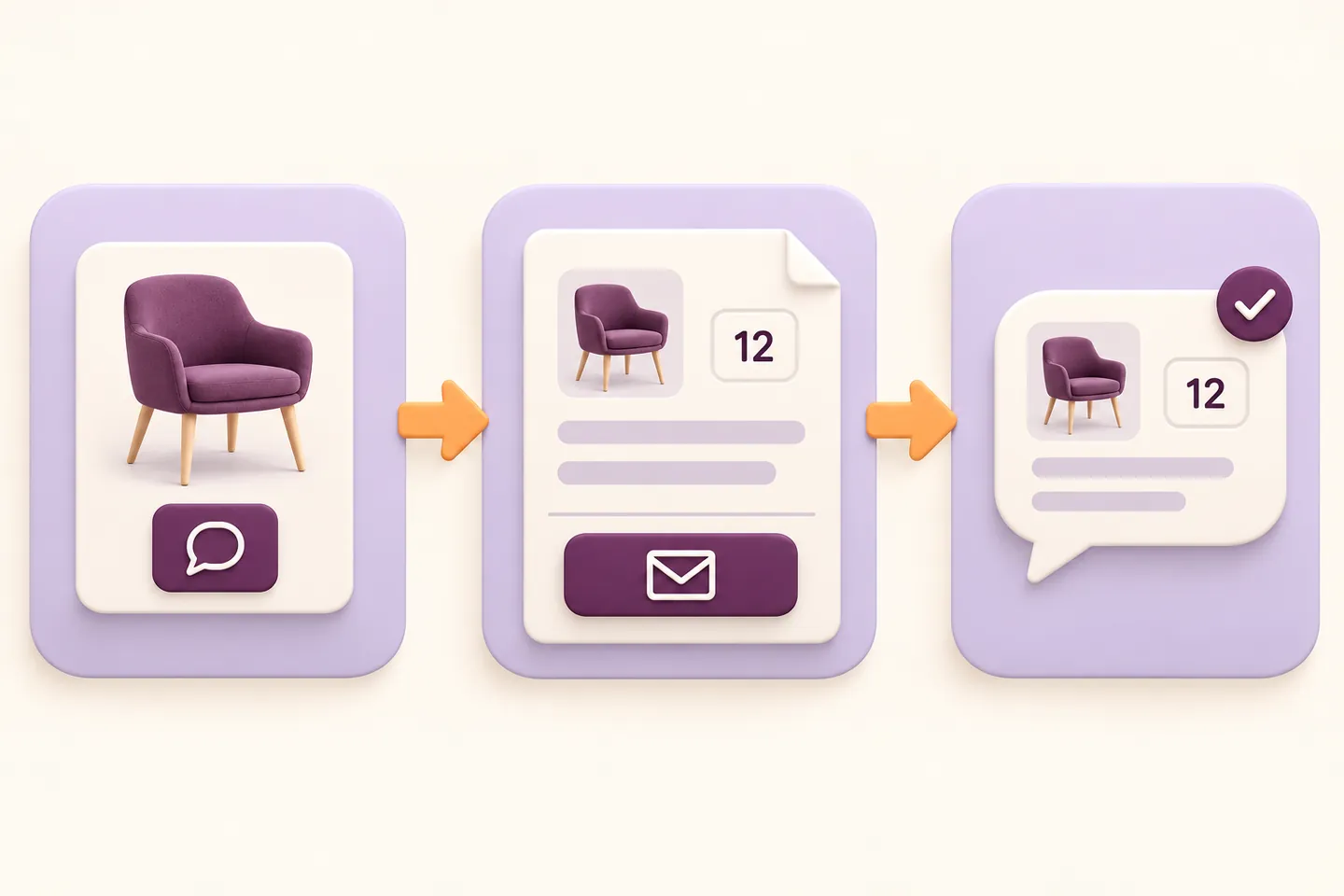
Aurora Harley’s “Visibility of System Status (Usability Heuristic #1),” Nielsen Norman Group, June 3, 2018, recommends communicating the outcome of an action clearly. Here, that means distinguishing a product saved in the list from a request submitted to the store. This is a usability principle, not evidence that hiding prices increases sales. Source consulted October 23, 2026.
Check display, purchase restrictions and recovery separately
| Test on staging | Expected result |
|---|---|
| Shop and simple product | No supported price or ordinary purchase button; quote action available |
| Direct Add to cart attempt | Supported product cannot be purchased directly with purchase prevention enabled |
| Quote list changed to 12 | One chair row with the updated quantity |
| Product added again | Combined quantity reviewed and corrected before submission |
| Invalid email or missing acknowledgement | Submission prevented; correct the form and retry |
| Valid request | Saved reference and matching admin request; no order or payment at submission |
Check the exact theme, product templates and catalog widgets your store uses, including mobile. A price hidden in a standard product template may still be output by a custom widget, cached page, feed or another integration. Hiding storefront output is not a guarantee that the stored price becomes confidential everywhere. Review those surfaces if that matters to your business.
Check guest and signed-in sessions, and repeat with any products already present in a test cart before the policy changed. Do not assume old cart contents, special product types or every custom checkout are covered by a single simple-product check. Clear the relevant storefront cache after changing preferences.
What if you only want some products to require a quote?
The Free preferences above are global for supported products. They do not select only one product, category or customer role. Use Premium’s detailed admission rules when the requirement is selective, and verify its price, purchase and visibility policies for that scenario. Do not describe the Free example as a per-product switch.
If your offer is already a published fixed price based on quantity and buyers should purchase immediately, the WooCommerce bulk discount tutorial covers that alternative. Negotiating a proposal and automatically applying a quantity price solve different needs.
Questions about hiding WooCommerce prices
Can I hide prices without deleting them?
Yes. Keep the saved product prices and use the display preference. Do not replace a real price with zero just to remove it from the page.
Does hiding Add to cart prevent purchases?
Not by itself. Enable Prevent direct purchases of supported products for the quote-only policy, then verify a direct purchase attempt on staging. A visual change alone is not enough.
Can Free hide prices only from guests?
Not with these global Free preferences. Do not infer role-based behavior from a test performed while logged out. A selective audience requires a separately supported and tested policy.
Can customers request variable products?
The edition supports simple and variable products, with the required variation selections. This chair example uses a simple product. Test the actual variable-product template and options before extending it; do not assume bundles or third-party customizations behave the same way.
How do I return to ordinary purchases?
Disable all four preferences if you want prices and direct buying back on the supported surfaces, save, clear the relevant cache and test as a visitor. Check that the products remain published, priced and otherwise purchasable. Leaving purchase prevention on while restoring only the button does not restore a normal buying policy.
Start with a test catalog, make the quote-only policy clear and verify the request from product selection to the saved admin record. Explore HookSpark Request a Quote to compare the global Free controls with the separately documented Premium rules.