

Personalized WooCommerce gift cards let the buyer choose an occasion design and add the recipient’s name, their own name and a personal message. With HookSpark Gift Cards, these choices belong to the gift card composition: you do not need to create a separate WooCommerce product for every recipient.
This tutorial uses the paid Gift Cards plugin and a simple example: Sam buys a card with a value of 50 for Alex, chooses a floral design and writes a birthday message. Personalization changes the presentation; the gift value remains 50. Previewing the email does not issue credit or send a message.
What can customers personalize?
| Choice | Example | What to check |
|---|---|---|
| Design | A floral card for a birthday | The design is available for new gifts |
| Recipient and sender | Alex and Sam | Each name fits the 80-character limit |
| Message | A short birthday wish | At most 500 characters; review line breaks |
| Value | 50 in the store currency | The amount is within the configured limits |
1. Prepare the gift card product and gallery
If you have not set up the dedicated product yet, start with our guide to selling digital gift cards in WooCommerce. For this walkthrough, check HookSpark → Gift Cards → Settings: the dedicated product must exist, new gift card purchases must be enabled and 50 must be within the configured minimum and maximum. Keep your test separate from live customer purchases.
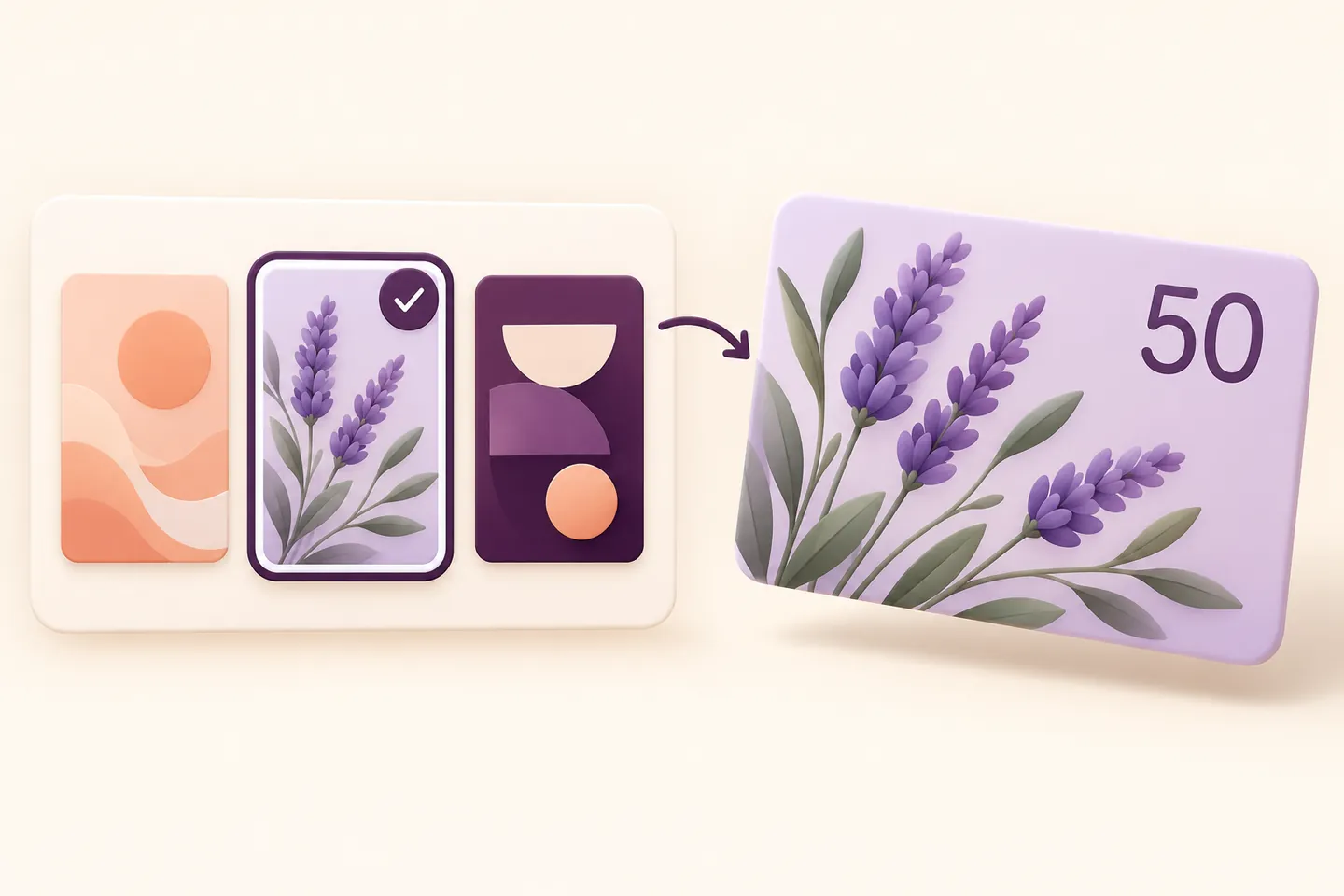
Open Gallery and review the designs offered to customers. For your chosen design, check its name, occasion/category and image, leave Available for new gifts enabled, then select Save design. Use artwork you own or have permission to publish. A merchant gallery image is different from a customer photo upload.
2. Compose a gift for one recipient
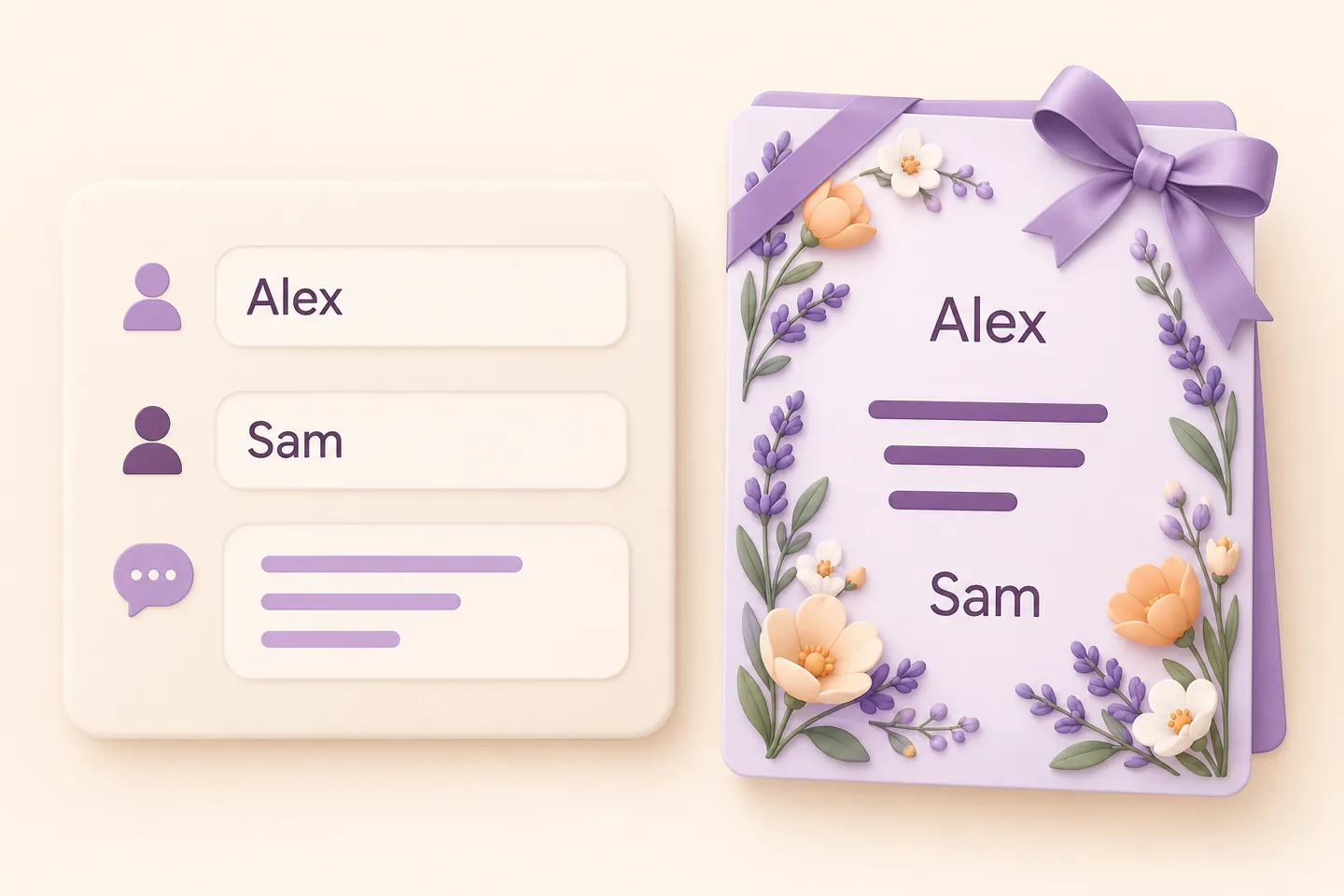
Open the gift card product as a shopper and use Make it personal. Under Choose a design, select the artwork. Set Gift card value to 50, choose Email the recipient, enter Alex as Recipient name and use an address you control for the test. Enter Sam in Your name. Leave Additional recipients empty: each additional recipient creates another card at the selected value, rather than sharing one card.
Write a short message in Your message, for example “Happy birthday, Alex! Choose something you love. — Sam”. The field supports up to 500 characters. Keep essential details in the message rather than embedding them only inside the artwork. Names are limited to 80 characters. Check spelling and the recipient address before continuing.
3. Preview the email, then check the cart
Select Preview email. Review the design, amount, recipient, sender and message, including line breaks and readability on a narrow screen. For this immediate-delivery example, leave the optional delivery date and time empty. When the composition is correct, select Add gift card to cart. Confirm one card for the intended recipient and check its displayed details before checkout.
A cart entry is not an issued gift card. Issuance follows payment confirmation and delivery uses the plugin’s queue. Before offering the product publicly, complete a separate test purchase with your test gateway and a controlled mailbox, and inspect the actual email. Do not treat an admin preview as proof that your store’s mail delivery works.
What if a design or message is rejected?
A retired or missing design cannot be used for a new composition: choose another available design. If a message exceeds 500 characters, shorten it; if email delivery is selected, correct an invalid recipient address. Retry with the corrected values and review the result again. Changing the picture should not change the gift value.
Can customers upload their own photo?
The composer also provides a customer-image upload, with permission confirmation and file checks. That is a separate path from the gallery example above: test valid and rejected files before enabling it in your customer journey. Do not promise a print-ready design editor, automatic image cropping or immutable artwork files based on the gallery feature.
Where should I start?
Start with one value, one available design and one recipient. Follow the gallery and personalization documentation for the supported controls, then explore HookSpark Gift Cards and test the whole gift journey on your own store.