

To cancel a WooCommerce restock request with HookSpark Back in Stock Free, use the matching email account’s stock-alert list or a valid management link when the message provides one. Opening that link only displays a confirmation page. The specific alert is cancelled after confirmation; unrelated product requests are not automatically cancelled.
This guide uses the public Free 1.0.3 package distributed by HookSpark. It explains the customer’s cancellation task, not how to install a restock form or troubleshoot email delivery. The checks used synthetic requests on an isolated WordPress store; outgoing email was intercepted locally and no real customer request was touched.
Identify which notification you want to stop
A restock alert belongs to a product or variation. A shop newsletter, an order email and WooCommerce’s stock-management notifications are different systems. Native inventory settings include merchant stock notifications; they are not the same as this customer waitlist. Cancelling a product request does not unsubscribe every email associated with the store.
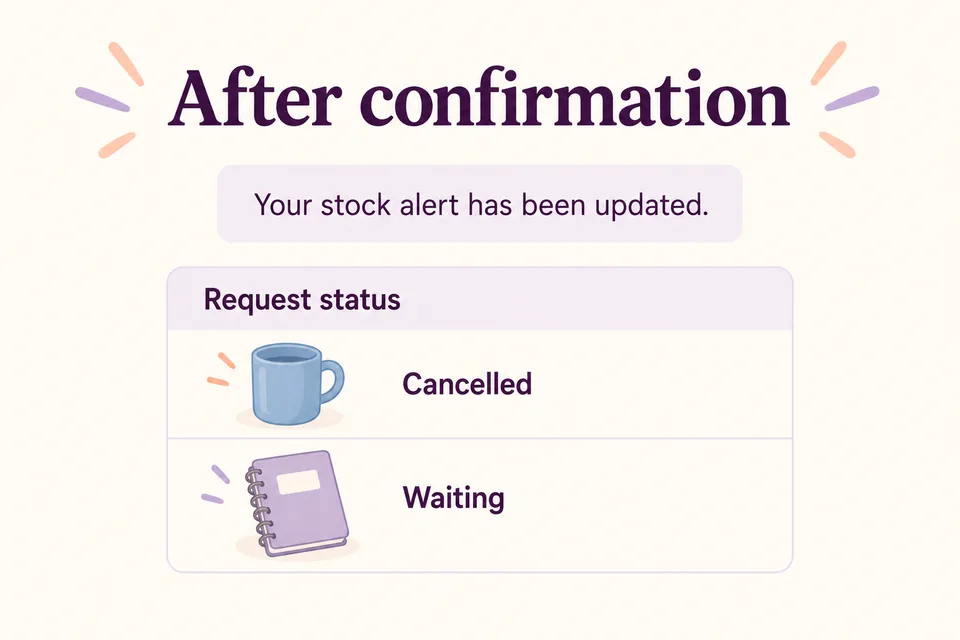
In our example, the same customer requested a blue-mug alert and a notebook alert. They no longer want the mug. The useful outcome is “mug cancelled, notebook still waiting”, not “all notifications disabled”. Check the product name and any selected size or color before cancelling.
Cancel a request from the matching customer account
HookSpark Back in Stock & Waitlist
Sign in to the store account whose email address matches the request. In the stock-alert area, review the list headed Your stock alerts. Find the correct product and use Cancel alert for that row. In the tested Free package, the action checks both the account request and the request’s email ownership.
The native test cancelled the selected mug request, removed it from the active account list and left the notebook request waiting. A request belonging to a different email stayed unchanged when the test account attempted that action. A queued delivery for the cancelled request was also marked cancelled. This is why the tutorial focuses on the exact request instead of a vague “unsubscribe from everything” instruction.
Use the management link when an email provides it
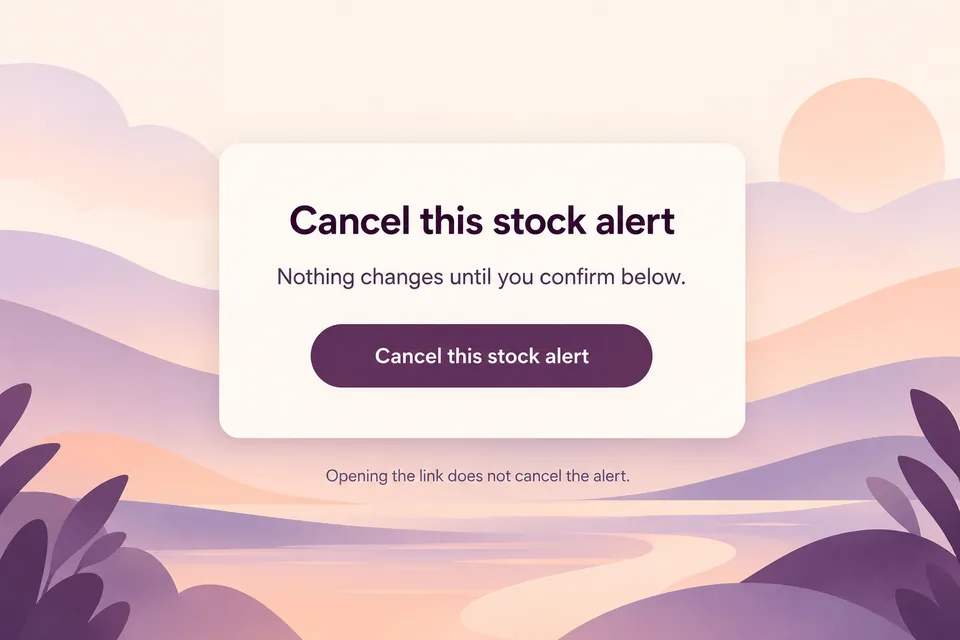
In the tested restock notification, the management action is labelled Manage or cancel this alert. Follow that private link for the intended product request. The page displays Cancel this stock alert and explains that nothing changes until you confirm below. The button performs the cancellation. A link preview or an ordinary page load does not perform that final action.
After a successful confirmation, the tested page says Your stock alert has been updated. The visible confirmation is generic; the stored request status verifies that the selected alert is now Cancelled. Do not invent a more specific success message or assume the page also shows every other request. The status comparison illustrated below explains the result rather than reproducing that page.
A confirmation email is not a cancellation link
The Free 1.0.3 subscription-confirmation email contains Confirm stock alert. That activates a pending request; it is not the management link described above. Do not tell a guest to click a confirmation button to unsubscribe. A customer who only has that email and lacks access to a matching account should contact the store for help with the particular product request.
This distinction also matters when writing your help pages. Name the actual action the customer will see and the state it changes. Avoid claiming every confirmation email includes an unsubscribe link: that is not what the tested package sends. Keep a clear support route for guests who cannot find a usable management action.
What if the link is invalid or the email already arrived?
Treat a management link as private. Do not forward it, publish it in a support screenshot or replace its request identifier with another product’s identifier. The native test rejected a token applied to the wrong request and rejected a confirmation POST without the matching token. If the store reports an invalid link, verify the request through the account or contact support instead of guessing URL parameters.
Cancellation can suppress pending work for that request. It cannot recall a message already handed to a mail provider or remove a copy from the customer’s inbox. A one-time restock request is also different from a marketing subscription or an optional recurring notification feature. This tutorial does not claim a global opt-out across other plugins.
Store-owner checks before publishing these instructions
Create two synthetic requests for different products using the same test email. Confirm them, check the matching account list, cancel only one and read both saved states. Then test a management link: load it, verify no state change, submit an invalid confirmation, then the valid confirmation. Review pending delivery state and make sure the unrelated product request remains active.
Use an isolated mailbox or intercept outgoing mail during testing. Our check confirms the generated email content and local application state; it is not proof of delivery into an external mailbox. Repeat the customer-facing path with your theme, language and account configuration before giving instructions to real customers.
Frequently asked questions
Does opening the link cancel the alert?
No. Opening the page only displays the confirmation. The change requires confirming with the button.
Does cancelling the mug also cancel the notebook?
No. The tested cancellation changes only its specific request. The other product’s waiting request remains unchanged.
Can the store recover an already sent message?
No. Cancelling application work does not recall a message already accepted by a mail provider.
Set up restock alerts for WooCommerce variations
Promote out-of-stock products without wasting ad spend
Read the Back in Stock documentation
For the cancellation task, begin with the exact product request and the customer’s available management route. Give instructions that match the tested interface, then verify that unrelated alerts keep their intended state.