
 HS Cart Notices & Checkout Messages
for WooCommerce
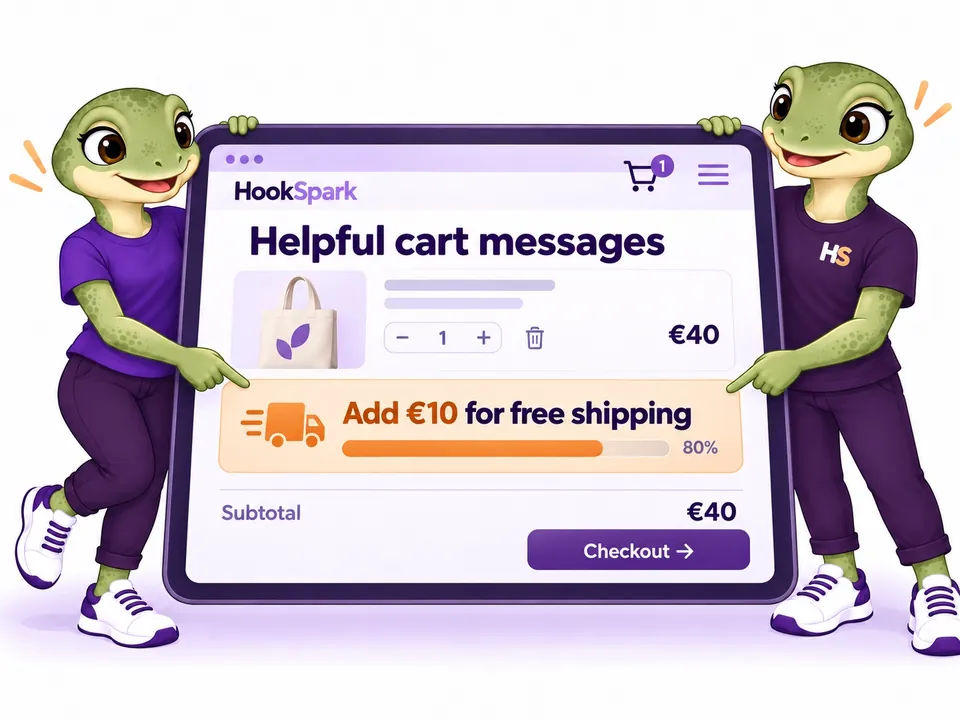
Add relevant WooCommerce cart notices and checkout messages where shoppers need them. Explain delivery, show progress toward free shipping and display offers based on the current cart.
- Show the next step toward free shipping.Tell customers how much remains to reach the shipping threshold used by your store.
- Keep cart notices relevant.Use conditions to display a message when it applies to the customer’s current order.
- Answer questions close to checkout.Place delivery information and helpful reminders near the buying decision.
- Guide shoppers with clear wording.Write messages that explain what to do next, rather than showing a generic notice to everyone.
MADE FOR REAL STORE SCENARIOS
Show conditional WooCommerce cart notices and messages.
Help shoppers understand their cart with clear, relevant information in your store’s style.
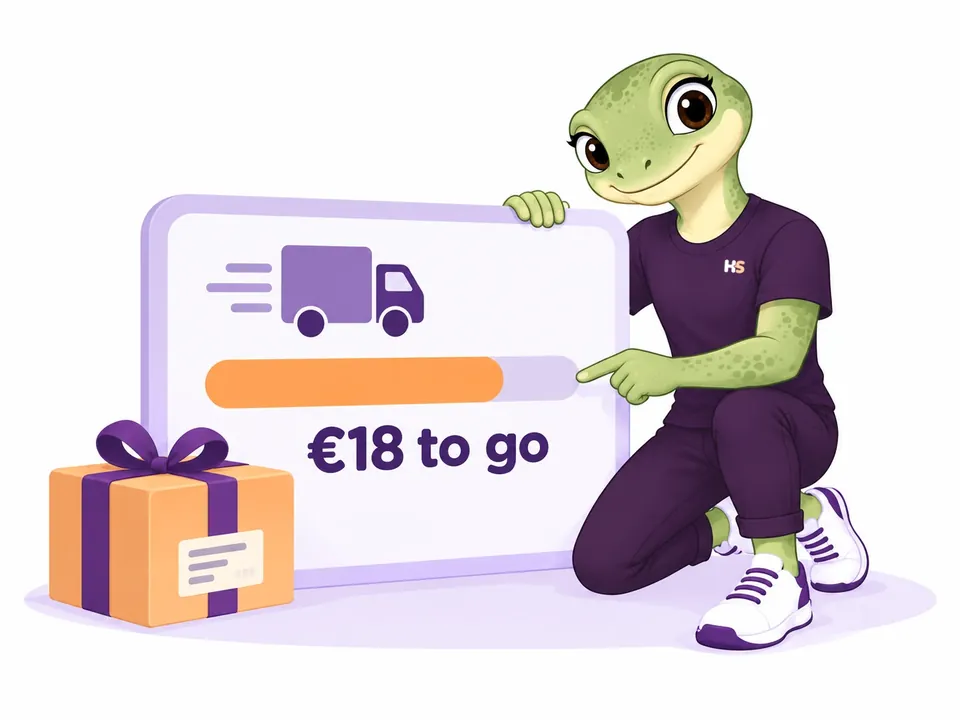
01 / FREE-SHIPPING PROGRESS
Show the remaining amount with a free shipping progress bar.
Tell shoppers the amount still needed for free shipping, using WooCommerce’s native settings. The message follows the destination, cart value and coupon behavior of the shipping method.
- Dynamic remaining amount and progress bar
- Uses the actual WooCommerce shipping threshold
02 / PRODUCT SUGGESTIONS
Suggest missing products with conditional cart notices.
Show a relevant suggestion when one product is in the cart and its companion is missing. Target specific products, variations or categories, then guide shoppers with a clear link.
- Combine present and missing product conditions
- Choose where your message appears
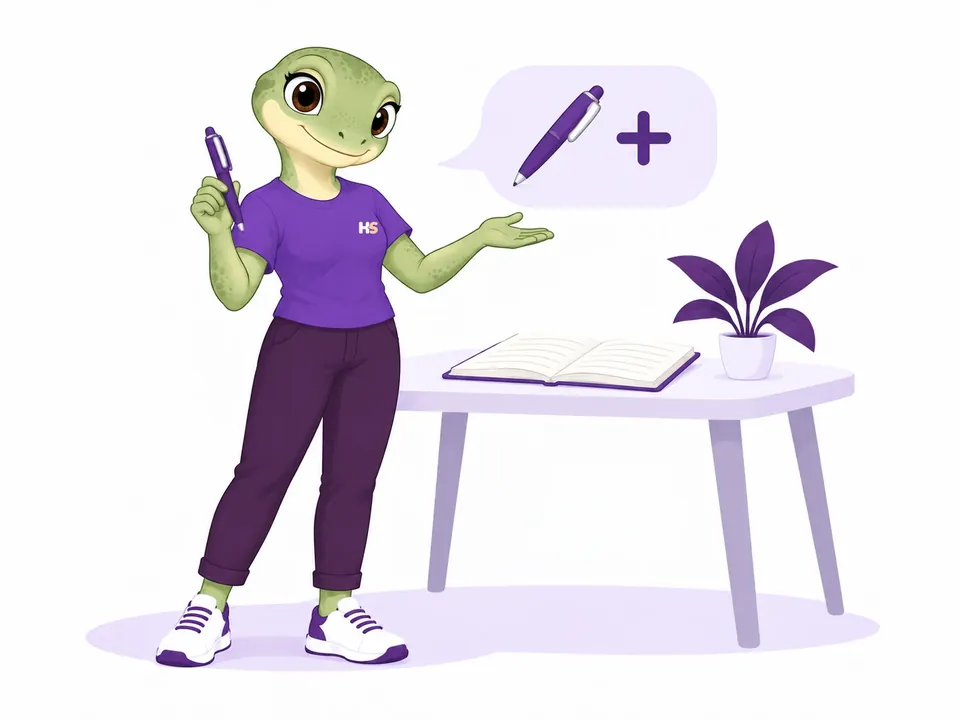
03 / YOUR STORE’S STYLE
Customize cart notices with text, icons and images.
Start from four visual presets, format your text and add an optional icon or image banner. Adjust the presentation while checking desktop and mobile previews.
- Formatted text, icons and image banners
- Preview desktop and mobile layouts
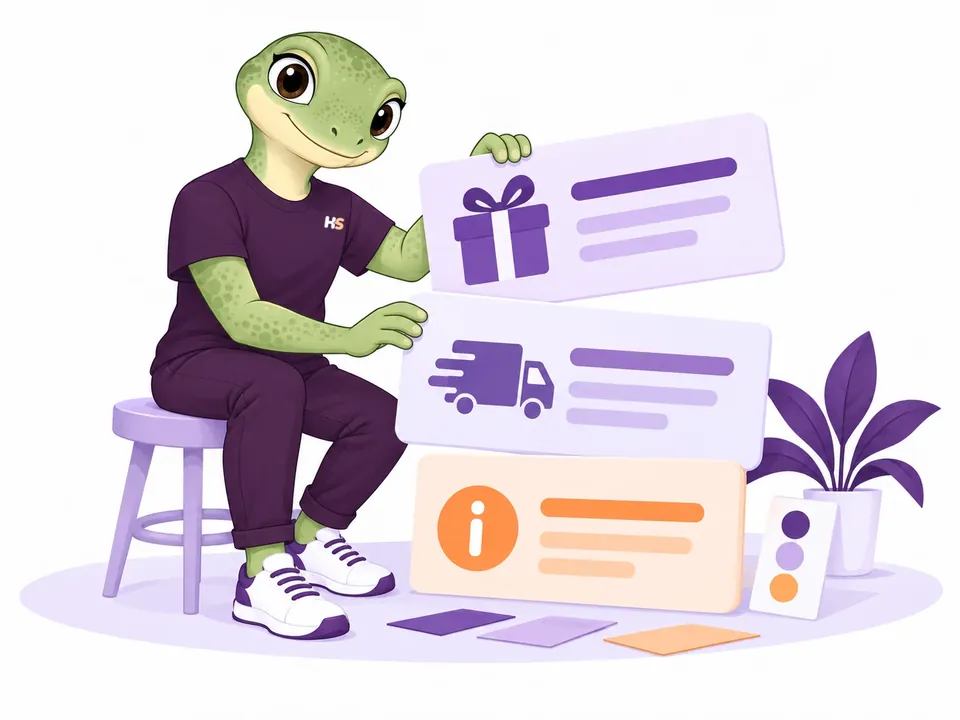
04 / RELEVANT INFORMATION
Display checkout messages when cart conditions match.
Show a message when its conditions match the cart. Keep guidance close to the shopping decision, with a clear link when there is a useful next step.
- Conditions based on the cart
- Message placement in cart and checkout
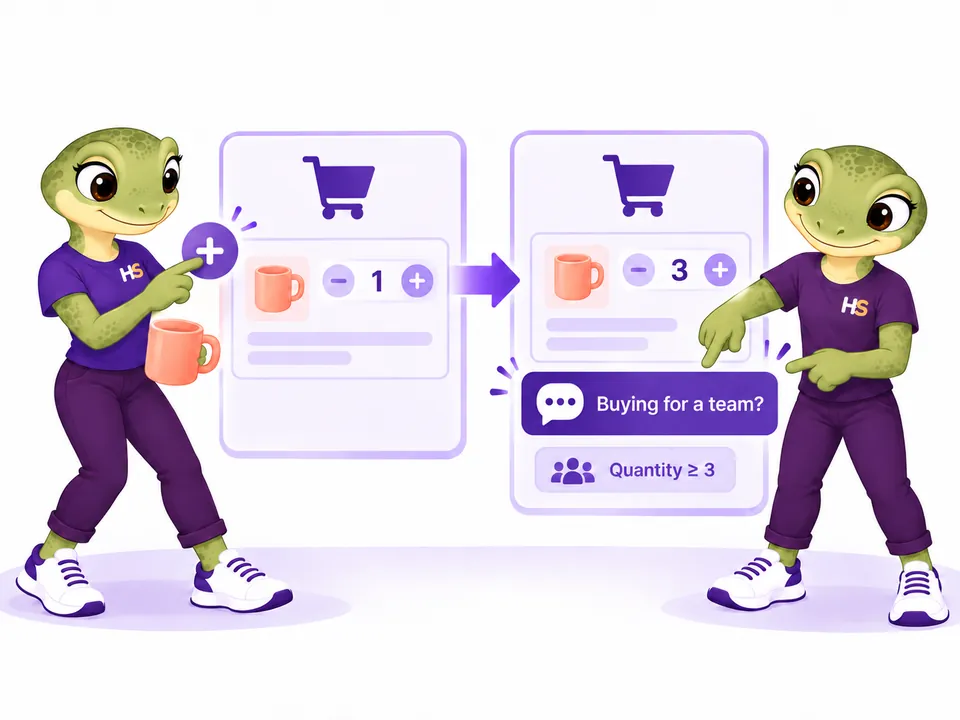
05 / SCHEDULED CAMPAIGNS
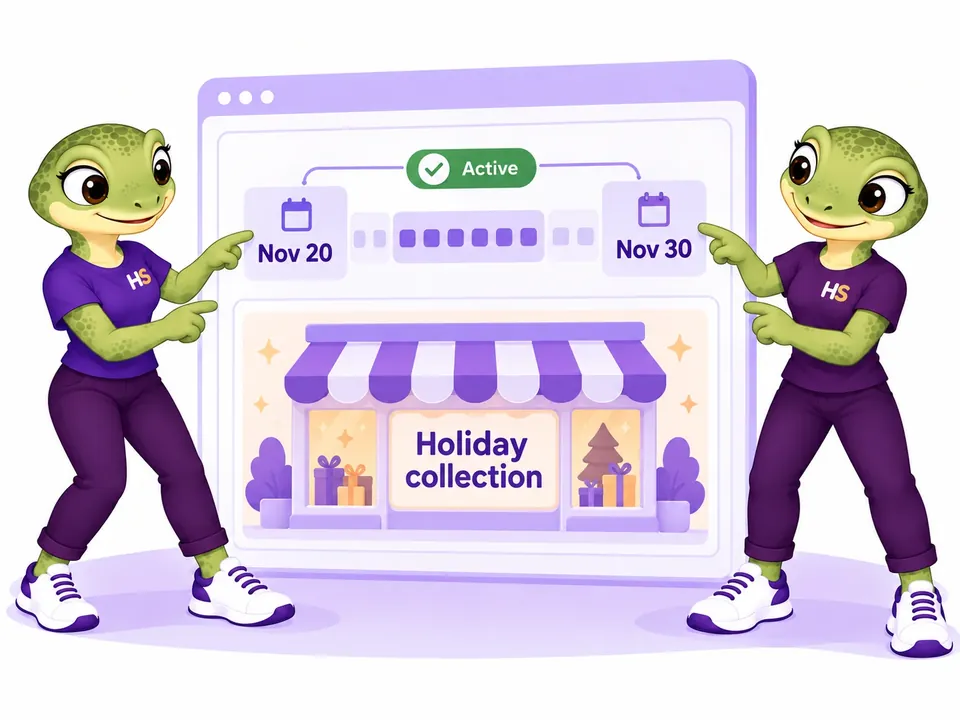
Schedule cart notices for your campaign dates.
Prepare a seasonal message with a start and end date in your store timezone. For example, promote your holiday collection during the selected November campaign, while keeping the same cart and customer conditions.
- Set an explicit start and end for each campaign
- Keep message timing separate from any discount rule
LESS IMAGINING. MORE TRYING.
Try WooCommerce cart notices in context.
See the message in the cart. Decide when it appears.
Be the customer.
Explore product suggestions and free-shipping messages with sample products.
Try frontend demoMake it your store.
Write your own messages, change conditions and schedule a campaign.
Try admin demoYour personal admin demo lasts 60 minutes. Use sample details: no real payments or external emails.
Ready to try it in your store?
Get the free plugin Find the free download at the top of this page.MORE CONTROL WHEN YOU NEED IT
Choose when and where your cart notices appear.
Schedule cart message campaigns
Prepare Black Friday or seasonal notices with start and end dates, using your store’s time zone.
Plan a campaign →Target notices by product and variation
Combine amount and quantity bounds with guest or logged-in audiences, so customers see information that applies to them.
Set your conditions →Connect notices to applied discount rules
Optionally show a message when a Pricing rule has actually applied or when the cart meets current Min/Max rules.
Connect HookSpark plugins →HOOKSPARK INTEGRATIONS
Connect cart notices with discounts and order limits.
Each plugin works independently. Installing them together does not create rules or messages automatically.

Pricing + Messages
Confirm a real offer in the cart. A connected message appears only when the selected Pricing rule has actually reduced prices.
Show “Your lamp has received the 10% offer” after the lamp discount applies. The message itself does not create a discount.
Set it up
Create the promotion in Pricing, then select that rule in the message’s HookSpark connections. Configure and enable the message.

Min/Max + Messages
Show a message when the cart meets your current Min/Max quantity and amount rules. Keep the conditions connected to the rules you already manage.
Show a confirmation once the required quantity and minimum spend are met. This does not guarantee that every other checkout requirement is satisfied.
Set it up
Configure Min/Max, then enable its condition in the message’s HookSpark connections. Other message conditions must also match.
Messages connections require compatible versions of both plugins. If a connected provider is inactive or unsupported, its dependent message stays hidden.
Read the Messages connection guide →BUILT FOR WOOCOMMERCE
Cart notice compatibility with classic and Blocks flows.
Messages inform the customer. WooCommerce and your pricing plugins remain responsible for shipping, discounts and purchase rules.
Test the candidate in your store.
Verified locally with Storefront 4.6.2. Custom checkout builders have not been verified.
Check compatibility and limits →- WordPress
- 7.1.1 verified · 6.8 package lifecycle verified
- WooCommerce
- 11.1.0 verified · 10.6.0 package lifecycle verified
- PHP
- 8.2.29 verified · 8.2 minimum
- Storefronts
- Native classic cart/checkout and Cart/Checkout Blocks
Platform requirements
Headers: WordPress 6.8, WooCommerce 10.6, PHP 8.2 minimum. Package install, update and data retention verified on WordPress 6.8 + WooCommerce 10.6.0 and WordPress 7.1.1 + WooCommerce 11.1.0, with PHP 8.2.29. Storefront browser acceptance uses the current platform.
PRODUCT CHANGELOG
Latest updates
Recent development updates. Select a row to read the details.
HS Cart Notices & Checkout MessagesComplete HookSpark catalog and consistent product icons0.2.0-alpha.2
Development build — release verification remains open
Complete HookSpark catalog and consistent product icons
- Browse all seven HookSpark plugins from the shared catalog.
- Use consistent local product icons and updated translations.
- Find the HookSpark plugins under clearer names that describe their purpose.
HS Cart Notices & Checkout MessagesDesign your cart messages0.2.0-alpha.1
Local development alpha · not publicly released
Design your cart messages
- Format message text with bold, italic and links.
- Choose from 57 bundled Bootstrap icons plus six original icons, place the icon beside or above the message, and add local banners with mobile alternatives.
- Customize colors and font families, or start from four editable visual presets.
- Preview the appearance using the same renderer as classic and Blocks cart/checkout.
- Review related messages from product and variation panels, then create a draft with the exact product preselected.
HS Cart Notices & Checkout MessagesMessages that follow your cart0.1.0-rc.1
Local release candidate · not publicly released
Messages that follow your cart
- Configure conditional messages, campaign dates, products, variations and categories.
- Start from editable examples, order messages by priority and connect to actual HookSpark offers.
- Try native free-shipping progress, storefront examples and a personal admin demo.
BEFORE YOU START
WooCommerce cart notices: common questions.
Find more examples and setup details in the complete Messages handbook.
Does it create discounts or bundles?
No. Configure offers in Pricing or WooCommerce, then connect a message when appropriate.
Can I target a single variation?
Yes. Select the variation itself. Selecting its parent product includes all of its variations.
Does it work without other HookSpark plugins?
Yes. Shipping notices, campaigns and product conditions work independently. Pricing and Min/Max connections are optional.
Can I try the admin as well as the storefront?
Yes. Browse the examples, then create an isolated 60-minute admin demo. No real payments or external email.
Where can I find every setting?
Open the Messages handbook for shipping, campaigns, variations, presentation, connections and compatibility.
SEE IT IN YOUR CART
Try conditional cart notices in your store.
Explore the storefront examples, then create your own messages in a personal admin demo.
Try the live demo ↗