
All documentation · Plugin overview
Create your first option group
Documentation for version 1.0.4.
Create your first personalization
Open HookSpark → Product Options & Add-Ons in WordPress administration. Create a group and give it a descriptive internal title, such as “Gift personalization”. Keep it disabled while configuring it. A group contains the fields shown together on matching products.
Add a checkbox named “Gift wrapping” with a fixed extra price of 5. Add a text field named “Gift message”, set its maximum length, and make it required. Configure the message to appear when Gift wrapping is checked. Required means that the customer must complete the field when it is visible. Hidden fields are cleared and do not contribute a price.
In product targeting, select the product that should show these fields. Save the group, review the preview, then enable it and save again. A new or imported group is not automatically enabled.
On a product priced at 20, selecting wrapping at 5 produces a unit price of 25 before any applicable cart discounts and taxes. Two units produce 50 in the same catalog tax basis. WooCommerce determines displayed taxes from the store and customer settings.
Open a group in a modal
Open the group’s Where and how to show them tab. Set Show options to In a modal and optionally enter button text. A blank button uses the group title. Existing groups stay On the product page by default. Close or Escape keeps the current choices. With one modal group on a simple product, quantity, total and Add to cart stay inside the modal. Successful additions offer a fresh configuration or the cart. Other group combinations keep the standard purchase controls. Without supported JavaScript, the configuration opens through a native disclosure. The admin draft preview shows the fields inline for inspection.
In Pro, combine modal presentation with the existing Steps layout and assign fields to the steps. Next checks required fields, Back keeps the choices, and a final Review is added to purchase modals. The footer keeps the total and navigation visible; quantity and Add to cart appear at Review. Zero-cost choices show Included, while checkbox extras show their additional price. Server price and validation rules remain authoritative.
For visual ingredients, use the Pro Image field and choose an image for each item from the WordPress media library. Checkbox fields also offer Choose field image and Remove image. Text labels remain visible; images do not replace the option name. The burger demo uses separate bun, patty and sauce images plus cheddar and avocado images.
Admin navigation and unsaved changes
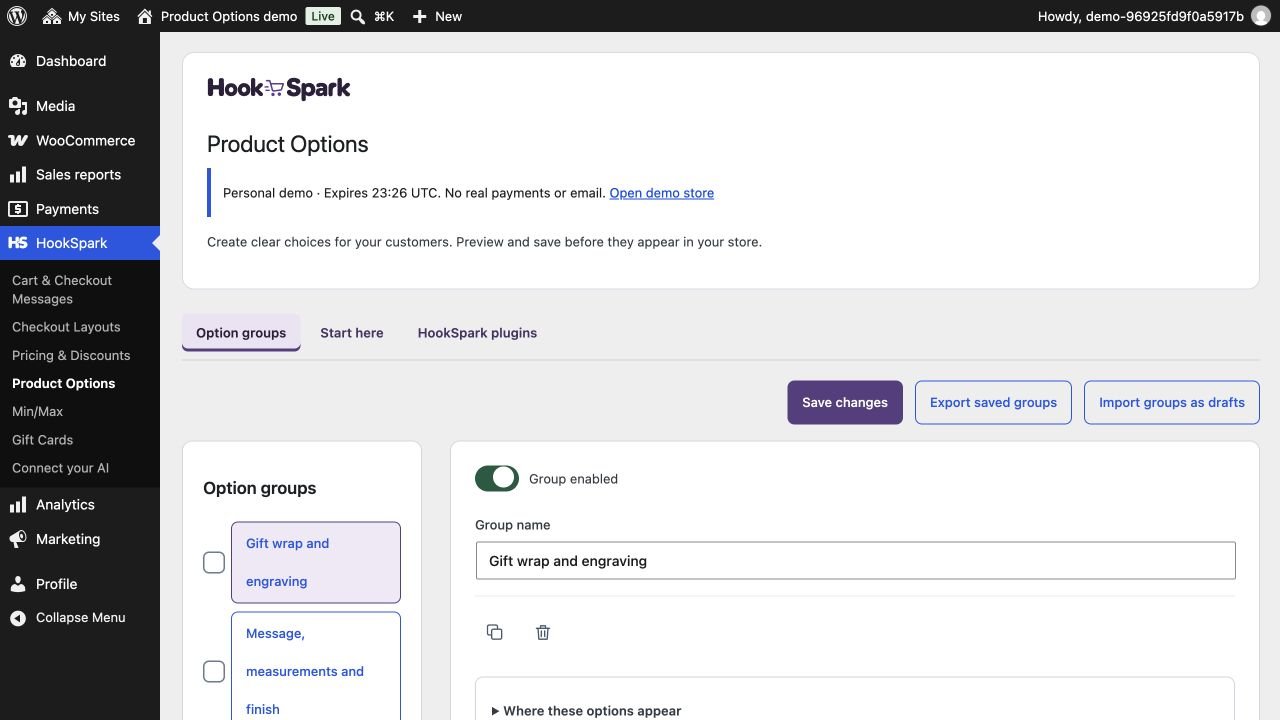
Use Option groups to configure fields, Start here for the setup sequence, and HookSpark plugins for the optional suite catalog. The catalog never installs another plugin automatically.
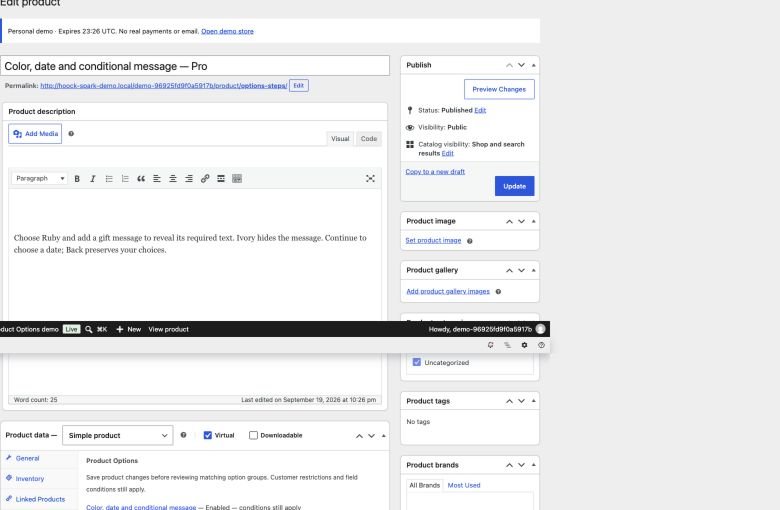
The unsaved-changes notice appears after editing. Save changes applies the complete draft; opening the general editor does not create a new group. Opening it from a product creates an inactive draft targeted to that product. Correct an error at the highlighted field and save again.
In draft preview, choose a valid file in the allowed formats and size shown beside the upload field. The server checks its contents, not just its extension. Invalid files block the preview total; selecting a valid replacement restores it. Rebuilding the preview requires selecting the file again.
Each field is a collapsible row: open its name to edit settings. Newly added fields open immediately. When following an admin link with changes pending, choose Keep editing, Leave without saving, or Save and leave. The last option navigates only after a successful save. Browser reload/close retains the native unsaved-changes warning.
Editor navigation
Use Fields to build the group, Where and how to show them for targeting and steps, and Preview to test the draft. Each expanded field separates Content and choices from Price, appearance and conditions. Switching sections preserves unsaved values. Save applies the draft; validation opens the section containing the error.
Selecting several groups
Select the checkboxes beside group names, choose a bulk action and click Apply. The toolbar stays in place. Undo restores the last group action before saving. Changes remain a draft until Save changes. Each row shows its active state and field count.
Group list and dedicated editor
The plugin opens on a full-width group list. Search by group name. Rows show targeting counts, field count, activation switch and edit/duplicate/delete icons. Click the name or edit icon to open the dedicated editor; All groups returns to the list and preserves drafts. The group URL can reopen a saved group directly. Row switches and bulk changes remain drafts until Save changes. Duplication opens an inactive copy. Deletion can be undone before saving.
A quieter group toolbar
New option group is the primary list action. Open Tools beside it to find the gift template and, when Pro is active, import and export. Save changes is enabled only when the draft has changed. Import/export still use the same saved-group and inactive-draft behavior.