

A customer orders seven mugs. Your supplier ships them in boxes of six. Now someone has to split a box, contact the customer or change the order.
Quantity rules make the buying conditions clear before that happens. In this example, we’ll use HookSpark Min/Max Quantities to sell one product in multiples of six, with a minimum purchase of 12 units and a maximum of 60.
The buying rule we want
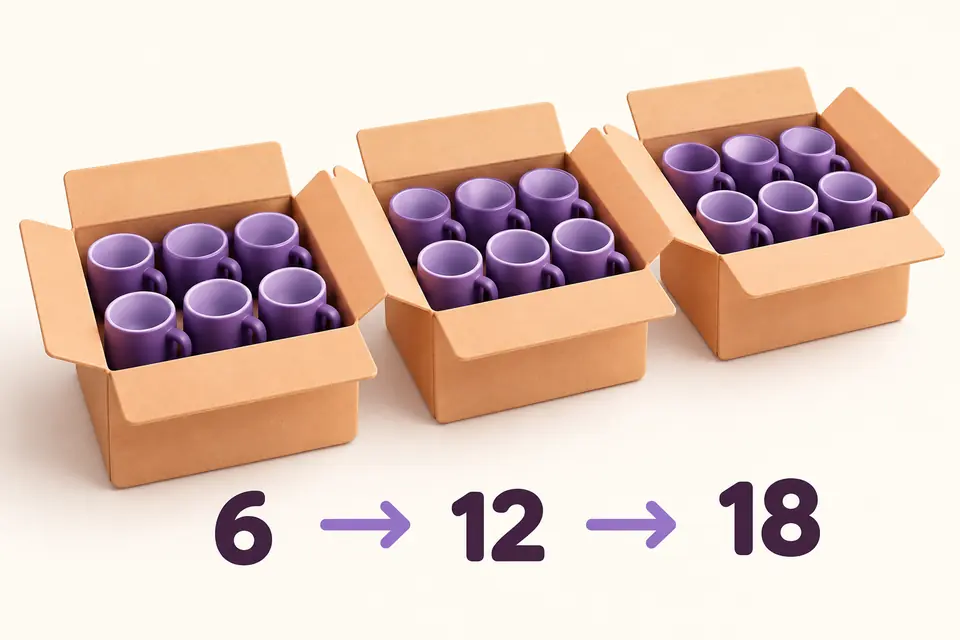
Imagine a store selling mugs to cafés. Each box contains six mugs. You want customers to order at least two boxes, and no more than ten boxes of this product per order.
12 · 18 · 24 · 30 · 36 · 42 · 48 · 54 · 60
Permitted quantities for this rule aloneThe product quantity still counts individual mugs. A quantity of 12 means 12 mugs, or two boxes. Keep the product’s unit price consistent with that choice: this rule does not turn the product into a priced bundle or calculate a quantity discount.
Before you start
Use a test store with WooCommerce and HookSpark Min/Max Quantities active. Choose a published simple product and give it enough stock to test the upper limit. For this first example, use a product without other quantity rules so you can see the effect clearly.
HookSpark Min/Max is a standalone free plugin. Check the product page for the current download status and tested versions before installing it.
1. Choose the product
Open HookSpark → Min/Max and create a rule. Give it an internal name such as Mugs — boxes of 6.
Choose the individual-product scope, search for your mug product and select the result. Enter at least three characters to search; typing the name without selecting the product does not set the target.
This rule applies to the selected product. It does not require every item in the store to be purchased in boxes of six.
2. Set the minimum, maximum and pack multiple
| Setting | Value | Meaning |
|---|---|---|
| Minimum quantity | 12 | At least two boxes. |
| Maximum quantity | 60 | No more than ten boxes. |
| Pack multiple | 6 | Whole boxes of six. |
| Starting quantity | 12 | Suggest the minimum for a new purchase. |
Each setting does a different job. The minimum sets the lower limit. The maximum sets the upper limit. The pack multiple controls the increments within that range.
Starting quantity is a suggested initial value, not an additional purchase limit. Leave optional limits empty when you don’t need them; do not enter zero as a substitute for an empty field.
3. Review and activate the rule
Read the draft preview. It should describe individual product quantities between 12 and 60, in multiples of six.
Turn on Enable this rule, select Save rule, then reopen it to confirm the saved values. A saved rule that remains inactive does not restrict purchases.
The preview explains the rule you are editing. Other active rules and stock limits can still restrict what a customer can buy.
4. Test what a customer can buy
Open the product as a shopper. Test both adding it to the cart and changing its quantity in the cart. Use these expected results for the rule above:
| Quantity | Expected result | Reason |
|---|---|---|
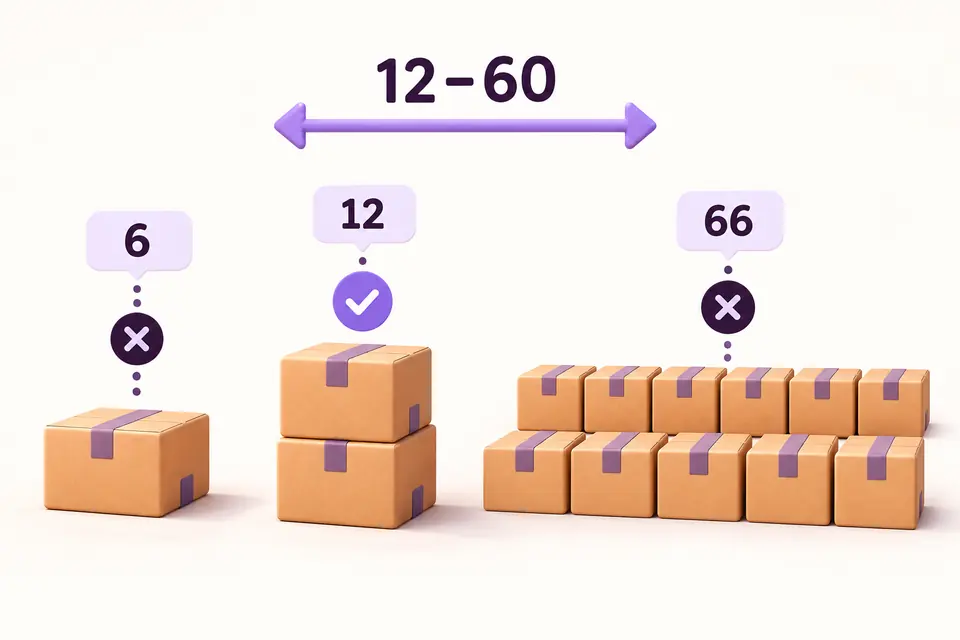
| 6 | Rejected | Below the minimum of 12. |
| 12 | Allowed | Two complete boxes. |
| 13 | Rejected | Not a multiple of six. |
| 18 | Allowed | Three complete boxes. |
| 60 | Allowed | Exactly the maximum. |
| 66 | Rejected | Above the maximum of 60. |
After trying an invalid quantity, change it back to 12 and check that the quantity error clears. Continue through checkout with a test payment method. Meeting this quantity rule does not bypass the store’s other checkout requirements.
Three details that can change the result
Stock still matters
A maximum of 60 does not guarantee that 60 units are available. WooCommerce stock restrictions still apply. If stock falls below the minimum, review the rule and replenishment before customers reach an impossible purchase condition.
Overlapping rules must also be satisfied
If another applicable rule adds a different minimum or pack multiple, the purchase must meet both. Don’t assume that the newest rule replaces an older one. Review existing rules when a quantity you expect to work is rejected.
Mixed products need a different scope
Our example checks one product individually. If you want customers to combine different eligible products to reach a shared minimum, use a combined selection instead. That is a different buying rule and deserves its own test.
Start with one product
Configure one rule, try a valid purchase, try an invalid quantity and check the recovery path. Once the result matches how you fulfil orders, you can decide which other products need the same buying conditions.
For an illustrated walkthrough of the editor, open the quantity and pack-size guide. Its example uses a minimum of 6 and maximum of 24; the same fields let you configure the 12–60 range used here.
Make your quantities match the way you sell.
Explore HookSpark Min/Max Quantities and try a pack-size rule.
Explore Min/Max Quantities →