

To create Black Friday deals in your WooCommerce store, first choose the products, write the offer in plain language and calculate what customers should pay. Then configure one promotion, test the cart around its thresholds and prepare how you will switch it off. This tutorial uses HookSpark Dynamic Pricing & Discount Rules Free for quantity discounts and BOGO, plus Min & Max Quantities Free for a separate purchase limit.
These are examples for your shop, not Black Friday discounts on HookSpark subscriptions. Work on staging first. The examples are alternatives, not three discounts to stack on the same product. We use one simple T-shirt priced at 20 in your store currency, before tax, shipping, fees or coupons. Adapt the displayed amounts to your own tax settings.
1. Write the offer before opening the rule editor
Decide which products qualify, what quantity is required, whether customers must add every item themselves, whether the reward repeats and when the offer ends. Choose a price you can sustain after product and fulfilment costs. A lower cart total is not evidence of a profitable campaign.
WooCommerce’s article “How to plan for Black Friday and why you should start now,” by Elizabeth Rosselle, emphasizes setting goals, choosing participating products and allowing time to test. Use that as planning guidance, not as a forecast of your store’s results. Source consulted October 22, 2026.
| Offer | Customer-facing promise | Example product total |
|---|---|---|
| Bulk | Buy 3 or more T-shirts: 16 each | 3 × 16 = 48 |
| Progressive | First 2 at 20; from the third, 16 each | 20 + 20 + 16 = 56 |
| BOGO | Add 2 T-shirts and pay for 1 | 2 physical units, total 20 |
2. Prepare one product and a clean starting point
Install the Free pricing plugin on staging. Publish a simple T-shirt with regular price 20 and sufficient stock for at least four units. Leave Sold individually off. Start without a native sale price, coupons or overlapping pricing rules. Record the original settings so you can restore them after the campaign. Test variations separately before extending these examples to sizes or colors.
3. Create a quantity deal: three T-shirts for 48
Open HookSpark → Pricing & Discounts → Create promotion. Name the promotion so you can recognize it, select “Quantity: same price for every unit” and choose “Set unit price.” In “Include products,” select only the T-shirt. Keep “Per cart line” counting. Replace the starter band: leave only one band, with “From quantity” 3 and “Band value” 16. The value is the resulting unit price, not 16% off or a reduction of 16.
Save, enable the promotion on staging and check two T-shirts at 40, three at 48 and four at 64. Reduce from three to two: the regular price must return. An unrelated product must not receive the discount. This is suitable for the promise “Buy 3 or more and pay 16 each.” Our bulk-discount tutorial covers the editor in detail.
Follow the quantity-discount tutorial
4. Choose progressive pricing when only later units should cost less
Disable the bulk promotion before trying this alternative. Select “Quantity: progressive price bands,” retain per-cart-line counting and use the same band starting at 3 with unit price 16. Now the first two T-shirts remain 20 each. Three cost 56, and four cost 72. Two still cost 40. The threshold is the same, but the calculation is different. Save and enable only this alternative before testing it.
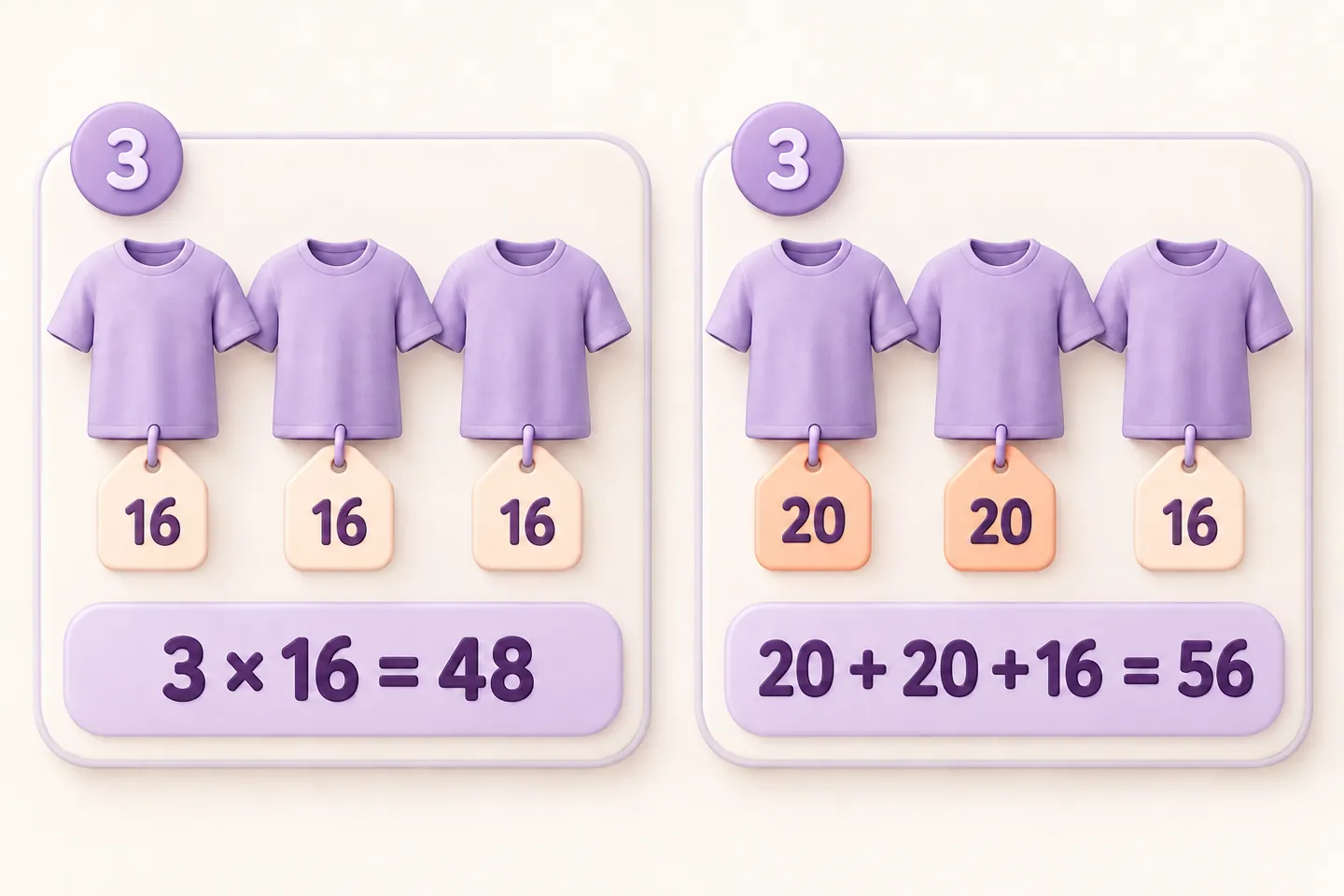
Do not advertise “3 or more: 16 each” for this progressive rule. Write “First 2 at 20 each; from the third, 16 each.” The cart may display an average unit price for a line containing several bands; judge the line total as well. Compare both methods in our tiered-pricing guide before choosing your campaign wording.
Compare bulk and progressive pricing
5. Create a buy-one-get-one offer
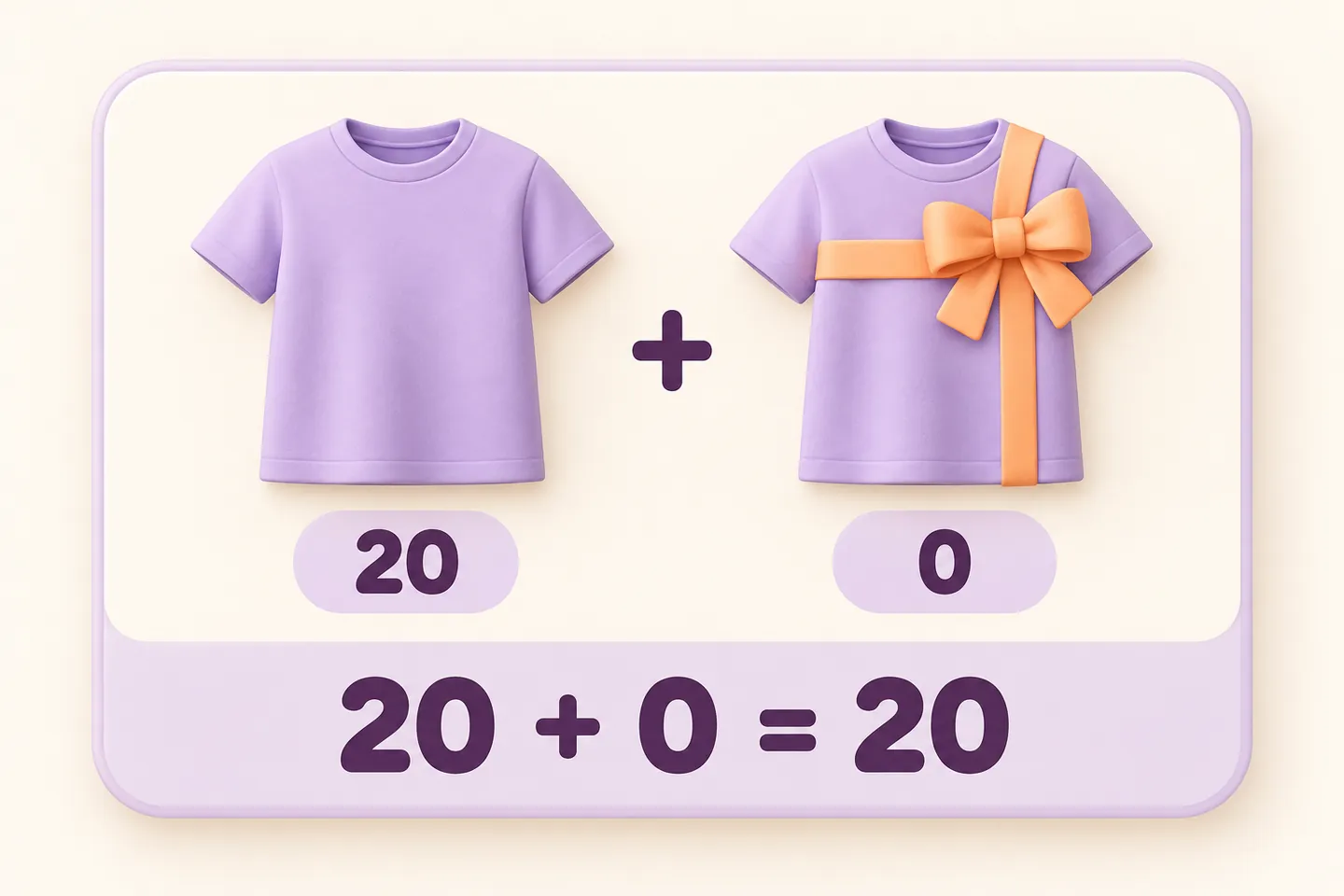
Disable the previous quantity rule. Create a “Buy X, discount Y” rule, target only the T-shirt and select “Across all selected products” for eligible quantity counting. Set Buy quantity to 1, Discounted quantity to 1, Percentage off to 100 and enable repetition for every complete group. Save and enable it on staging.
The shopper must add both shirts. One costs 20; two cost 20 together; three cost 40; four cost 40 when repetition is enabled. The plugin discounts qualifying units already present; it does not automatically add a gift. The same-product cart line can show two units at an average of 10 each, rather than separate 20 and 0 rows. Stock and fulfilment still involve two physical shirts.
Follow the BOGO setup and repeat-limit examples
6. Add a separate quantity cap only when the campaign needs one
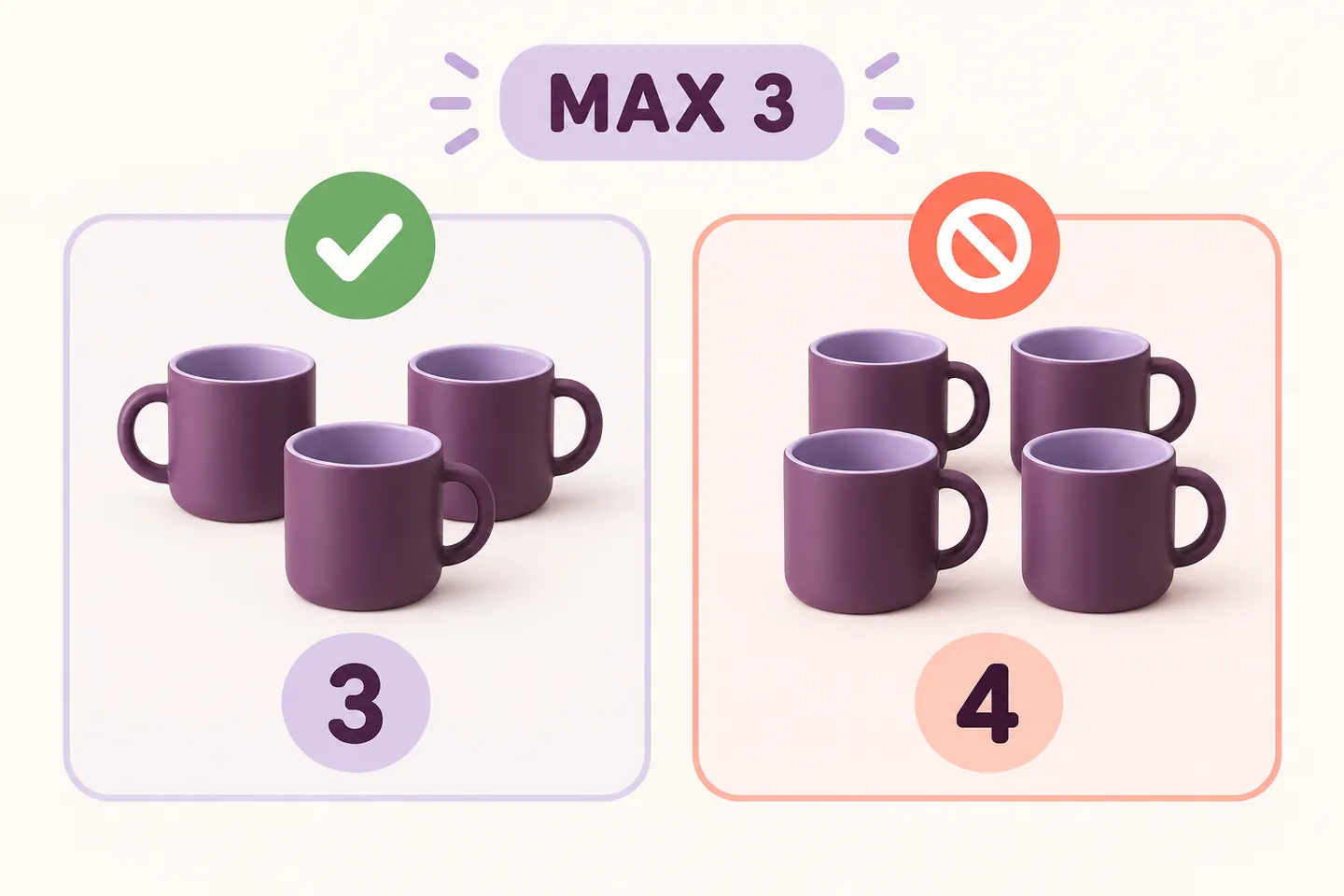
A discount does not limit how many units someone can buy. For a separate limited-stock product such as a mug, use Min & Max Quantities to target that product and set a maximum of 3. Test adding three, adding a fourth, reducing the cart and adding an unrelated product. Follow the dedicated maximum-quantity tutorial for the actual rule editor.
This cap applies to the current cart, not a lifetime limit per person. It does not stop another order. Keep the mug example separate from the four-shirt BOGO test: a maximum of three on the shirts would prevent the four-unit case. Combined configurations need their own test.
Configure a maximum quantity per product
7. Explain the offer where customers make the decision
Write the eligible product, quantity, price basis and end time in the product description or campaign content. Save and inspect that content yourself; naming a pricing rule does not automatically publish your campaign message. Keep advertised savings consistent with what the cart actually applies.
For a separate cart message, follow the WooCommerce cart notice tutorial. Its example uses an optional gift-box suggestion; adapt and test your own campaign wording and conditions. The notice itself does not apply the discount or add a gift.
Baymard Institute’s “10 Cyber Monday UX Best Practices,” by Edward Scott, updated September 16, 2025, discusses making discounted prices and promotions easy to identify. Here we apply that guidance by keeping the condition and the resulting price together. It does not establish a conversion uplift for these plugins. Source consulted October 22, 2026.
8. Test launch, checkout and the end of the campaign
For each chosen rule, check below the threshold, at the threshold and above it, then reduce the quantity again. Repeat the cart calculation and confirm the discount is not compounded. Include one product outside the target. Test on desktop and mobile with the theme and optimization settings your customers use.
The pricing examples assume no coupons or sale-price products. Default policies can exclude sale products or suspend a promotion when a coupon is present. Review your saved policy and test the combination you actually plan to allow. Then complete a staging order using a test payment method and check the order’s product quantity, line totals, taxes and shipping. A simulator or illustration cannot certify your checkout.
Review coupons and overlapping promotions
This walkthrough uses manual activation and deactivation. Assign responsibility and record the start and end times in the store’s timezone. At the end, disable the campaign rule, remove the promotional message, clear the relevant storefront cache and check the original price again as a visitor. Do not assume a banner disappearing means the discount has stopped. If you choose scheduling instead, test that separately before relying on it.
Black Friday setup questions
Do I need a paid plugin for these examples?
The bulk, progressive and BOGO calculations described here use Dynamic Pricing & Discount Rules Free. The separate product maximum uses Min & Max Quantities Free. Check the product pages for current packages and supported platform versions.
Can I activate all three offers on the same product?
These examples are alternatives. Overlapping rules depend on their saved strategy and conditions; do not add their illustrated savings together. Begin with one offer and test any deliberate overlap separately.
Does BOGO automatically add the free product?
Not in the rule used here. Customers add both units, and the plugin applies the discount to the qualifying quantity already in the cart. State that requirement beside the offer.
Start with one offer whose calculation you can explain in one sentence. Confirm the cart, order and switch-off behavior before sending customers to the campaign.
Explore Dynamic Pricing & Discount Rules · Explore Min & Max Quantities