

To schedule WooCommerce gift card emails, let the customer choose email delivery, a future date and an optional time in HookSpark Gift Cards. The plugin uses the store’s timezone and queues the gift after payment is confirmed. This lets someone buy a present in advance without emailing it to the recipient straight away.
For this example, a shopper buys a gift card before Christmas and selects December 25, 2026 at 09:00. The store uses Europe/Rome. The selected time is when the email becomes eligible for processing, rather than a guarantee that it reaches the inbox at exactly 09:00.
What needs to be ready before you offer scheduled gift cards?
Use the Premium HookSpark Gift Cards plugin and a configured, purchasable gift card product. New gift card purchases must be enabled, and the store’s email service and scheduled-action processing must work. For the broader setup, start with our guide to selling digital gift cards in WooCommerce.
Check the timezone in WordPress → Settings → General. Prefer the appropriate named city timezone for your store, so daylight-saving changes are handled. Then check the timezone printed beside the gift card’s delivery fields. Do not change the store timezone simply to match one recipient; it is a store-wide setting.
1. Choose delivery to the recipient
On the gift card product, choose an available value and design. Select Email the recipient under How would you like to give it? Fill in the recipient’s name and email, your name and the gift message. Check the address carefully before purchase.
Use one recipient for this first test. The separate “Send to me, to print or give personally” choice serves a different purpose; it is not the recipient-email path described here.
2. Set the delivery date and time
- Set Delivery date (optional) to December 25, 2026.
- Set Delivery time (optional) to 09:00.
- Confirm that the form shows the intended store timezone, Europe/Rome in this example.
- Use Preview email to inspect the message, then choose Add gift card to cart.
- Check the delivery date, time and timezone in the cart and order review before paying.
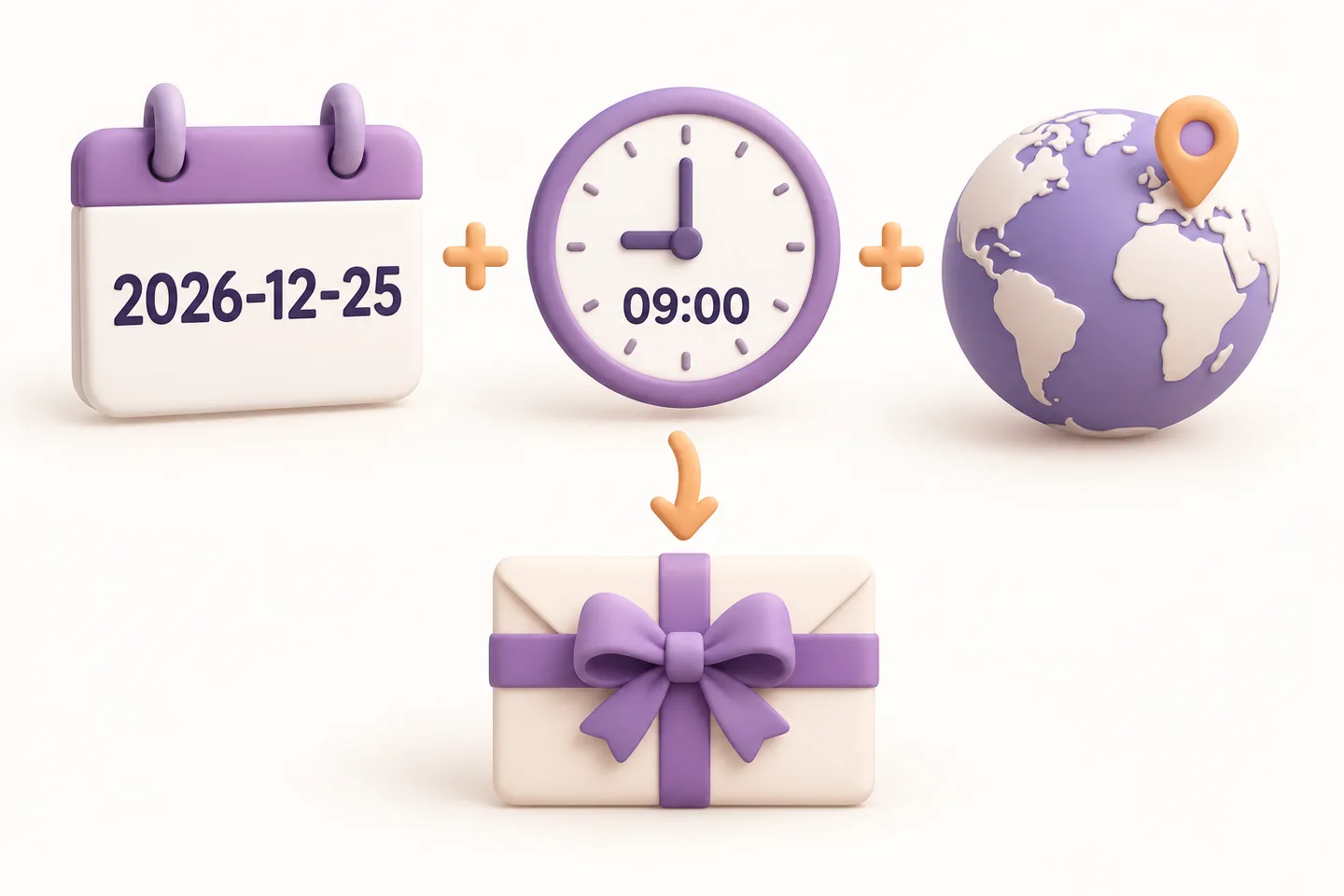
The date picker follows the browser’s display conventions. The illustration uses the unambiguous ISO form 2026-12-25; customers do not need to type that exact visual format if their browser provides a calendar.
| Selection | Result |
|---|---|
| Future date and 09:00 | Uses 09:00 in the store timezone |
| Future date, time left empty | Uses the default 08:00 in the store timezone |
| Date and time both empty | Queues delivery after payment, without a future date |
| Time entered without a date | Rejected; a date is required |
| Invalid date, past explicit time or date beyond one year | Rejected; choose a supported future date and time |
Choose both fields for an occasion that matters. If you select today but leave the time empty after the default 08:00 has passed, the scheduling calculation uses the current time. It does not create a new future appointment or bypass payment.
3. Understand which timezone applies
The chosen time belongs to the store timezone, not automatically to the recipient’s location or the shopper’s device. A store using America/New_York and a store using Europe/Rome do not schedule the same instant by entering the same clock time.
For December 25, 2026, 09:00 in Europe/Rome corresponds to 08:00 UTC. At 09:00 in America/New_York, it is 14:00 UTC. These are examples for that date; do not reuse a fixed offset throughout the year. If the recipient lives elsewhere, choose the store-local time that matches your intended occasion.
During a daylight-saving transition, an hour may be skipped or occur twice. The plugin rejects those ambiguous or nonexistent local times rather than silently moving the gift. Choose a time that occurs once, such as a suitable morning hour. The email and delivery documentation covers the related controls.
4. Complete payment and let the queue process the email
Adding the gift card to a cart does not issue and email it. For an ordinary purchase, the plugin checks that WooCommerce considers the order paid before issuing the card and queuing delivery. Selecting a date does not bypass an unpaid order.
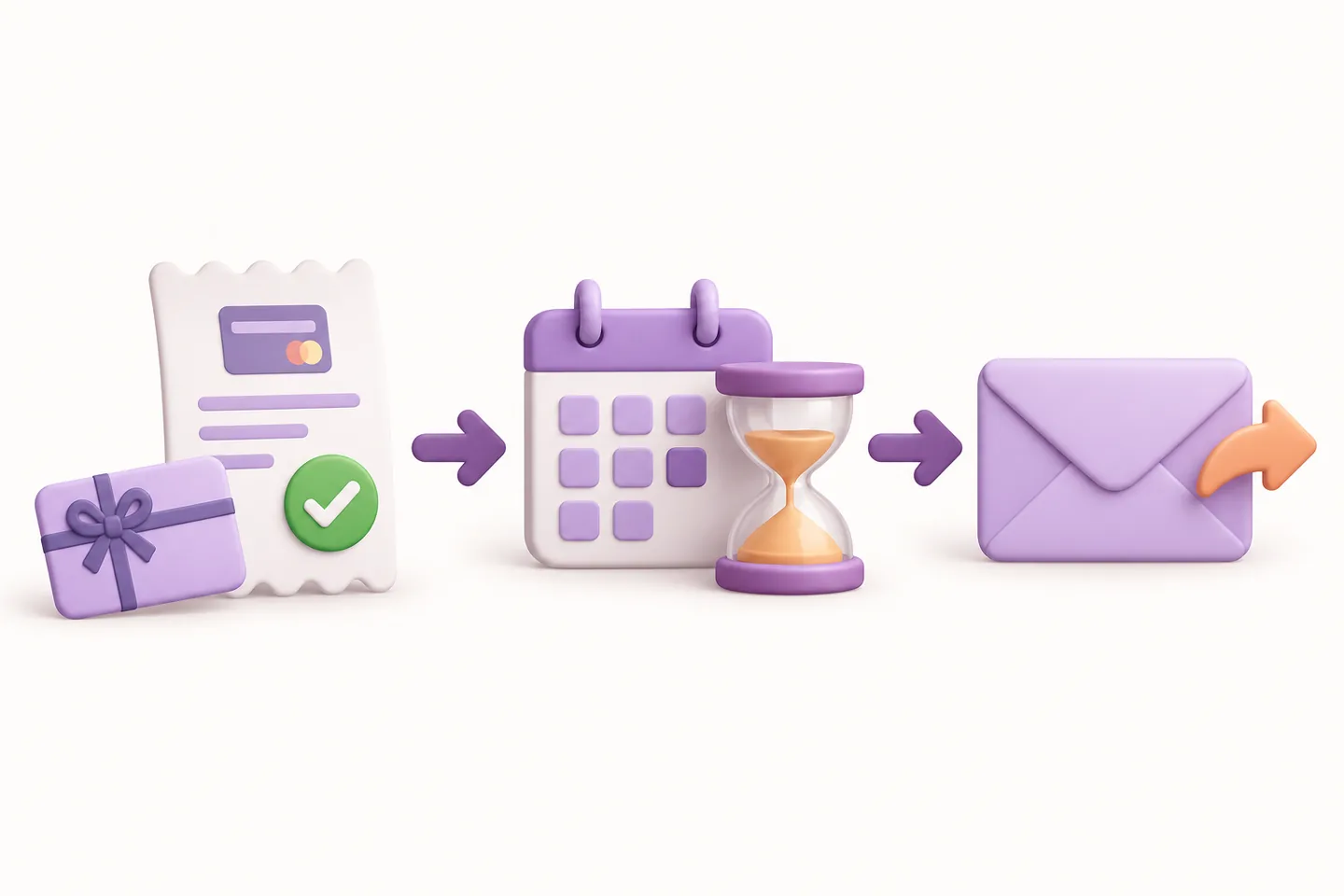
If payment is confirmed before the selected date, the email waits for its scheduled instant. If payment is confirmed after that instant, there is no way to send it in the past: it becomes eligible for the next processing opportunity. Check the actual card and delivery state if payment was delayed.
Action Scheduler’s official documentation, consulted October 26, 2026, explains that its background queue attempts to run through WordPress scheduling. Hosting, queue activity and failures can affect when a due action is processed. A selected 09:00 is therefore not an inbox-delivery service-level guarantee.
Test the complete path before a holiday campaign
- Use staging, a test payment method and an inbox you control. Select a future date and a convenient time in the store timezone.
- Confirm the saved delivery details in the cart and order. A preview alone does not prove that payment, issuance and scheduled delivery work together.
- Check that an unpaid test order does not issue the normal purchase gift card.
- After confirming test payment, inspect the queued action and the gift card’s delivery state. The administration provides an “Inspect scheduled deliveries” link.
- When it is due, confirm both the processing result and the message in the controlled inbox, including its design, recipient and gift details.
- Test an omitted time, a corrected invalid date and a failed email handoff separately before relying on the flow.
The WordPress Developer Reference for wp_mail(), consulted October 26, 2026, distinguishes a successful processing result from actual recipient receipt. A “sent” state does not establish inbox placement or reading. If delivery is uncertain after an interrupted send, investigate before retrying, so the recipient is not contacted unnecessarily.
Frequently asked questions
Can customers buy now and send the gift card later?
Yes. Choose recipient email delivery and a supported future date. Payment must be confirmed, and the scheduled job and email service must then process the gift.
What happens if no delivery time is selected?
A selected future date uses 08:00 in the store timezone. Enter an explicit time when that default does not fit the occasion.
Can I schedule the email more than a year ahead?
The current date validation allows dates up to one year from the store-local current day. Later dates are rejected.
Does the email use the recipient’s timezone?
No. Read the store timezone shown next to the delivery fields. Choosing a different language does not mean that the recipient’s location or timezone has been detected.
Why did a scheduled gift card email arrive late?
Check payment confirmation, the saved date and timezone, the queued action and the configured email service. Compare the job’s processing time with the email’s actual receipt; they measure different steps.
Make the delivery expectation clear
Let the customer select a date and time, show the store timezone and explain that delivery follows confirmed payment and queue processing. Test the full path before a birthday or holiday deadline.