
Customize and schedule the recipient email
Version 0.2.0-beta.4 · Beta release
Setup
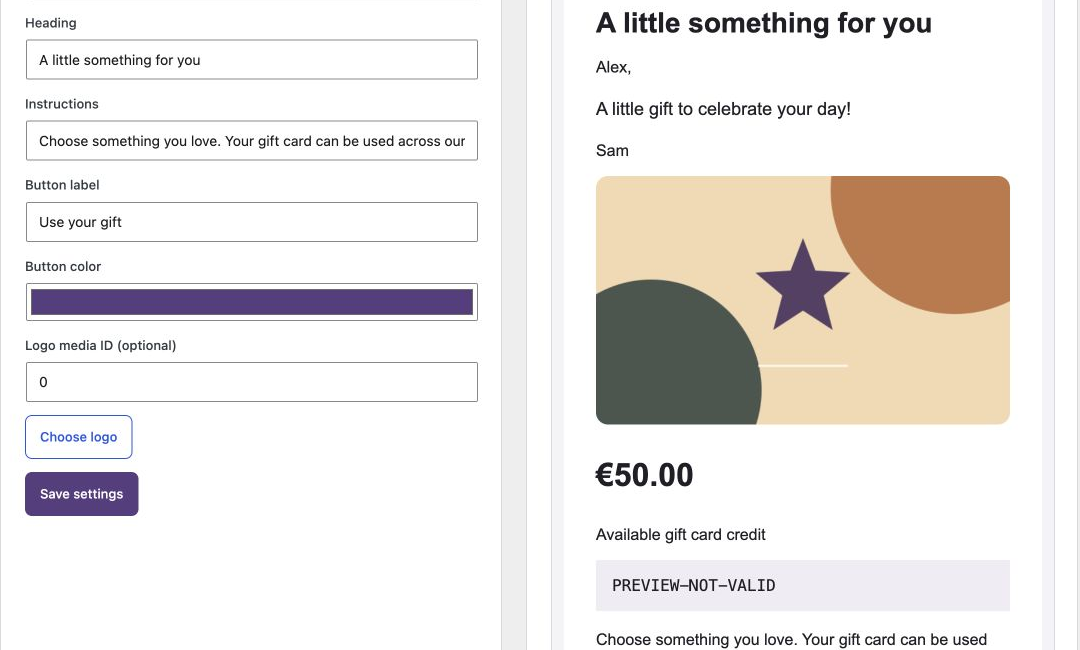
Open HookSpark → Gift Cards → Email templates. Choose Classic, Occasion or Product first. Set subject, heading, instructions, button label, button color and optional logo. Subject supports {sender} and {recipient}. Check Desktop and Mobile preview, then Save settings.
Try it and check the result
The preview uses example data and the real email renderer; it sends nothing. A new purchase snapshots your composition. The customer can choose immediate delivery or a future date, sent from 08:00 in the store timezone after payment. Check WooCommerce → Status → Scheduled Actions if a due email has not been processed.
Limits and troubleshooting
WP-Cron and Action Scheduler must run. “Sent” means the mail transport accepted the message, not that it reached the inbox. Delivery retries are bounded; inspect the card and explicitly resend after resolving a failure. Existing purchases keep their original layout and copy. Real SMTP, spam placement and third-party mail clients require your own staging checks.
Continue in the handbook
Delivery checks and recovery
Choose whether the email button applies the gift, opens the store catalog or opens the suggested product. Send a test email before launch. The buyer can receive a sending confirmation; after three explicit mail-service failures, the merchant receives an alert. “Sent” means the mail service accepted the message, not that it reached the inbox.
Optional expiry begins at the scheduled delivery time for future gifts.