

A useful WooCommerce product page helps a shopper answer three questions: is this the right item, what will I receive, and what happens when I buy? Review the page around those decisions before adding another banner or feature. This checklist covers buying information, not a theme redesign or a custom-field setup tutorial.
Use a real product and open its public page as a new visitor. The example is an everyday ceramic mug priced at US$24, with a 350 ml capacity. Any dispatch times in the illustrations are sample merchant promises, not standard WooCommerce delivery times.
1. Make the product and its price unambiguous
Use a specific product name and a short explanation of its purpose. Tell the shopper whether the offer contains one mug, a pair or a larger set. State capacity and material where relevant. Do not rely on a lifestyle photo to communicate the contents of the order.
Check the price displayed for the actual selection. If tax or shipping information depends on location or settings, explain the applicable policy instead of inventing a universal total. On variable products, select each relevant variation and verify its own price and availability.
2. Use images that answer practical questions
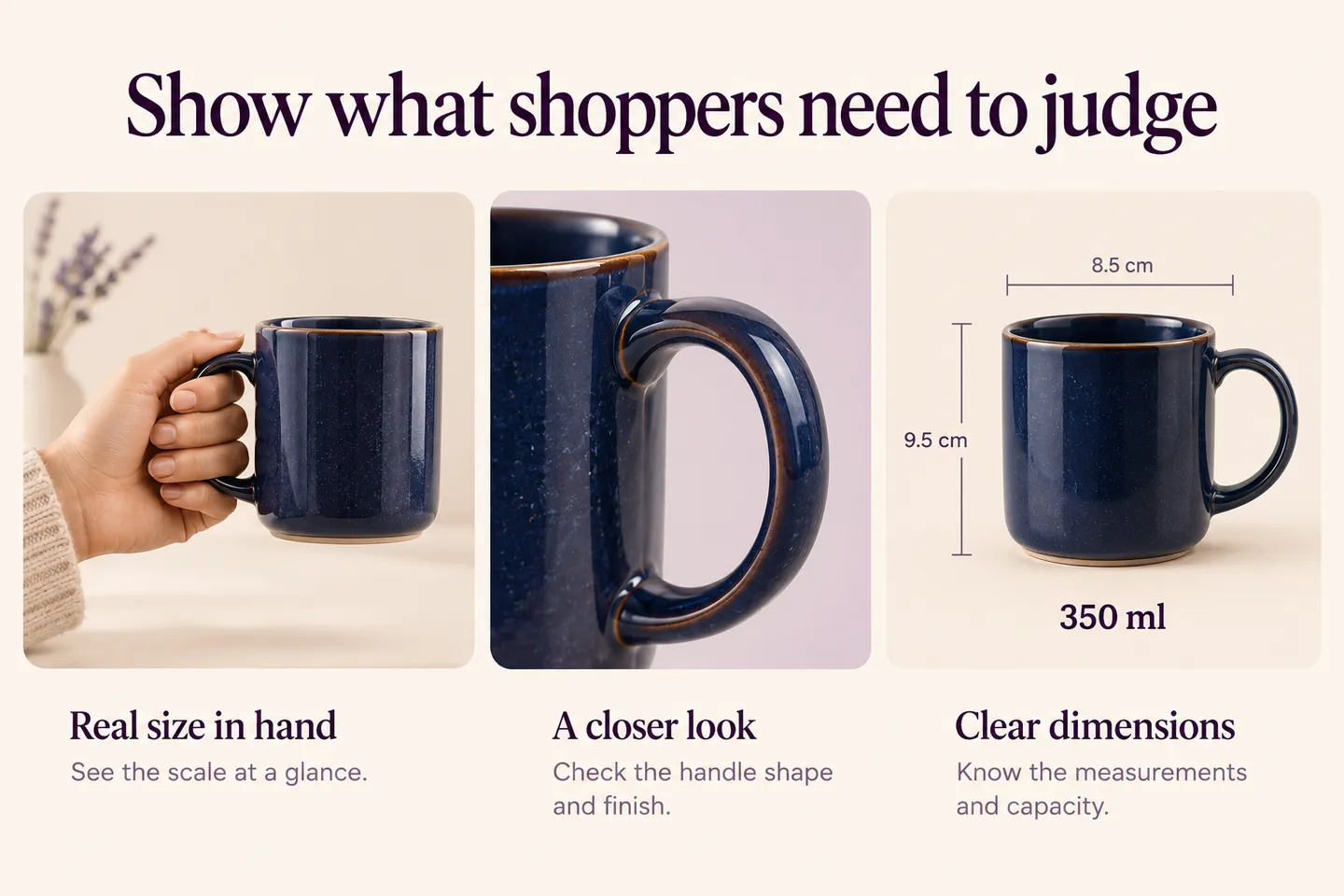
For the mug, show the opening, handle and usable scale. A hand holding the item can communicate size; an accurate specification provides the actual capacity. Describe genuine differences between product variations rather than using one attractive photo for every choice.
Use descriptive alternative text for meaningful images and optimize file sizes without making details unreadable. A concept illustration cannot replace authentic product photography when shoppers need to judge the item they will receive. The visuals in this guide illustrate the checklist; they are not photographs of a product sold by HookSpark.
3. Put the short answer near the purchase controls
A concise summary can state “350 ml ceramic mug; one mug included; navy finish.” Put longer care instructions and detailed dimensions where they remain easy to find. Avoid hiding essential limitations inside a long paragraph far below the purchase decision.
WooCommerce’s product editor provides separate short and detailed descriptions, product images, a gallery and product-data settings. The official WooCommerce Product Editor settings documentation, consulted October 27, 2026, describes these fields. Your theme or page builder can change their presentation, so inspect the public result rather than assuming a fixed layout.
4. Explain choices and additional charges
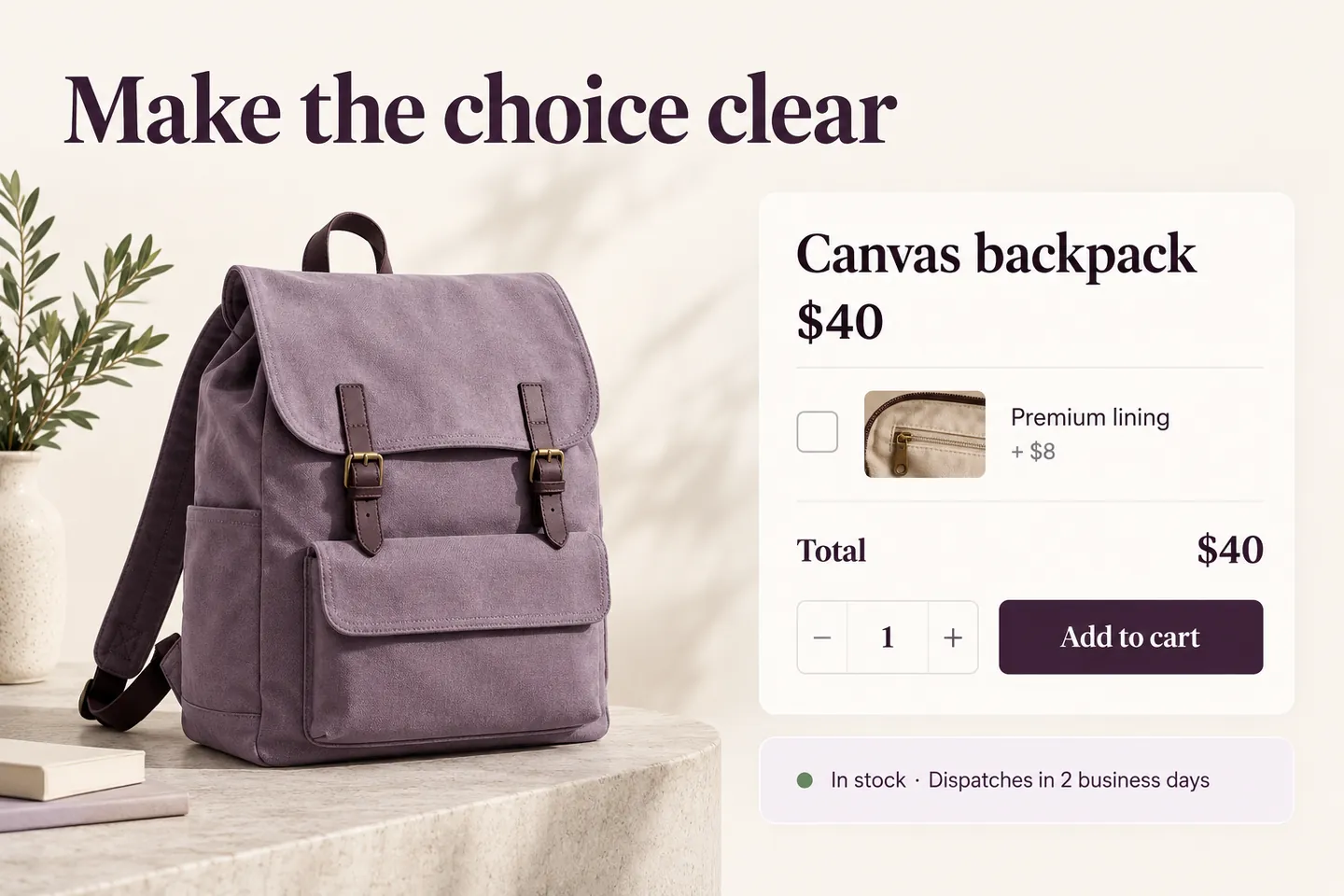
Make the shopper’s next action clear. A color or size with independent stock may belong to a variation. Text for personalization or an optional service is a different choice. Explain limits and any extra price before the item is added.
HookSpark Product Options & Add-Ons can collect supported personalization choices. Use the engraving field guide for customer text or the paid options tutorial for a fixed optional extra. Keep this checklist focused on whether the customer understands the choice, rather than repeating those configuration steps.
5. State availability and fulfillment accurately
If the mug is unavailable, do not leave a purchase-focused promise that suggests immediate dispatch. If you accept orders for later fulfillment, make the actual arrangement clear. A stock label, dispatch estimate and delivery estimate describe different things; “dispatches in two business days” does not mean “arrives in two business days.”
Review destinations, delivery charges, return information and contact details relevant to this product. Use your actual business policy and avoid unsupported guarantees. For campaigns pointing to an unavailable selection, follow the guide to advertising out-of-stock products before continuing to pay for visits.
6. Walk through the result as a customer
| Customer question | Check |
|---|---|
| What am I buying? | Contents, dimensions, images and selection agree |
| What will it cost? | Selected price and optional charges are clear |
| Can I buy this choice? | Variation, quantity and stock behave correctly |
| What happens after adding? | The cart retains the correct selection and total |
| How do I get help? | Delivery policy, returns and support are accessible |
Test keyboard navigation and a small screen. Select an option, change quantity and add the item on a test store. Check the cart and order details, not only the product preview. Do not place an unwanted live order to perform a content review.
After correcting a meaningful problem, record the change and watch completed purchases, support questions and returns. A cleaner page is a hypothesis to evaluate, not a guaranteed conversion increase. If you also propose extras, measure the effect on average order value and contribution separately.
Common questions
Should every detail be above the fold?
No. Prioritize the information needed for the immediate decision and keep supporting details accessible. Screen sizes and product complexity differ.
Do I need a plugin for every improvement?
No. Clear copy, accurate native product data and better photographs may solve the problem. Add a tool when the required behavior is missing.
Can I use reviews or delivery promises as decoration?
Use only genuine reviews and fulfillment claims your store can support. A polished layout does not make invented evidence acceptable.
Choose one important product page and work through the checklist. Fix the first unclear buying decision, then verify the complete path before applying the pattern across the store.