

To plan WooCommerce holiday shipping, work backwards from the carrier’s verified last acceptance date for the destination and service. Subtract your order-processing time and an operational buffer, then publish a customer order cutoff with its time zone and exceptions. A shipping banner communicates that plan; it does not make the carrier deliver on time.
Imagine a customer buying a personalized gift. Your home page says “Order before Christmas”, the product needs two working days of preparation, and international delivery has an earlier handoff deadline. All three statements can be individually true while the purchase remains confusing. This guide turns them into a deadline the shopper can actually use.
Separate three dates before changing WooCommerce
The order cutoff is when you stop accepting purchases under a particular holiday-delivery expectation. The dispatch deadline is when the parcel must enter the carrier’s network. The estimated arrival date is when the recipient may receive it. Do not call all three “the shipping deadline”. A parcel packed on Friday is not necessarily collected on Friday.
WooCommerce’s holiday shipping guide, checked on 29 October 2026, treats fulfillment planning and customer communication together. Its separate carrier-deadlines documentation also distinguishes services and destinations. Use the carrier’s current official information for your actual route, account and collection arrangements. An old blog date or a generic domestic deadline cannot establish eligibility for an international order.
Calculate an order cutoff with a working-day example
Planning rule: customer order cutoff = verified carrier handoff deadline − processing working days − buffer working days. Treat this as a scheduling worksheet, not a delivery-date calculator. Confirm when each working day starts, whether the acceptance day counts, and which days your warehouse and carrier actually operate.
In this hypothetical example, the carrier’s last acceptance is Friday. Your store processes orders Monday to Friday, excludes the acceptance day, needs two full processing days and reserves one working day of buffer. Set the customer cutoff to Tuesday at 12:00 in the store’s stated time zone. Wednesday and Thursday are processing days; dispatch is planned for Thursday. Friday remains the contingency day before the confirmed carrier limit.
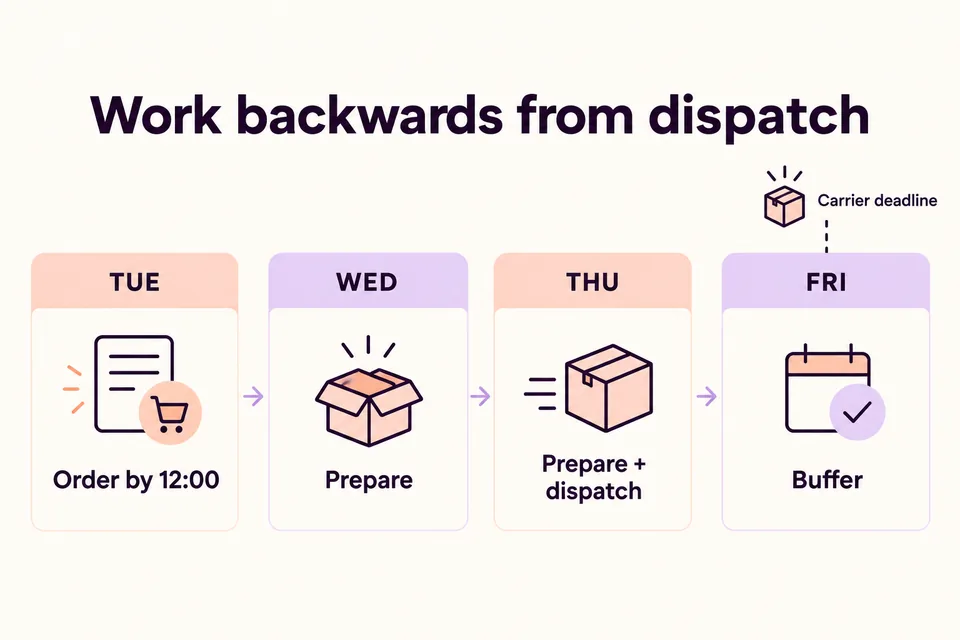
An order accepted after Tuesday’s cutoff belongs to the next processing cycle. A holiday on Wednesday invalidates this timetable: move the customer cutoff earlier and check the full calendar again. The example contains no real carrier deadline and makes no Christmas-arrival guarantee. Replace every assumption with your own service information and measured fulfillment capacity.
Build a deadline matrix for products and destinations
Start with a small number of routes you can maintain. Separate ready-to-ship stock, personalized products and international destinations. Record the service, last handoff, processing requirement, buffer, customer cutoff and owner responsible for changes. Keep the underlying carrier information beside that internal worksheet, with the date it was checked.
| Product / route | Preparation | Customer cutoff in the hypothetical Friday example |
|---|---|---|
| Ready stock, domestic | 1 working day + 1 buffer day | Wednesday, 12:00 |
| Personalized gift, domestic | 2 working days + 1 buffer day | Tuesday, 12:00 |
| International destination | Verify service, customs and local holidays | Calculate separately; no universal date |
For mixed carts, decide whether you dispatch everything together or split shipments. If one personalized item determines the whole parcel’s preparation time, a ready-stock message must not override it. If you split orders, explain the extra shipments and any extra costs before payment. The longest preparation time is not automatically the correct rule for every fulfillment model.
Use the native WooCommerce Store Notice for a general message
For a general announcement, WooCommerce already has Store Notice. In a compatible Customizer setup, open Appearance → Customize → WooCommerce → Store Notice, enter the message, enable it, preview it and publish. WooCommerce’s documentation notes that block themes can hide the Customizer entry; the direct Customizer address may still expose these settings. Verify the actual result with your theme rather than assuming a particular banner position.
A useful general message might say: “Holiday order deadlines vary by destination and product. Check the delivery information before paying.” Put the detailed matrix on a maintained shipping-information page. Do not rely on the banner alone: shoppers can dismiss the native notice, and customers arriving directly at a product still need information relevant to that item.
Shipping zones perform a different job: they determine available shipping methods for matching addresses. Organize and test those methods, but do not treat a zone name such as “Domestic” or a Flat Rate label as proof of an arrival date. Updating a notice does not change rates, courier capacity or product availability.
Add a relevant cart reminder when a general banner is not enough
A store selling both standard gifts and personalized gifts may need a reminder when the personalized item is in the cart. That is where product conditions and scheduled informational messages can be useful. Keep destination exceptions explicit in the text or shipping information; do not assume the example detects a country automatically.
HookSpark Cart Notices & Checkout Messages
Use the product page and its versioned documentation to check the available edition, supported checkout presentation and message conditions before choosing the tool. For a product-specific reminder, its documented workflow lets you select the products required in the cart and set the message’s start and end. Review the saved time zone. A scheduled message is information: it does not calculate the carrier cutoff, create a delivery estimate or prevent a late order.
Schedule messages: documented workflow
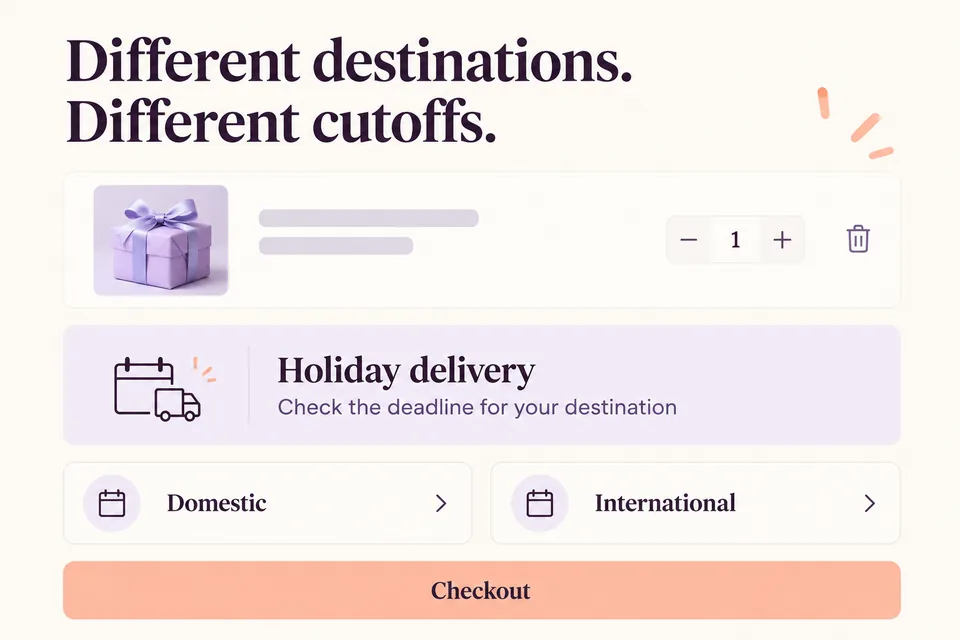
For example, tell shoppers that personalized gifts require additional preparation and direct them to the destination-specific deadline table. The two destination cards in the illustration explain the planning problem; they are not a screenshot of an automatic country selector. After the cutoff, replace the old copy with the applicable later dispatch expectation. If you need an actual purchasing restriction, implement and test that separately.
Explain arrival clearly without promising what you cannot control
Baymard Institute’s 2023 research by Iva Olah found that shipping-speed labels can leave buyers calculating arrival themselves. Its 41% figure refers to that benchmark, not current WooCommerce stores. Provide a supported date or range with clear assumptions.
“Order by Tuesday, 12:00, store time, for the stated domestic service” is more actionable than “Christmas shipping soon”. Add the actual date and named time zone in the live notice. Use an estimated arrival range only when you have verified the processing and transit inputs. A disclaimer cannot rescue an implausible delivery promise, and a countdown cannot create warehouse capacity.
Test the deadline before publishing it
Test just before and at the cutoff, an order accepted afterwards, a nonworking day, a personalized item, a mixed cart, a domestic address and an international address. Repeat on mobile and with a fresh visitor session. Check the shipping information, product text, cart reminder and checkout for contradictions. Confirm which shipping methods remain selectable after the notice changes.
Assign one person to maintain the deadline table and another operational check for warehouse handoffs. Review remaining capacity during peak days. Update the message when the assumptions change, not merely when the calendar reaches last year’s date. Keep the article URL evergreen, but reconfirm real carrier information and dates each season.
Frequently asked questions
Does WooCommerce calculate Christmas order deadlines automatically?
The native Store Notice displays your announcement; shipping zones organize methods. Neither alone builds the working-day and destination-specific plan in this guide. Verify any dedicated delivery-estimation extension separately.
Is the carrier’s last shipping day also my last order day?
Only if your verified preparation and collection arrangements genuinely allow it. Otherwise, subtract the necessary working days and buffer before accepting the order under that delivery expectation.
Does an expired cart notice block checkout?
No. An informational message and a purchasing restriction are different mechanisms. Test any restriction independently; never rely on hiding a banner to stop late purchases.
Connect shipping deadlines to the rest of the store
This guide owns the deadline-planning task. Use the following guides for their separate jobs, rather than combining every holiday topic into the same page.
WooCommerce Black Friday and Cyber Monday readiness checklist
Calculate a profitable WooCommerce free-shipping threshold
Reduce WooCommerce cart abandonment
Start with one product group and one destination. Confirm the carrier handoff, calculate the order cutoff, publish one consistent message and test what happens after it expires. Add conditional reminders only where they help a shopper understand that verified plan.