

A shopper buying a notebook for themselves reaches checkout and sees a Company field. They stop to decide whether to leave it blank. If your store does not use that answer, the field adds a question without helping you fulfil the order.
To remove unnecessary WooCommerce checkout fields, start with one field whose purpose you can explain. In this walkthrough, we hide billing Company with HookSpark Checkout Customizer Premium. Names, email and the delivery address stay in place.
This setup is for classic checkout. The Premium field editor does not edit Checkout Block fields. The Free edition keeps native WooCommerce fields and does not include this editor.
Why fewer checkout fields can help
Baymard Institute’s Checkout Optimization: 5 Ways to Minimize Form Fields in Checkout, by Edward Scott, published June 26, 2024, reports an average of 11.3 form fields in its 2024 checkout benchmark. Its research places more emphasis on the fields shoppers must consider than on the number of checkout steps.
The practical takeaway is to review every question you ask. Removing a field your store does not need can reduce the work involved in completing the form. That finding does not establish a conversion increase for this plugin or guarantee that a shorter checkout will perform better in your store.
Choose a field your order does not need
Our example is a consumer notebook store. It does not offer business purchasing and does not use the billing Company answer in its order workflow. We hide that one field, then test the purchase path.
That choice would be unsuitable if your customers need to enter a company name for the way you process their orders. Similarly, a courier may need a phone number, and apartment deliveries may need address line 2. Review your actual checkout, shipping and payment requirements before deciding.
| Field | Supported control | Question to ask |
|---|---|---|
| Billing or shipping Company | Default, Optional, Required or Hidden | Do we use a company name to process this order? |
| Address line 2 | Default, Optional, Required or Hidden | Could customers need an apartment, suite or unit number? |
| Billing phone | Default, Optional, Required or Hidden | Does delivery, payment or order support depend on a phone number? |
| Order notes | Default, Optional, Required or Hidden | Do shoppers need to provide fulfilment instructions? |
| Names, billing email and core address fields | Protected from hiding or weakening | Keep WooCommerce’s country-specific requirements. |
The supported controls are defined for specific native WooCommerce fields. Payment-provider fields and fields owned by other plugins remain under their provider’s control.
1. Check your checkout type and prepare a test store
Use a staging copy with WooCommerce and Checkout Customizer Premium installed. Confirm that the checkout uses the classic shortcode, [woocommerce_checkout], and a classic Checkout Customizer design. The plugin’s Focus and Compact designs use Blocks, so this field editor does not apply to them.
In Checkout Customizer, enable the layout and choose a classic design. Review the current active configuration before making a change. Use the Checkout Customizer setup guide if you have not configured it yet.
This article does not require custom PHP or CSS. Hiding a field through the editor changes the supported field configuration; visually concealing an input with CSS alone is a different operation and can leave validation requirements in place.
2. Set billing Company to Hidden
- Open HookSpark → Checkout Customizer → Checkout fields.
- Under Standard fields, expand the billing Company row. Its displayed name can follow your WooCommerce language.
- Leave Label override and Display order blank to keep their defaults.
- Change Visibility and requirement to Hidden.
- Click Save draft.
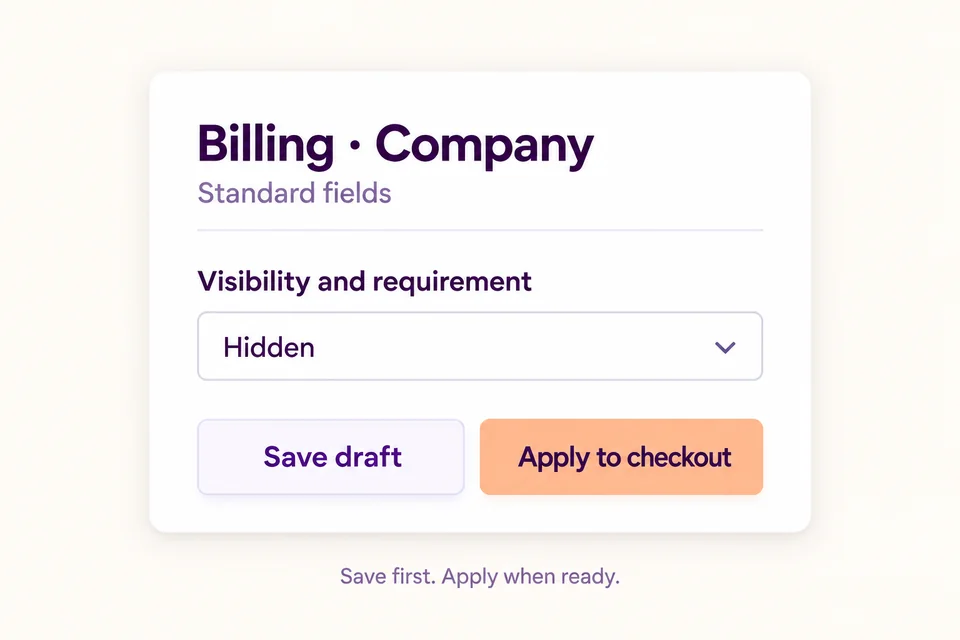
At this point, the live checkout has not changed. The saved draft holds your new field configuration. Billing Company and shipping Company are separate rows: hiding the billing field does not automatically hide the shipping field.
Optional and Hidden also have different meanings. Optional leaves the field visible and allows a blank answer. Hidden removes the supported field from future checkout submissions. Choose the result you intend.
If a custom field genuinely needs an answer on every affected order, follow how to make a WooCommerce checkout field required. Required presence is separate from tax-number verification.
3. Preview the saved draft, then apply deliberately
Open Templates & editor with a prepared cart and inspect the saved draft. Check that Company is absent and that names, email and the address remain readable. Review desktop and mobile layouts.
When the draft is ready, use Apply to checkout. This applies the entire saved draft, including other saved design settings. Review any pending layout or branding changes before applying; the action is not limited to the Company row.
Reload the active checkout in a separate shopper session. A draft preview and the active storefront are different views. The active checkout is the one your customers will use.
4. Test the order, not just the shorter form
A cleaner-looking form is only the first check. Confirm that the remaining fields still validate and that your shipping and payment setup can complete an order.
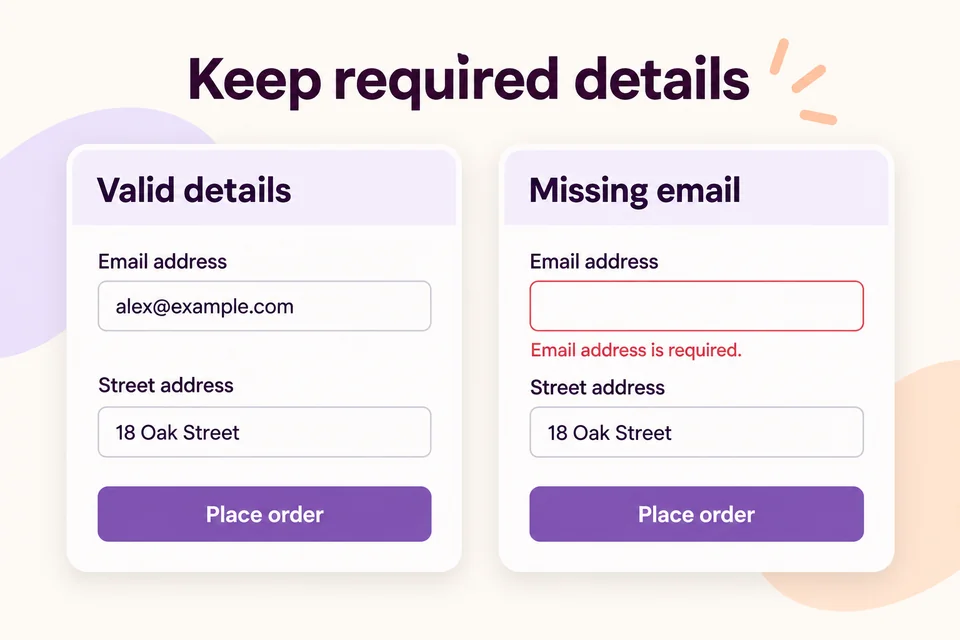
- Valid details: enter a complete address and valid email. Confirm that a test order can be placed using an appropriate test payment method.
- Missing required details: leave billing email blank. Checkout should report the missing value and prevent submission until corrected.
- A separate shipping address: select that option, if your store offers it. Verify the shipping fields independently.
- Country changes: test the countries you actually sell to. WooCommerce still controls country-specific address requirements.
- The saved order: check customer and address details in the admin order and your normal fulfilment workflow.
- Mobile: check the form, validation messages and payment step at a narrow screen width.
Repeat the relevant checks when changing a theme, gateway, shipping integration or another checkout extension. A successful offline test does not prove every live payment flow.
What happens to existing orders?
Hiding a supported optional field affects future checkout submissions. It does not delete the company names already stored in earlier orders.
Custom fields have a separate draft-removal control. Hidden keeps a custom definition for later reuse; Remove field from draft removes that definition from the draft. Existing orders retain their saved custom-field labels and answers after a later rename or removal.
If the order needs information that is not collected yet, follow how to add a custom WooCommerce checkout field. Its optional VAT-number example collects text; it does not validate tax identifiers or create conditional checkout rules.
If the active configuration is wrong, Restore previous restores the previous active configuration, including fields, while retaining the draft. Review the restored checkout before continuing.
Frequently asked questions
Can I remove every checkout field?
No. Essential names, billing email and core address fields are protected from hiding and weakening in this editor. Review supported optional fields instead of treating every input as removable.
Why is Company still visible?
Check that you applied the saved draft, enabled the layout and selected a classic design. Confirm that you changed the correct billing or shipping row. If another extension controls the field, investigate that integration rather than repeatedly applying the same change.
Does this work with the WooCommerce Checkout Block?
No. This Premium editor applies to classic checkout. Blocks retain their native fields; use a method explicitly intended for Blocks if that is your store’s checkout.
Can I show Company only to business customers?
This version does not include conditional checkout-field rules. The walkthrough hides Company for the configured classic checkout; it does not choose visibility separately for business and consumer shoppers.
Keep product choices on the product page
If the information describes a particular item, collect it where the customer selects that item. An inscription on one bottle belongs with the bottle, rather than in a generic checkout question. See our WooCommerce engraving-field walkthrough and gift-wrap option example for product-specific choices handled with HookSpark Product Options.
Start with one unnecessary field
Choose a field your store does not use, save the change as a draft and verify the complete purchase path. Keep the information needed to fulfil the order.
Explore Checkout Customizer →
Read the checkout-field guide →