
HS Min/Max Quantities · Development version 0.12.0
Sell a product in packs of six
Let shoppers buy 6, 12, 18 or 24 mugs. Reject quantities outside that range or between those pack sizes.
Before you start
Activate WooCommerce and HS Min/Max Quantities. Use a published simple product with enough stock for the example and a store-management account. Work on a test site first. Other active rules and stock limits may restrict the quantities further.
1. Create and name the rule
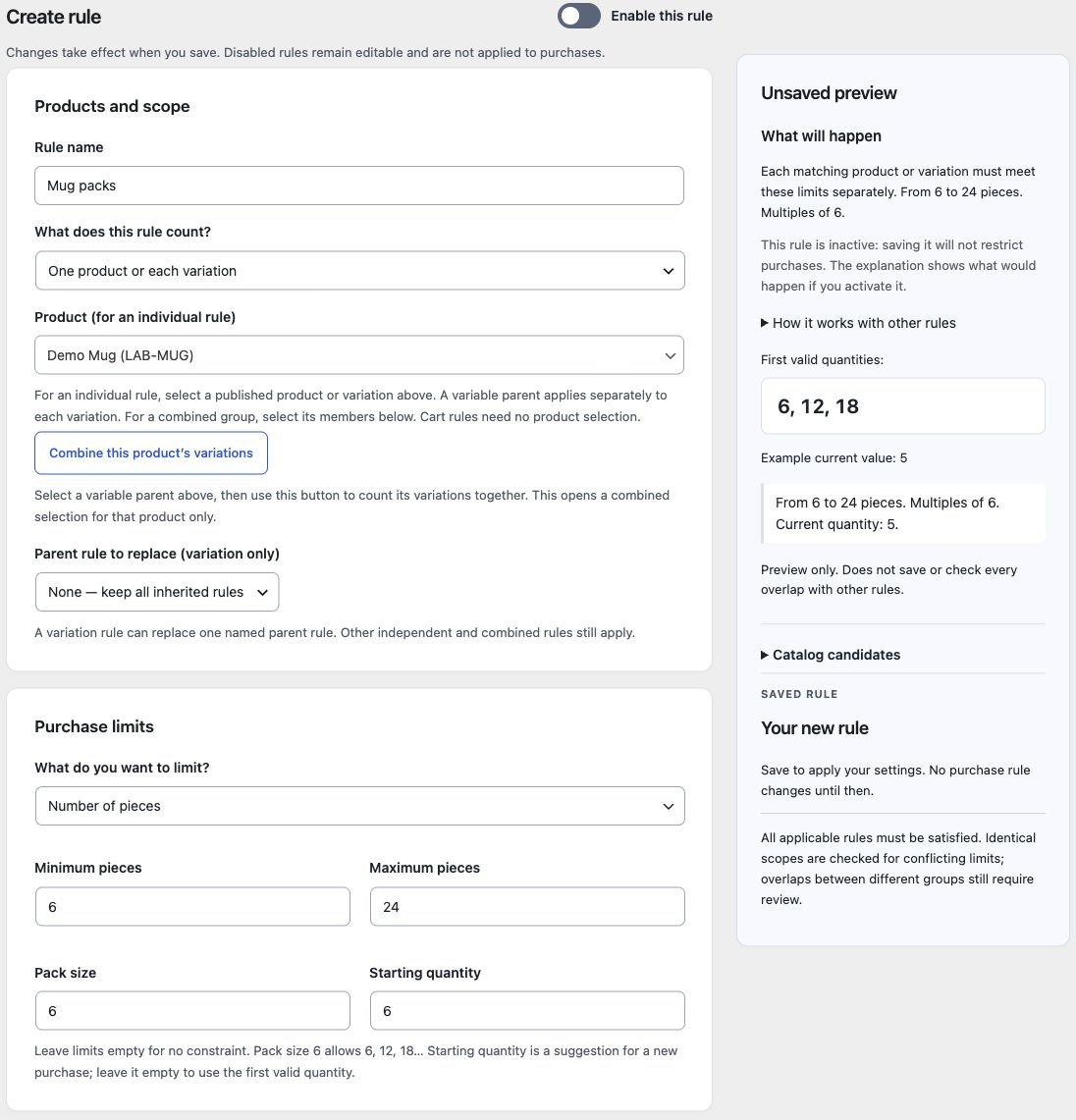
- Open HookSpark → Min/Max and create a rule.
- Enter Sell in packs of 6 as the rule name. This is your internal label: use a name that will make sense in the rule list later.
- Choose the individual-product scope. Search for your product by entering at least three characters, then select the result. Typing a name without selecting a result is not enough.
2. Enter the purchase limits
| Field | Value | What it does |
|---|---|---|
| Minimum quantity | 6 | Reject fewer than six units. |
| Maximum quantity | 24 | Reject more than twenty-four units. |
| Pack multiple | 6 | Allow whole packs: 6, 12, 18, 24. |
| Starting quantity | 6 | Suggest six units for a new purchase. This is not a separate purchase limit. |
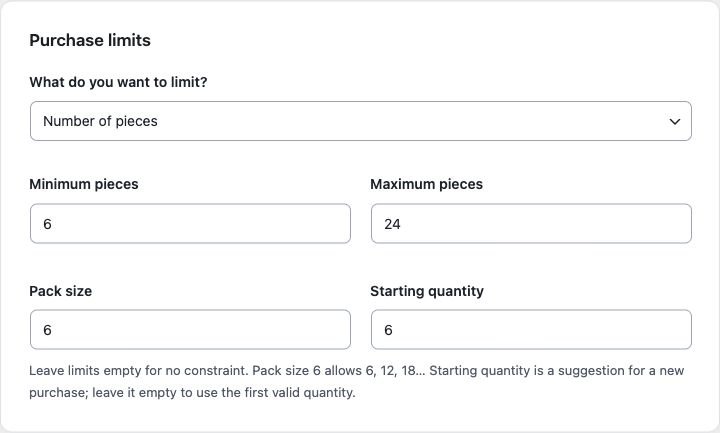
Leave an optional limit empty when you do not need it. Do not use zero as a substitute for an empty field. A minimum or maximum must leave at least one valid multiple in the range: minimum 7, maximum 11 and multiple 6 leave no valid quantity.
3. Review, enable and save
Read the unsaved preview. It should describe individual quantities between 6 and 24 in multiples of 6. The preview explains your draft; it does not save it or prove that every other rule is compatible.
Turn on Enable this rule (“Abilita questa regola”) and select Save rule (“Salva regola”). If a field error appears, correct the highlighted field and save again. Reopen the saved rule and check its values. An inactive rule can be saved and edited, but does not restrict purchases.
4. Check the customer journey
| Try | Expected for this rule alone |
|---|---|
| Add 6 units | Allowed. |
| Change the cart to 5 or 7 | Rejected: below minimum or not a multiple. Read the quantity feedback. |
| Change the cart to 12 | Allowed; the rule error should clear. |
| Change to 30 | Rejected: above maximum. |
| Proceed with 12 and a test payment method | The rule permits checkout, subject to the other store requirements. |
Repeat as a guest and as the intended customer when you add audience restrictions. A product page that looks correct is not sufficient: always verify cart updates and checkout.
Next: target products and customers or configure variations and overlapping rules.
Back to all guides · Troubleshooting
Start from the product editor
Save your product, then open Product data → Min/Max. Review the related rules or choose Create rule for this product. This opens the rule editor with the product preselected; nothing is saved or activated until you complete the rule and save it.
For a specific variation, open Variations, expand it and use its own panel. The shortcut selects that variation. Summaries use saved catalog data; customer conditions, selected attributes and cart contents still need checking. These panels support the classic WooCommerce product editor.
Cart quantity changes
Min & Max 0.13.2 uses native quantity validation in WooCommerce 11.2 to reject invalid Cart Block edits before they change the cart. The classic cart and the adapter for supported earlier WooCommerce versions remain available. First additions and adding the same product again are also validated.
Variation rules use the selected attributes and any explicit parent-rule replacement. Combined rules count the prospective total; progress toward a combined minimum can be allowed while checkout remains blocked. Removing an item remains possible. Existing rules require no migration.