

A customer wants your blue T-shirt in size M. That variation is sold out, but size L is available. Showing that the product is “in stock” somewhere on the page does not answer the customer’s question: can you tell me when my size returns?
WooCommerce manages variation stock natively. To collect an email request and notify the customer when that specific variation becomes available, you need an additional restock-alert workflow. This guide shows the distinction and an example with HookSpark Back in Stock & Waitlist Free.
Does WooCommerce already send back-in-stock notifications?
WooCommerce includes inventory quantities, stock status, low-stock and out-of-stock emails to the recipients configured by the store, and backorder settings. Those inventory emails keep the merchant informed; they are not a customer waiting list for a selected size or color. “Allow, but notify customer” under backorders explains an order’s backorder status. It does not mean “email me when this returns”.
| What you need | Where it belongs |
|---|---|
| Track blue M separately from blue L | Native WooCommerce variation inventory |
| Tell the merchant stock is running low | Native inventory notification settings |
| Accept an order before replenishment | Native backorders, if appropriate for your business |
| Collect a customer’s request and send a restock alert | A restock-alert extension such as HookSpark |
Source: WooCommerce Products Settings and Product Editor settings documentation, consulted 28 October 2026. A separate extension called Back In Stock Notifications also appears on WooCommerce.com; its documentation describes that extension, not the base plugin.
Start with the variation the customer actually wants
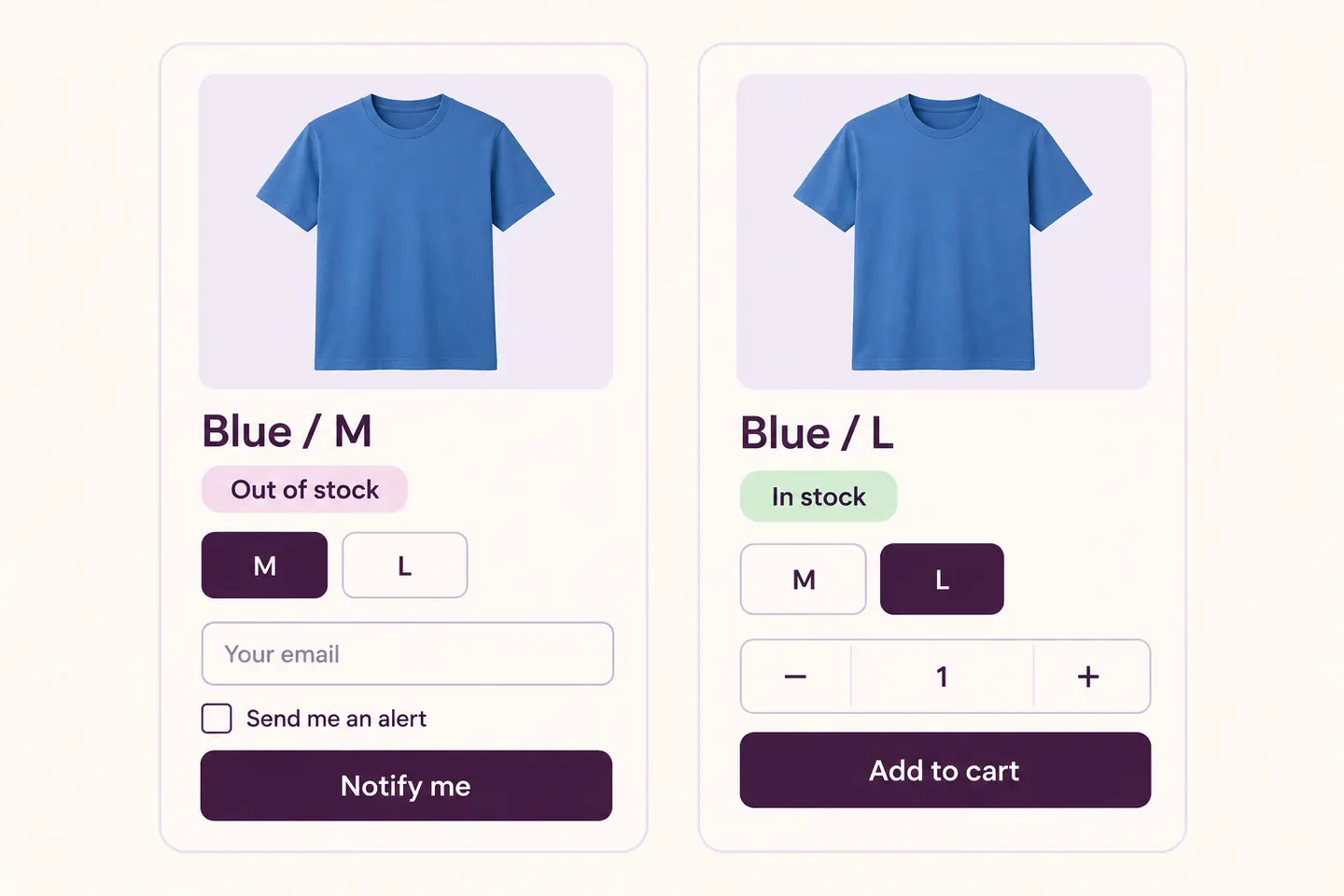
In Products, edit the variable product and check its Variations settings. For this example, give Blue / M its own stock quantity of zero and Blue / L a quantity of five. Disable backorders for the example. Confirm both variations are enabled and the product is published.
If every size uses one shared parent stock quantity, you cannot describe size M as independently replenished using that quantity alone. Configure inventory to reflect your real stock. On the public page, select Blue / M and then Blue / L: each selection should show the appropriate availability.
Add the request form with HookSpark Free
Install and activate the distributed HookSpark Back in Stock & Waitlist Free package. Open HookSpark → Back in Stock, enable the service and review its email confirmation settings. Publish and select a WordPress privacy-policy page: the plugin’s form requires that page, and the customer must give the consent shown beside the email field.
With the standard WooCommerce variation selector, choose the unavailable Blue / M. The form targets the selected variation. Choose the available Blue / L: the restock form should hide. Clearing the selection should not leave a request aimed at the previous size.
The default English form heading is “Email me when available”, with a “Notify me” button. Labels can differ with language or your settings. Guests can enter their email; an account is not required. With the default confirmation setting enabled, the customer must follow the confirmation email before waiting for the availability alert.
This example uses the standard selector. Custom swatches, product templates and page builders need their own check; the presence of a plugin does not prove compatibility with every selector. Keep the sold-out selection reachable rather than hiding it from the customer.
Test the right size, not just any restock
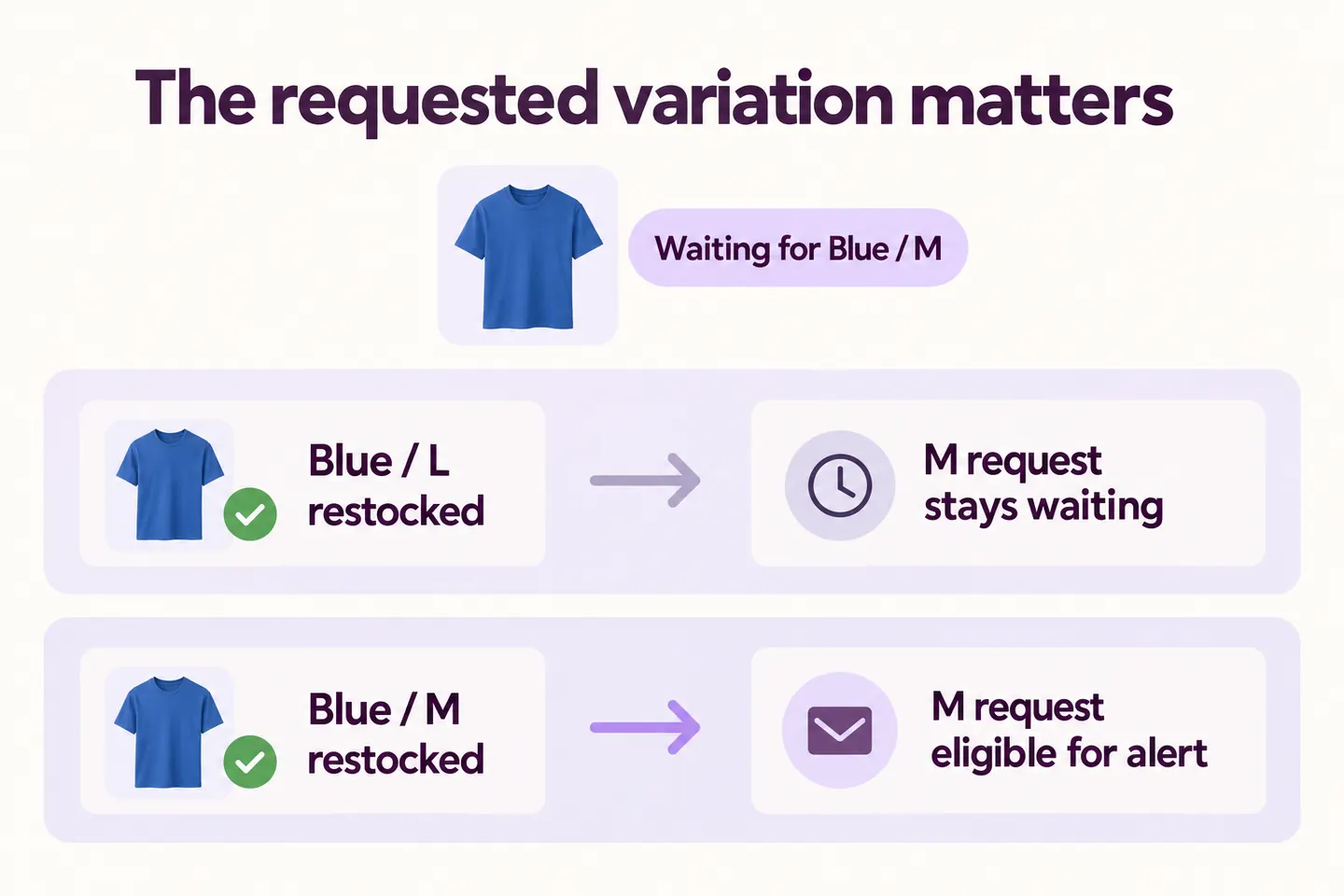
Use an isolated test store and controlled email addresses. Keep test messages away from actual subscribers. First request and confirm an alert for Blue / M. Replenish Blue / L while M remains unavailable: this must not trigger the M request. Then restore Blue / M to a purchasable, in-stock state and let the scheduled processing run.
- Check that the request records the intended product variation.
- Check the confirmation flow when confirmation is enabled.
- Verify that replenishing a different variation does not satisfy this request.
- Restore the requested variation and check background processing and the resulting message.
- Follow the message and confirm the customer can identify the requested choice and its current availability.
- Check cancellation before calling the workflow ready.
WooCommerce stock changes, scheduled processing and the email provider all matter. A mailer accepting a message does not prove inbox delivery. Verify receipt with the destination mailbox and check your email transport and scheduled actions if it fails. The illustrations are conceptual examples, not evidence of a delivered email.
When is this plugin useful?
Use the additional workflow when customers want an unavailable item but do not want to place a backorder. Free includes product and variation requests, guest subscriptions, confirmation, automatic availability emails and cancellation. You do not need to present Premium as a requirement for this example.
An alert does not reserve stock or guarantee a sale. If only one unit returns, availability can change before a customer visits. If you are also sending paid traffic to unavailable choices, review the guide to advertising out-of-stock products. For the information customers need around their selection, use the WooCommerce product-page checklist.
Common questions
Can I do this with native low-stock emails?
No. Those emails go to the store’s configured inventory recipients. They do not create a customer request for a variation.
Does a restock alert reserve the selected size?
No. It invites the customer to check current availability; it is not an order or reservation.
Do I need the paid edition for this example?
No. The basic product-and-variation request workflow described here belongs to HookSpark Free.
Start with one variable product and two sizes. Verify the unavailable selection, the available selection and the return to stock before enabling the workflow across your catalog.