

A visitor wants a price for five notebooks but is not ready to create an account or place an order. Give them a separate quote request path rather than sending them through registration just to ask a question about that quantity.
This tutorial follows HookSpark Request a Quote Free, public version 1.0.5. Guests can use its quote list without logging in. That edition has no “Allow guest requests” switch to enable: the steps below configure and test the existing guest workflow.
Guest checkout and guest quote requests are different
WooCommerce’s Accounts & Privacy settings control guest checkout and account creation for purchases. Enabling guest checkout does not configure this quote list. Source: WooCommerce Accounts and Privacy Settings documentation, consulted 28 October 2026.
If visitors only need to buy without an account, review WooCommerce’s native checkout setting. Use a quote extension when they need to send selected products and quantities for a proposal before deciding whether to purchase. In our isolated test, the Free request succeeded even while native guest checkout was disabled.
Configure the Free quote-list page
Install and activate the public HookSpark Free package with WooCommerce. Open WooCommerce → Quote requests — Free and review the preferences and merchant notification address.
You can use the built-in list page. For a named page, publish a WordPress page containing [hookspraq_list], then save that page’s ID in Quote list page ID (optional). Leaving the value at zero uses the built-in page. Verify the page is published and renders the list, not the literal shortcode.
You do not have to hide prices, remove Add to cart or prevent direct purchases just to accept guest requests. Those are separate catalogue and purchase policies. Keep them aligned with your store’s intended behaviour; use the guide to hiding WooCommerce prices if that is a separate requirement.
Add five notebooks to the quote list
Open the product in a private browser window while logged out. Select Request a quote. The confirmation offers Review quote list. Open it, set the notebook quantity to five and select its Update control. Confirm the row and quote-list count reflect the change.
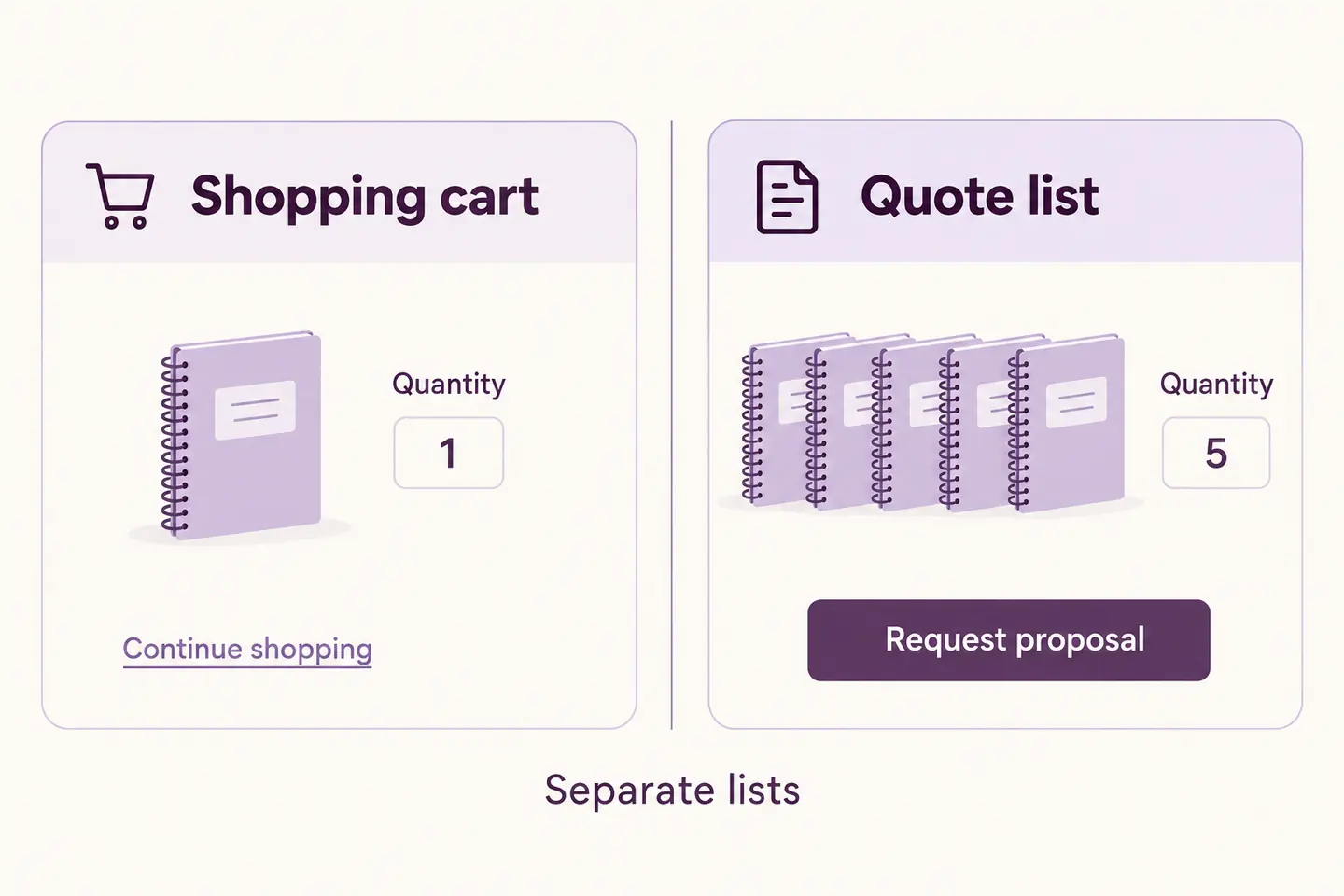
Work in the quote list, not the shopping cart. In the example, the normal cart can contain one notebook while the quote list contains five. Updating one list does not mean the other quantity changes.
For the initial button setup, follow the Request a Quote button tutorial. Here the focus is the anonymous customer’s list and submission.
Send the request without creating an account
The Free list shows Name, Email and Message fields, plus the required acknowledgment explaining that the store will use the details to respond. Publish your actual privacy policy and check its link. The message is optional; name, valid email and the acknowledgment are required. No account password is requested in this form.
Review the five notebooks, complete the contact fields and select Send quote request. The successful result displays a saved-request reference. The submitted lines leave the active list. This is a request for a proposal, not an automatically accepted price, an order or a payment.
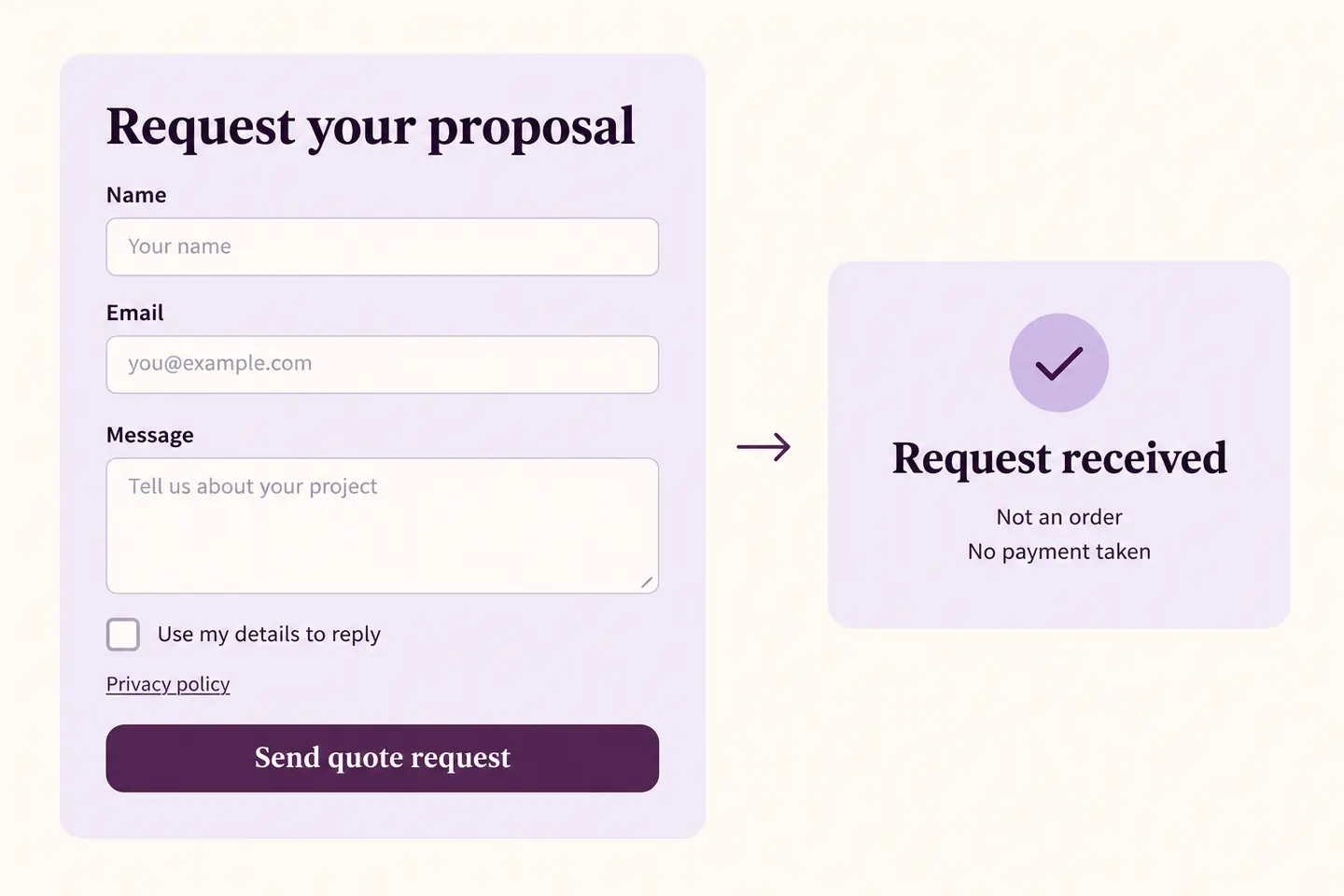
A visible saved reference and an email are separate things. Free uses the site’s email transport for notifications; check delivery with your configured service if the expected email is missing. Do not keep resubmitting blindly after an uncertain result: review the saved state and request queue first.
Check the merchant-side result
Open the Free request queue and verify the customer’s contact details, product and quantity five. The guest request does not need a newly created WordPress user. In our test, the request was stored as a guest, the number of accounts and WooCommerce orders stayed unchanged, and the existing shopping-cart item was preserved.
A later proposal, acceptance and order are separate stages. Do not describe the initial request as a completed purchase or promise an automatic account conversion.
Test the guest journey before launch
- Use a logged-out browser session and a test product supported by the Free edition.
- Add an item, update its quote quantity and reload the list.
- Try sending without the required acknowledgment. Confirm that validation preserves the chosen products.
- Send a valid request using a controlled email address and check the reference and merchant record.
- Open a separate browser profile: it should not reveal the first visitor’s private list or receipt.
- Confirm that the shopping cart, account count and order count have not changed because of the request.
The current list is tied to a private browser session. Do not assume it follows the email address across devices or automatically transfers into an account when someone signs in. Test the actual journey you intend to offer. This walkthrough covers guest submission, not an account-transfer flow.
Common questions
Where is the guest-request switch in Free 1.0.5?
There is no such switch in that public edition. Guest use is part of the supported Free workflow.
Must I enable WooCommerce guest checkout?
Not for this quote request. That setting controls a different purchase journey.
Does submitting create an account or take payment?
No. The tested guest request creates a request record without a WordPress account, WooCommerce order or payment.
Start with one product and a logged-out session. Verify the saved quantity, reference and merchant record before opening the workflow to customers.