

A customer can buy one mug from your store, but notebooks need a minimum purchase of six. How do you apply that requirement to the notebook without restricting every other product?
With HookSpark Min/Max Quantities, create an individual quantity rule, select the notebook and set Minimum pieces to 6. Leave Pack size empty if seven, eight and other quantities above six should also be allowed.
This walkthrough uses one simple product. We will configure its minimum, explain the difference between a minimum and a pack multiple, and test the boundary before using the rule in a live store.
What a minimum order quantity per product means
A product minimum sets the smallest permitted purchase quantity for that product when it is included in the cart. It does not require shoppers to buy that product in every order, and unrelated products do not help meet its minimum.
For example, five notebooks and one mug do not satisfy a six-notebook minimum. Six notebooks satisfy the rule; a cart containing only a mug is outside this notebook rule.
A minimum can make sense when preparing an order involves work that is similar whether you ship one unit or several. Choose a threshold based on your own fulfilment costs and buying patterns. Six is our example, not a recommendation for every store.
If your requirement is a minimum spend across the cart rather than six units of one product, use the guide to setting a minimum order amount in WooCommerce. It explains which amounts count toward the threshold.
Minimum quantity, pack size and order value are different rules
| Condition | What it controls | Example |
|---|---|---|
| Product minimum | Units of one selected product | 6, 7 and 8 notebooks are allowed. |
| Pack size | Permitted quantity multiples | With a pack size of 6, use 6, 12 or 18. |
| Order amount minimum | A monetary threshold using the configured amount basis | A dollar amount, rather than six notebooks. |
If customers must purchase complete packs, follow our WooCommerce packs-of-six tutorial. Here we deliberately allow quantities above six without forcing multiples.
1. Select the product and the counting scope
Start on a test copy of your store with WooCommerce and HookSpark Min/Max Quantities active. Use a published simple product named Notebook, with enough available stock to test at least seven units. Check that it is not sold individually and review any existing quantity rules.
- Open the plugin’s Min/Max rules screen and create a new rule.
- Give it a recognisable name, such as Notebook minimum six.
- For What does this rule count?, select One product or each variation.
- In Product (for an individual rule), search for and select Notebook.
- For What do you want to limit?, choose Number of pieces.
Keep the rule focused on this product. The combined-cart option answers a different question: how many pieces are in the cart altogether. It would not express our requirement of six notebooks.
2. Enter a minimum of six, without a pack restriction
| Field | Value | Purpose |
|---|---|---|
| Minimum pieces | 6 | Reject positive notebook quantities below six. |
| Maximum pieces | Leave empty | This rule adds no upper limit. |
| Pack size | Leave empty | Allow individual units above the minimum. |
| Starting quantity | 6 | Suggest six for a new purchase. |
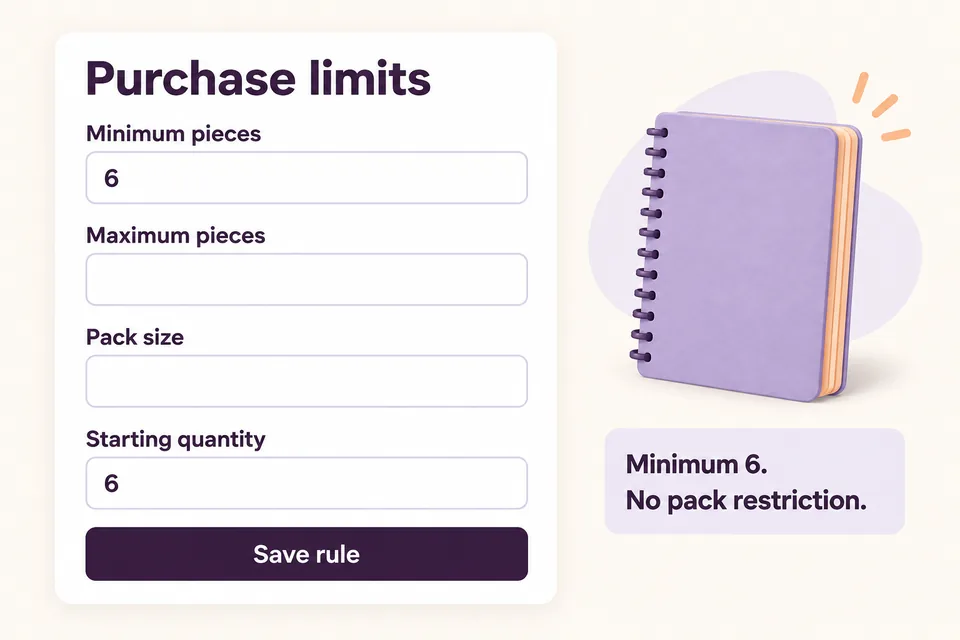
Starting quantity is a suggestion; Minimum pieces is the restriction. Setting the starting quantity to six on its own does not enforce a minimum purchase.
Leave unused optional fields empty. Zero is not a substitute for an empty limit. An empty maximum also does not bypass WooCommerce stock restrictions or other applicable rules.
For an upper bound instead, follow how to limit quantity per product. Keep the minimum, maximum and pack increment separate when deciding which quantities should be allowed.
3. Review, enable and save the rule
Read the rule preview and confirm that it describes the notebook individually with a minimum of six. Turn on Enable this rule, then choose Save rule. Reopen the saved rule and check the selected product and values.
A disabled rule stays editable but does not apply to purchases. If the result is unexpected, check its enabled state before changing the numbers.
4. Test below, at and above the minimum
Use the storefront as a customer. Check the product page, add-to-cart flow and cart quantity edits. These expected results assume enough stock, no other applicable limits and the individual rule configured above:
| Test | Expected quantity-rule result |
|---|---|
| 5 notebooks | Rejected: below the minimum. |
| 6 notebooks | Allowed: meets the minimum. |
| 7 notebooks | Allowed: no pack multiple is required. |
| 5 notebooks + 1 unrelated mug | The notebook quantity still fails. |
| Only the unrelated mug | This notebook rule does not apply. |
| Remove the notebook completely | The rule does not force the product to stay in the cart. |
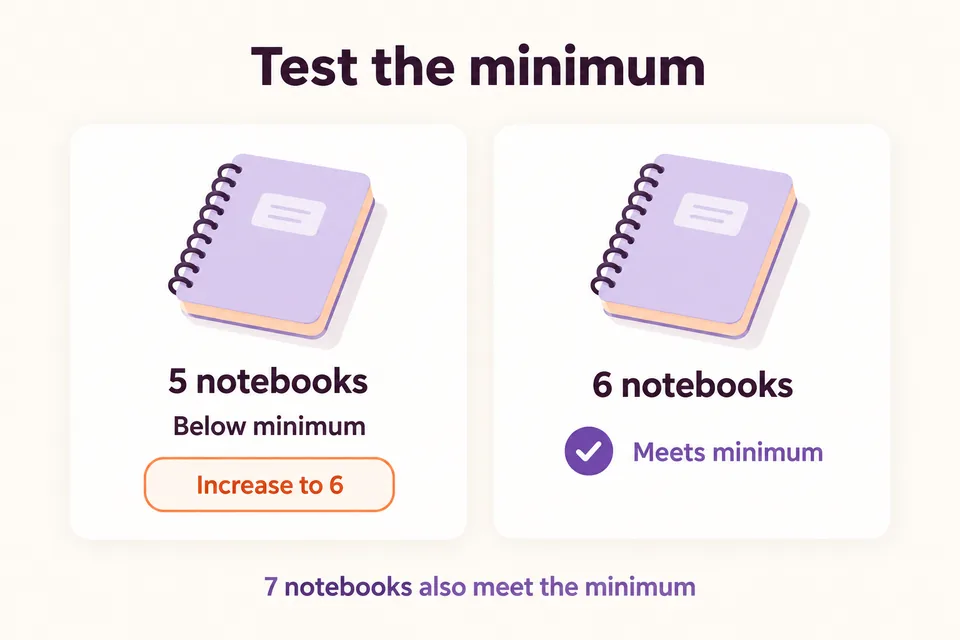
The quantity control may prevent entering a value below six in the normal product-page flow. Also check the cart and any other purchasing interfaces your store uses: changing the initial selector alone is not sufficient enforcement.
After testing a rejected edit, restore a valid quantity and confirm that the minimum-related error clears. Then try checkout with a test payment method. Passing this quantity rule does not guarantee checkout will succeed: stock, shipping, payment and other store requirements still apply.
Explain the minimum before customers have to correct it
Use plain wording such as “Minimum order: 6 notebooks” near the purchase controls. Review the plugin’s purchase feedback on your actual theme so shoppers can see which product needs attention and how to correct its quantity.
In Error-Message Guidelines (Nielsen Norman Group, Tim Neusesser and Evan Sunwall, May 14, 2023), the authors recommend placing errors near their source, explaining the problem and offering a remedy. Applied here, the message should name the notebook and the required quantity.
This is a usability principle, not evidence that a six-unit minimum will increase your conversion rate. Check whether the buying condition is clear and appropriate for your customers.
What to check if the minimum behaves differently
Stock is lower than the minimum
If only four notebooks are available and backorders are not allowed, a six-unit minimum creates a purchase customers cannot satisfy. Revisit stock availability or the buying condition before enabling the rule.
Seven units are rejected
Check whether Pack size has a value, and review other active rules. A minimum of six with an empty pack size does not itself reject seven. Overlapping quantity rules can impose additional restrictions.
Different variations need different quantities
Our example uses a simple product. Selecting a variable parent with the individual scope applies its rule separately to each variation; it does not combine different variations to meet one shared minimum. Use the appropriate variation or combined-selection rule for that scenario, and test it separately.
Does a minimum quantity create a bulk discount?
No. This rule controls which quantities can be purchased. It does not change the unit price. If you also want quantity-based pricing, read our WooCommerce bulk discount tutorial and test the pricing and quantity conditions together before launch.
Set a clear minimum for one product
Start with the notebook example, confirm the six-unit boundary and keep unrelated products outside the rule. Explore the free plugin and the illustrated editor guide.
Explore HookSpark Min/Max Quantities →
Read the quantity-rule guide →