

To charge extra for WooCommerce product options, attach a price to the optional field and make the cost clear before the customer adds the product. With HookSpark Product Options & Add-Ons, a checkbox can add a fixed amount to each selected product unit. This tutorial uses the inline form and a fixed checkbox price, available in the Free edition.
Our example is a canvas backpack priced at US$40. The shopper can add Premium lining for US$8 per backpack. One selected backpack costs US$48; two cost US$96. These examples exclude taxes, shipping and coupons. Use your store’s currency when entering prices.
Choose the right kind of extra charge
This is a per-item product option. It is useful when every backpack needs its own lining and incurs its own cost. The extra is not a single fee for the whole order. For two selected backpacks, the lining costs US$16, not US$8.
If different choices need their own stock or SKU, first consider WooCommerce variations. A paid checkbox collects an option and changes the product price; it does not create separately managed inventory for the lining.
1. Create an optional checkbox for the backpack
- Set the backpack’s normal product price to 40. Start with one product so you can check the result clearly.
- Open the Product Options administration screen and create a group. Target that backpack in the group’s product settings.
- Add a Checkbox field. Use the label Premium lining (+US$8 per backpack), or an equivalent label in your store’s currency.
- Leave Required off: shoppers must be able to buy the standard backpack without the extra.
Keep this first group simple. You do not need conditional rules to offer one independent checkbox. Our product targeting documentation explains how to control where the group appears.
2. Set the extra price per item to 8
In the checkbox’s pricing settings, enter 8 in Extra price per item. Enable the group and save the configuration. Typing “+8” in the label alone does not configure a price: the amount belongs in the price setting as well.
Open the product as a shopper. With the checkbox off, the product should retain its standard price. Select Premium lining and check that the configured product total becomes US$48. The illustrations below show the intended calculation; their English labels are examples, not screenshots of the administration screen.
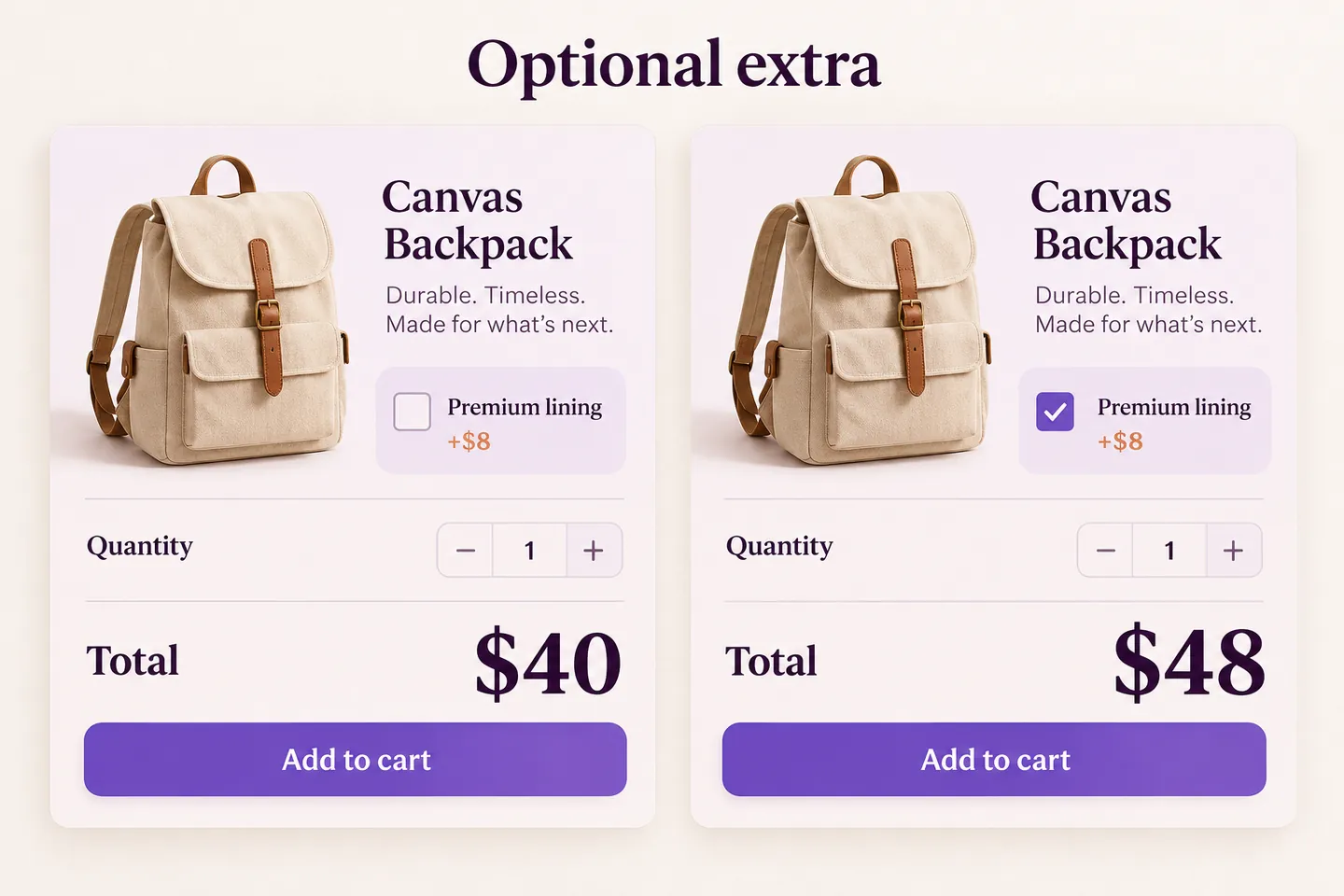
3. Check the cart with one and two units
Add the configured backpack to the cart and review the selected option and price. Change the quantity to two. The US$8 extra applies to each unit: (40 + 8) × 2 = US$96.
| Premium lining | Quantity | Price per unit | Line total |
|---|---|---|---|
| Not selected | 1 | US$40 | US$40 |
| Selected | 1 | US$48 | US$48 |
| Not selected | 2 | US$40 | US$80 |
| Selected | 2 | US$48 | US$96 |
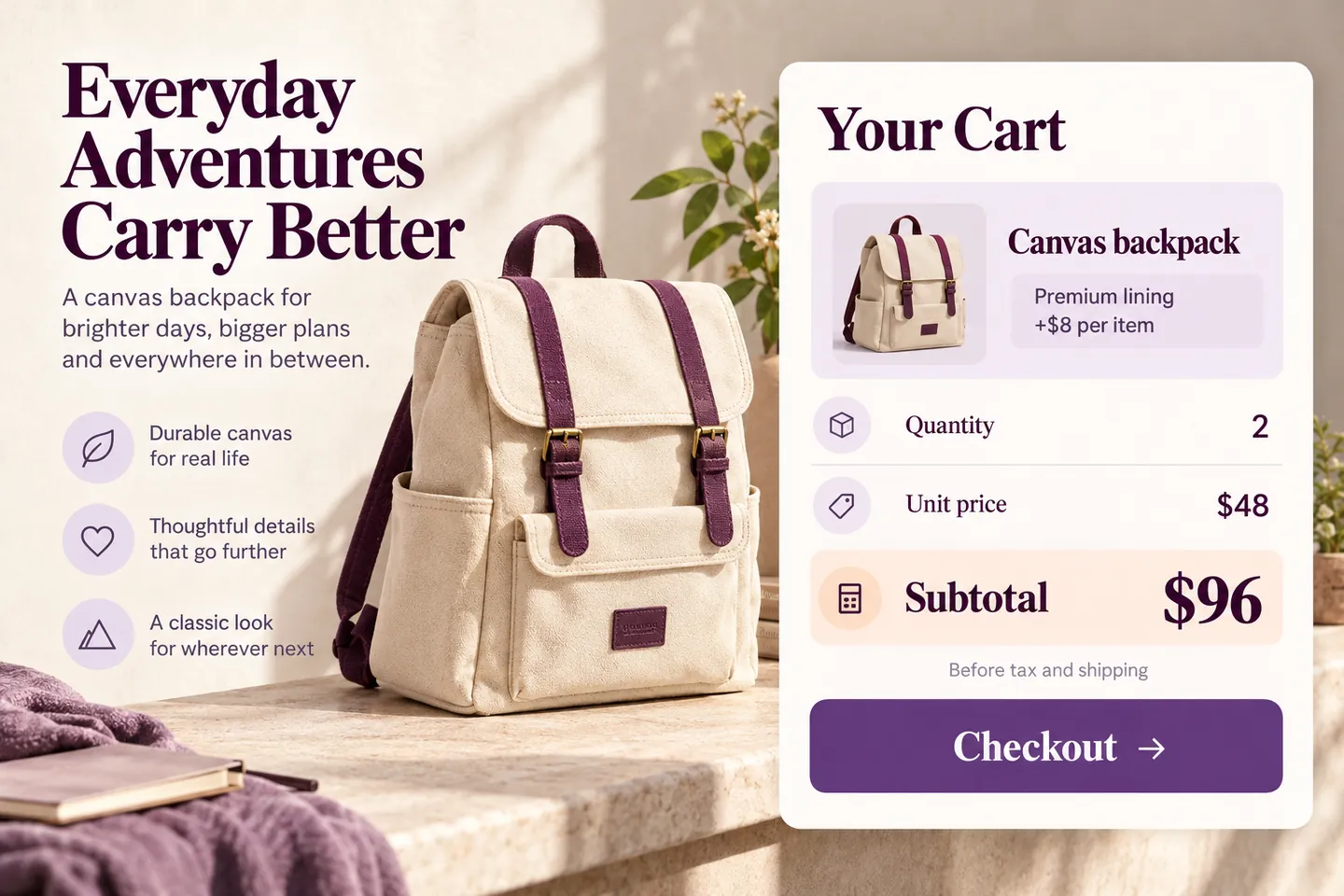
A total of US$88 for the two selected backpacks would describe a different rule: adding US$8 once to US$80. It is not the per-item setup in this guide. The option pricing documentation explains the setting used here.
Test the full purchase information
- Buy the standard product without selecting the option. No lining charge should appear.
- Select the option and test quantities one and two against the table.
- Refresh the cart and recalculate it. The extra must not be added a second time.
- Place a test order and check that the selected option is recorded with the order item, so you know which backpack to prepare.
- Test your own tax settings, coupons, shipping, theme and checkout before publishing. Their effects are outside the simple product totals shown above.
If the result differs, check for another price-changing rule and confirm that the group targets the intended product. Work on a test store rather than guessing at a live cart. Use our Product Options testing checklist to review the result.
Extend the example only when the store needs it
For a service that collects customer text, see our guide to adding an engraving field. To show a follow-up field only after another choice, use the conditional product options tutorial. Those are different tasks from setting the per-item extra price covered here.
Questions about paid WooCommerce product add-ons
Can a paid option remain optional?
Yes. Leave the checkbox optional. An unselected checkbox adds no extra in this example; selecting it adds US$8 per unit.
Does this example require Premium?
No. The inline checkbox and fixed extra price used here are available in the Free edition. Review the product comparison for other field types or presentation features.
Is the extra charged once per order?
No. This configuration charges per item. Two selected backpacks incur two US$8 extras. Do not use this example to promise an order-wide service fee.
Can I use this for a separate accessory with stock?
Check whether the accessory should be its own product or variation. This checkbox does not manage a separate accessory’s stock.
Start with one optional extra and verify the four totals above before expanding the form. Explore HookSpark Product Options & Add-Ons for the current edition and setup guides.