

A customer finds the right mug for a birthday present. Before buying, they want to know whether it can arrive wrapped, what that costs and whether they can include a message.
A clear WooCommerce gift wrap option answers those questions on the product page. In this example, we’ll use HookSpark Product Options & Add-Ons to offer optional wrapping for $4 per mug, with a message field that appears only when wrapping is selected.
Why gift options belong near the product
Baymard Institute’s gifting research reports that 80% of the sites in its benchmark did not show gifting options on the product page. Its usability testing found that shoppers wanted to understand gift availability and cost while choosing the product, before committing to the cart.
Source: Edward Scott, Baymard Institute, Ecommerce Gifting UX: 4 Ways to Provide a Superior Gifting UI and Flow, published December 15, 2020; updated November 20, 2025. The percentage describes Baymard’s benchmark, not all online stores or a measured result from HookSpark.
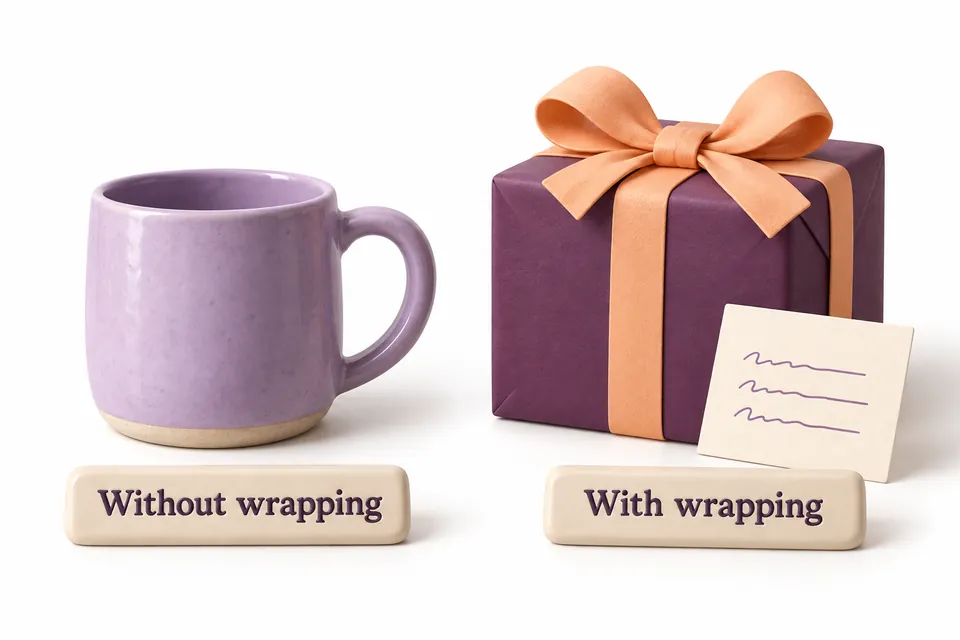
For our mug, that means explaining the wrapping and its price beside the choice. A short description such as “Gift box and ribbon, $4 per mug” tells the shopper what the extra includes. Show a real photo of your packaging in your store if appearance matters to the purchase.
The gift wrap offer we’ll build
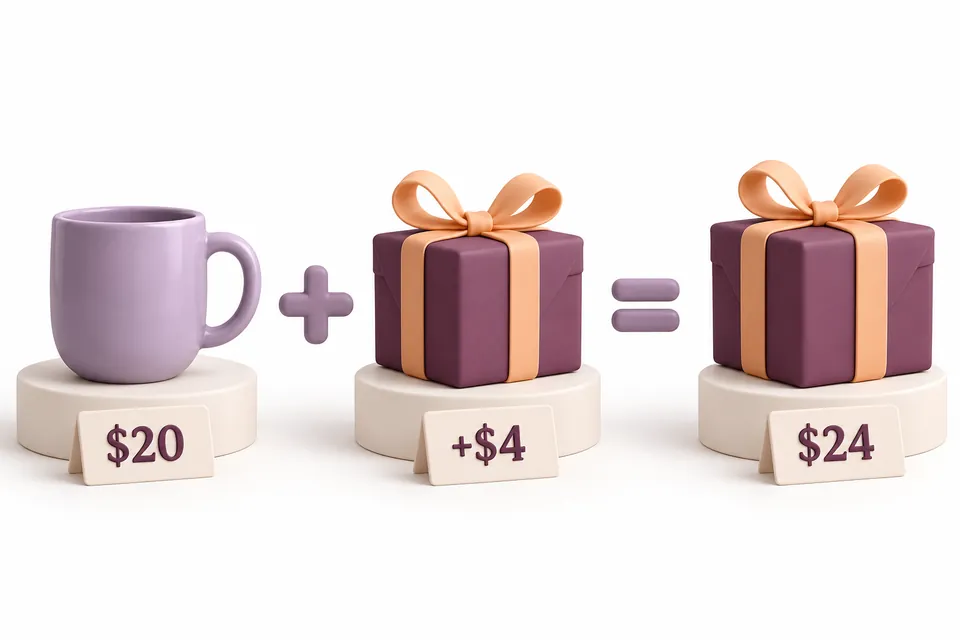
Our example uses a simple mug priced at $20. Wrapping is optional and adds $4 for each unit purchased. A short gift message is included at no extra charge. We’ll require that message only after the customer chooses wrapping, so the packing team receives the wording with the order.
These are example prices in a USD store. Use your own currency and packaging costs. The arithmetic uses the same tax basis as the catalog product; WooCommerce’s tax and discount settings determine the final checkout amount.
1. Create a group for the mug
In a test store with WooCommerce and HookSpark Product Options active, open HookSpark → Product Options & Add-Ons. Create an option group with an internal name such as Mug gift wrapping. Keep it disabled while you configure it.
Choose your mug in the product targeting controls. Explicit targeting matters: without catalog inclusion restrictions, a group is not limited to one product. Check that another unrelated product will not receive the wrapping choice.
This example uses the checkbox, fixed extra price and simple conditional text field documented for Free. You can keep them inline on the product page. A modal, guided steps and richer visual choices belong to Pro; they are not needed for this offer. Check the current Free and Pro features for your installed release.
2. Add an optional wrapping checkbox
Select Add field and choose Checkbox. Name it Gift wrapping and add help text that describes the packaging and charging basis: Gift box and ribbon, $4 per mug.
Keep the field optional so customers can buy the mug without wrapping. In its pricing controls, use a fixed extra of 4 per item. Do not use a once-per-line price if you wrap and charge for every mug separately.
One wrapped mug then costs $24 in the catalog tax basis. Two wrapped mugs cost $48 before applicable discounts, with $8 of wrapping included. The option charge is part of the configured product price; it is not a separate stock-managed packaging product.
3. Show the gift message when it is relevant
Add a Text field named Gift message. Give it a maximum length that fits your card, for example 120 characters, and leave its extra price at zero. Help text might say: Write the message we should print on the enclosed card.
Set a simple visibility condition: show the message when Gift wrapping is checked. For this particular offer, mark the message required. If you also accept blank cards, keep it optional instead.
When wrapping is not selected, the message field should be hidden and its required check should not block the purchase. Hidden values are cleared: if a shopper turns wrapping off and then on again, they should review and re-enter the message.
4. Preview, save and enable the group
Select the mug in the draft preview. Check wrapping on and off, confirm the extra price and try the message field. The preview helps inspect your draft; it does not save storefront changes.
Use Save changes, enable the group and save again. Then open the real product page as a shopper. Recheck both the offer and its price on a phone-sized screen: the wrapping explanation should remain readable without relying on the illustration.
5. Test the full purchase details
| Selection | Expected result |
|---|---|
| One mug, wrapping off | $20; hidden message does not prevent purchase. |
| One mug, wrapping on, message empty | Purchase rejected because the visible message is required. |
| One mug, wrapping on, valid message | $24; wrapping and message accompany the configured item. |
| Two mugs, wrapping on, valid message | $48; wrapping costs $8. This configuration uses the same message for both units. |
| Wrapping switched off after typing | Extra removed and hidden message cleared. |
| A product outside the target group | No wrapping fields from this group. |
Add an unwrapped mug and a wrapped mug separately and inspect their configurations in the cart. Check quantity changes, checkout totals and the order details your packing team will use. Complete a test order with a test payment method; do not assume that a successful preview proves the purchase flow.
If two recipients need different messages, configure and add their mugs separately. Increasing the quantity of one configured line does not create a different message for each unit.
Keep the wrapping promise specific
Gift wrapping does not automatically change the shipping address, suppress prices on a receipt or promise delivery before a birthday. Explain which of those services your store actually provides. The checkbox captures the option and its price; your fulfilment process still has to wrap the correct items.
Before making the offer live, decide who prints the message, which packaging is used and where staff find the choice in the order. Those practical details make the option deliverable.
For the complete editor walkthrough, use the first option group guide. The extra pricing guide explains the tax basis and per-item versus once-per-line charges.
Give customers a clear gift wrapping choice.
Build the wrapping option, show the price and keep the gift message with the product.
Explore Product Options & Add-Ons →